How to set role permissions
This guide walks through opening Team Capabilities, choosing a role, selecting a capability module, and enabling or disabling permissions for that role.
It assumes CoreXBiz is installed and you can open the Team Application.
Related overview: Team Capabilities
Video walkthrough
Before you begin
- Confirm you can open Team Application → Team Capabilities.
- Confirm your account can change capabilities for roles.
- Know which role and product area you intend to adjust.
Typical workflow
Click any screenshot to view it full size.
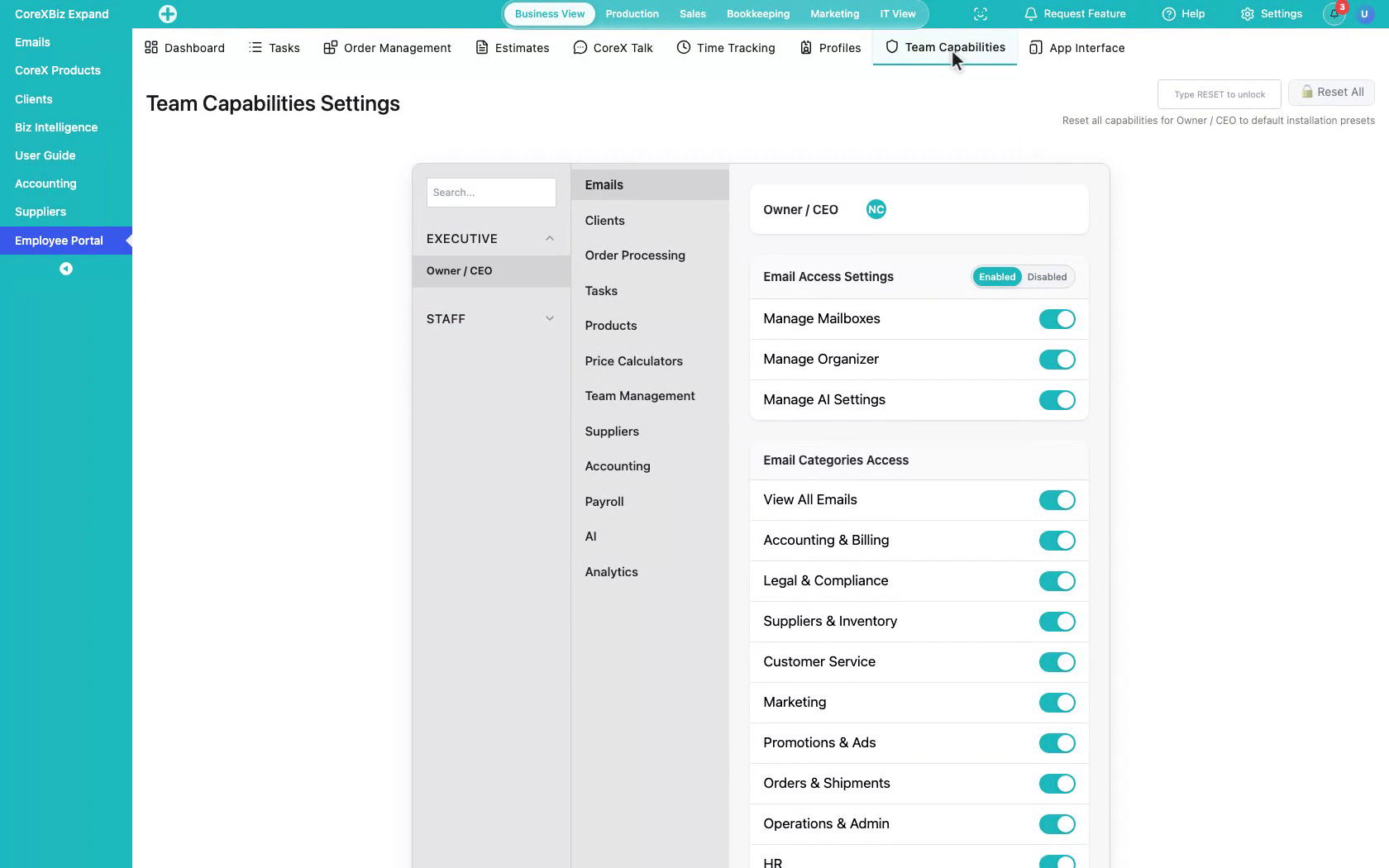
1. Open Team Capabilities
From the Team Application, open Team Capabilities.
 Click to enlarge
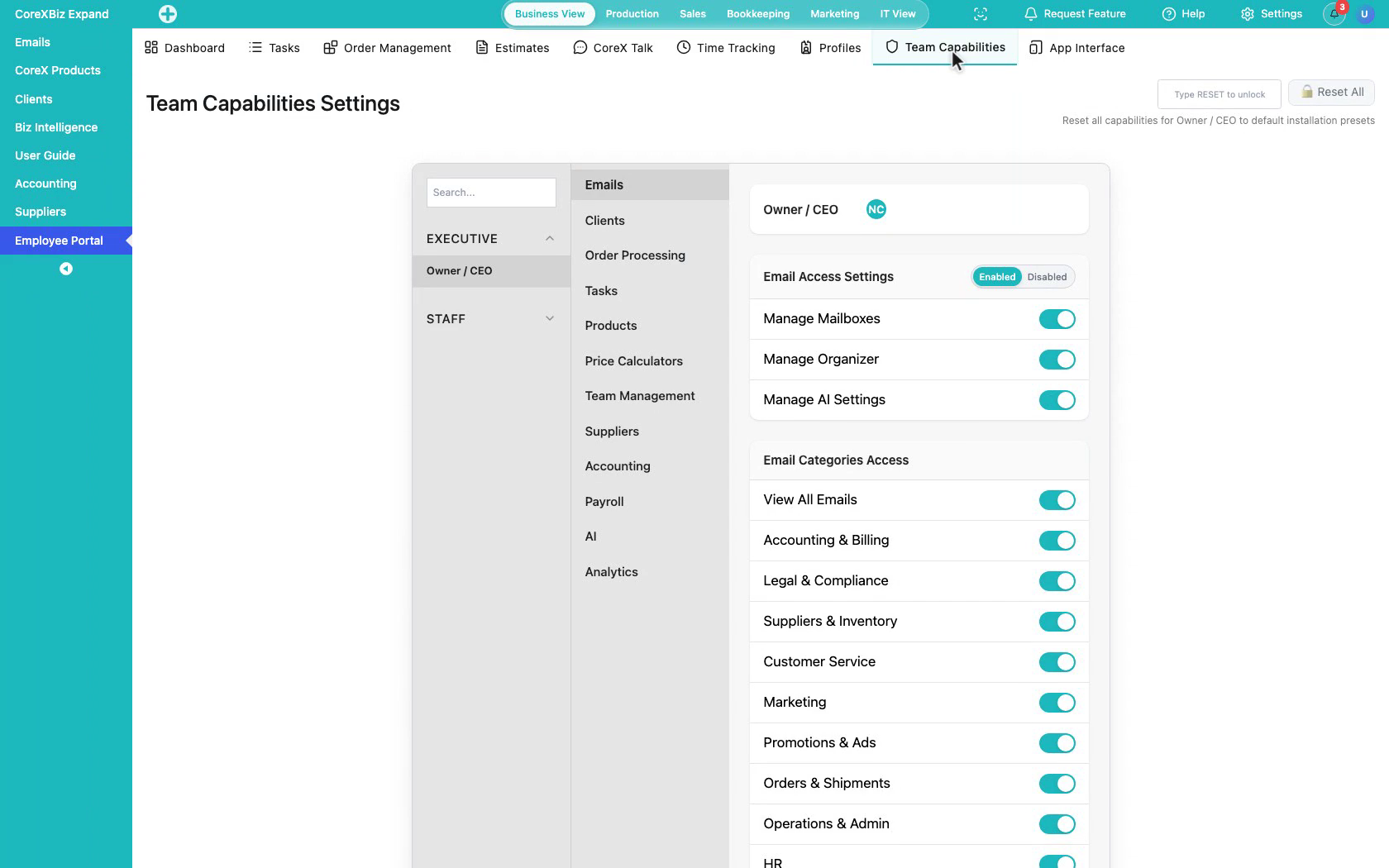
2. Understand the layout
Team Capabilities Settings controls what each role can do across CoreXBiz — roles on the left, capability modules in the middle, and detailed permissions on the right.
 Click to enlarge
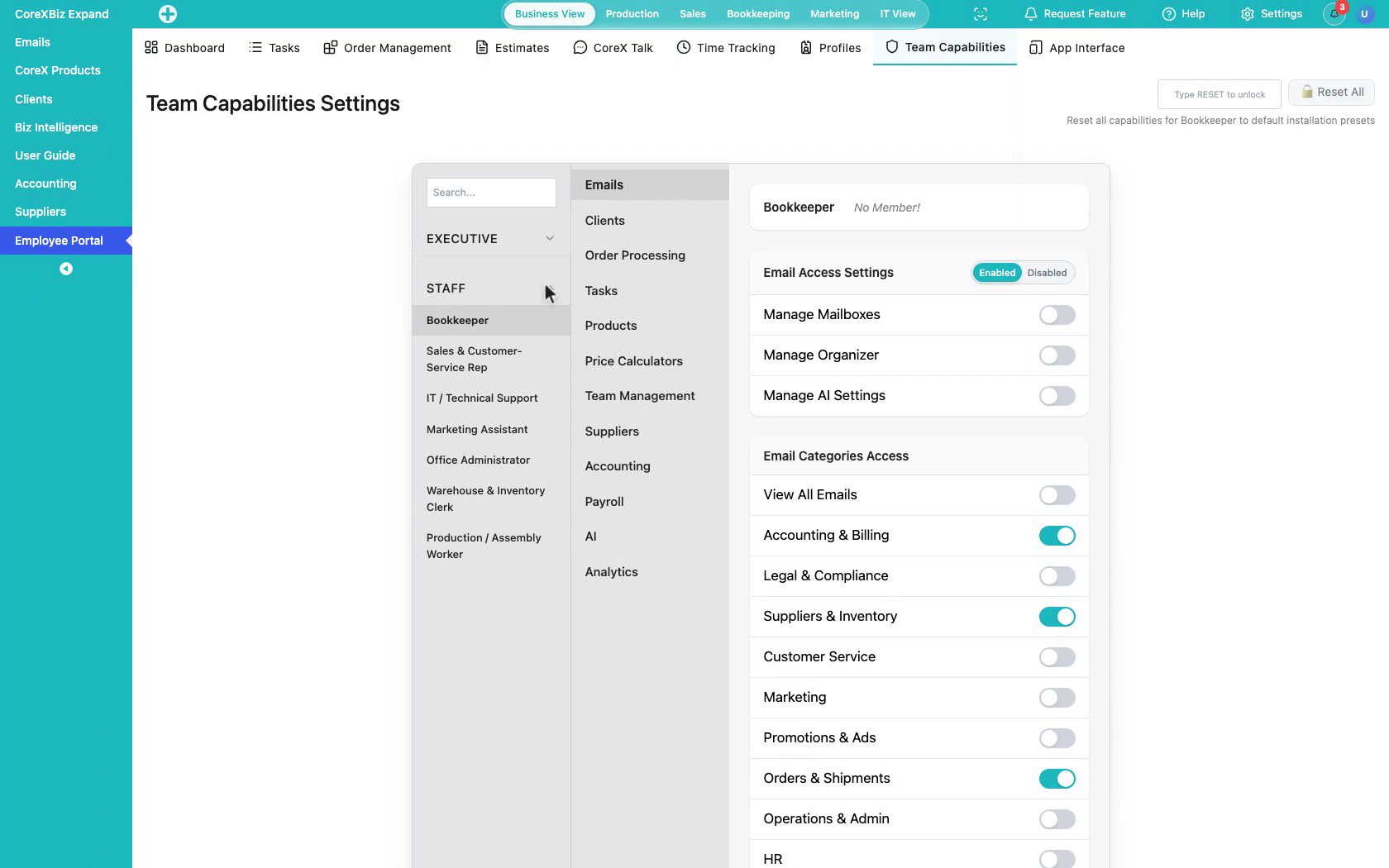
3. Choose a role
Start by choosing a role. Open a staff role to see how permissions are tailored for day-to-day work.
 Click to enlarge
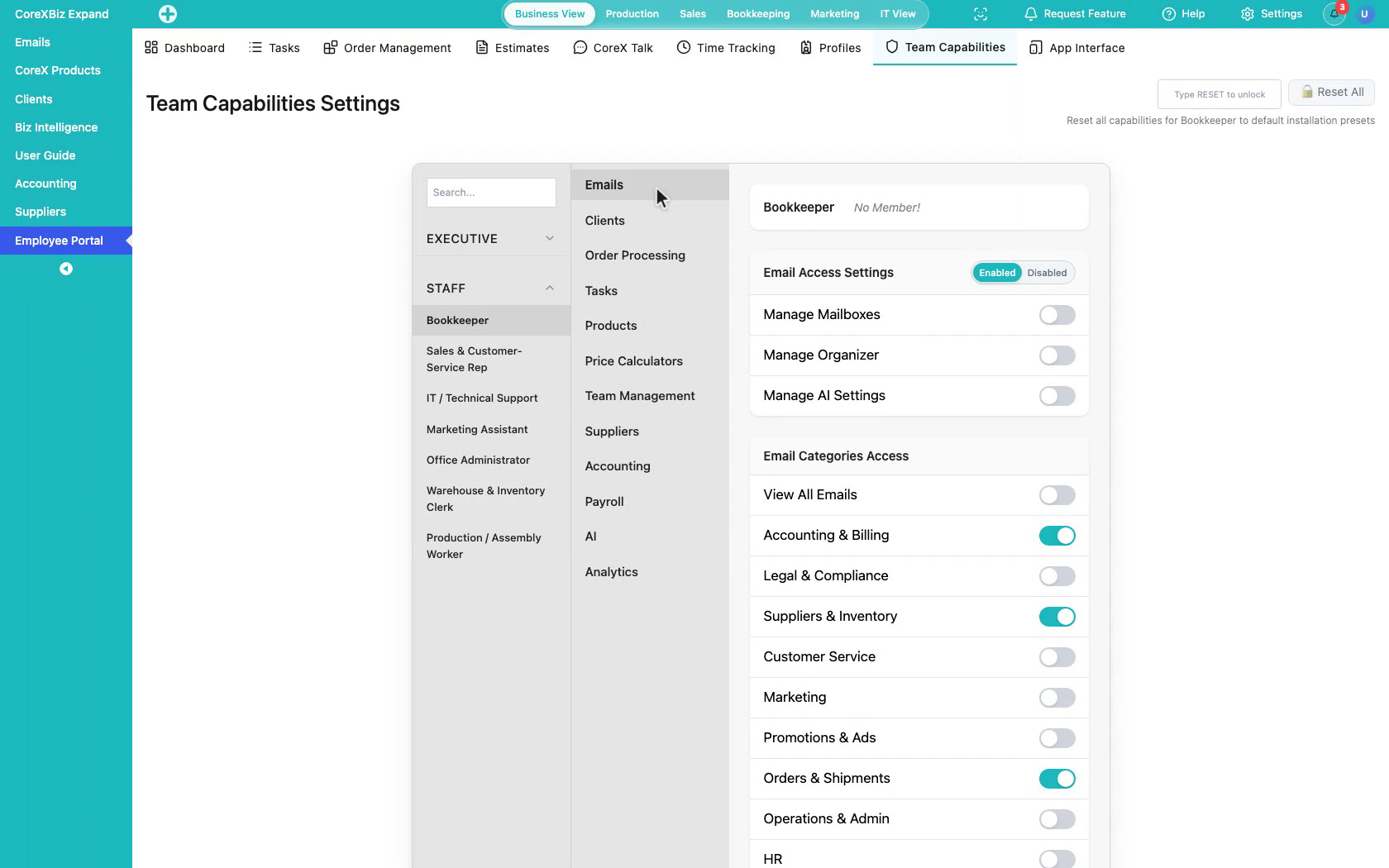
4. Browse capability modules
Stay in this panel — these modules are areas of the product, like Emails, Clients, Orders, and Team Management.
 Click to enlarge
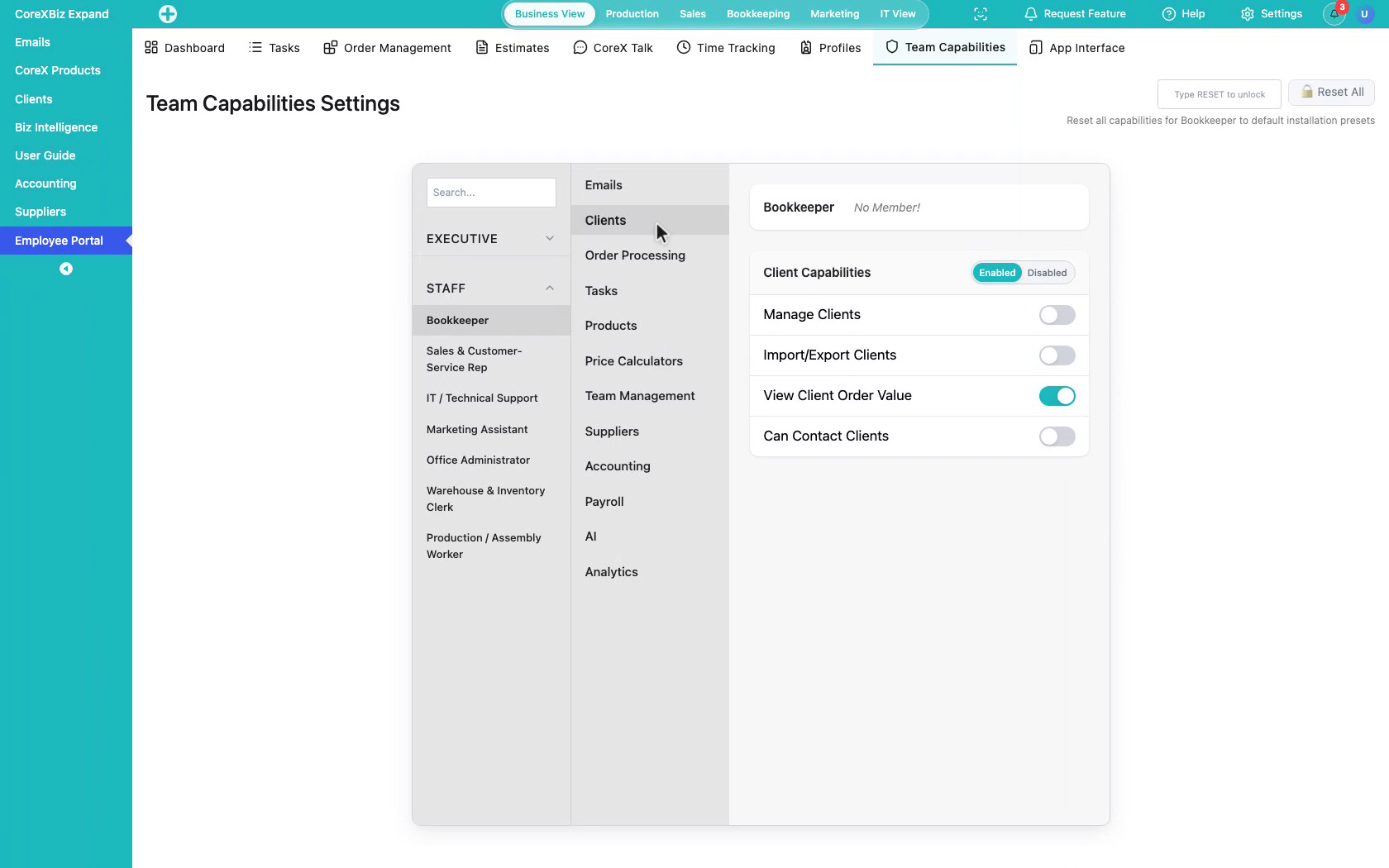
5. Select a module
Still inside Capabilities, select the Clients module to review that role’s access — without leaving this screen.
 Click to enlarge
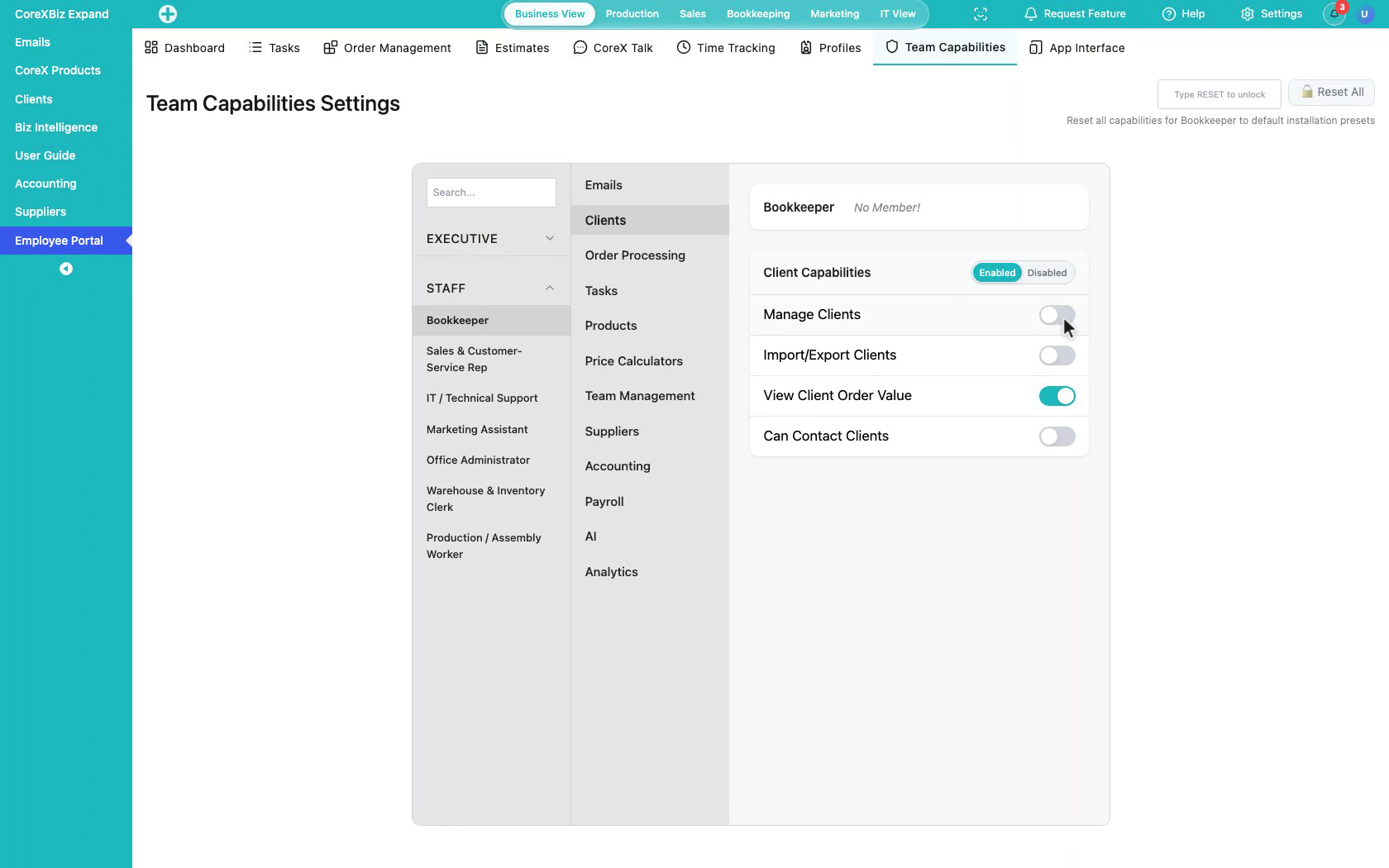
6. Set permissions
On the right, enable or disable the specific capabilities this role needs. Changes apply to everyone with that role.
 Click to enlarge
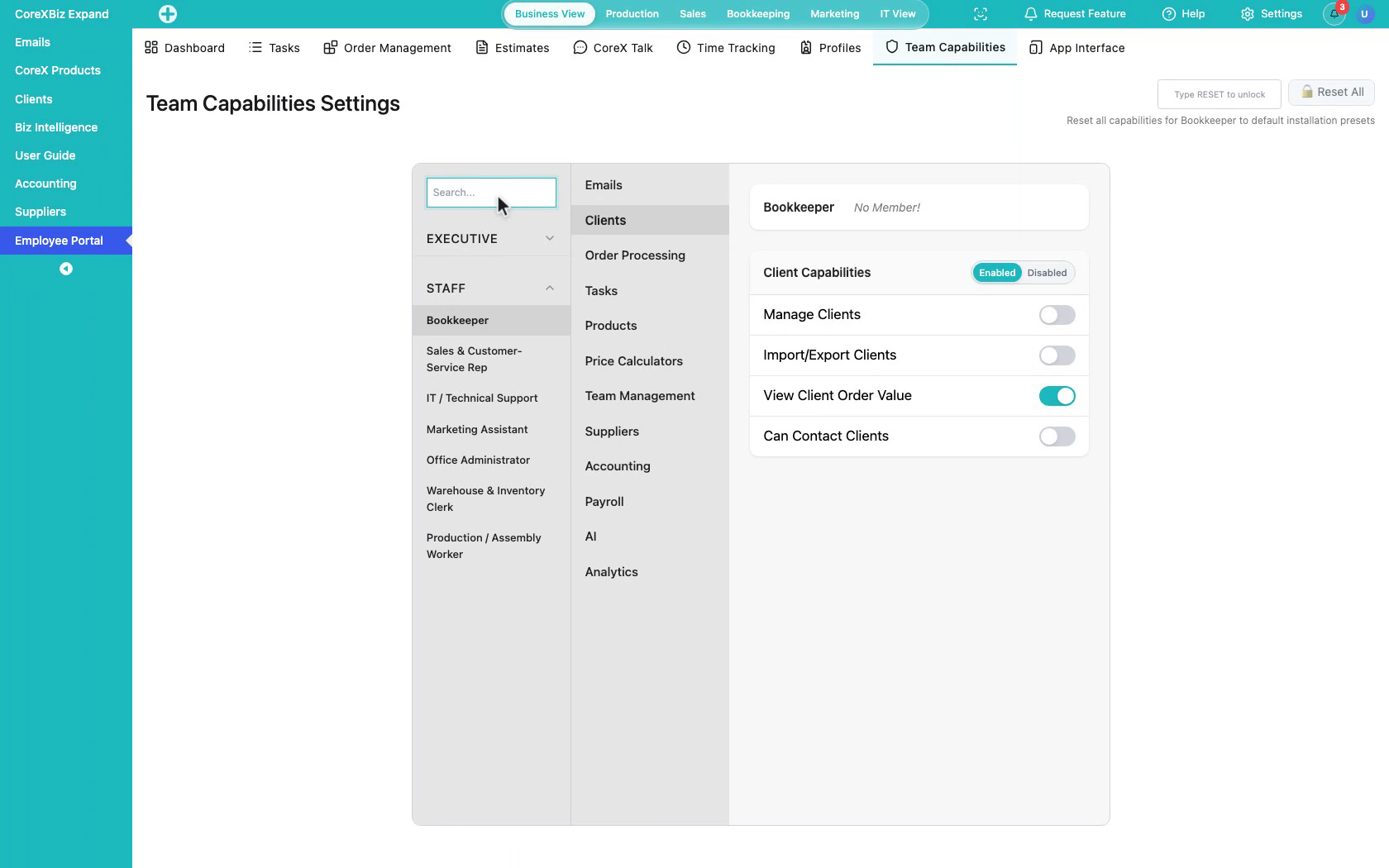
7. Search roles
Use search when your role list grows, to find a role quickly.
 Click to enlarge
Notes
- Capability changes can affect access across the Application immediately for users with that role.
- Prefer the smallest set of permissions that still supports the role’s work.
- For who holds a role, see Profiles and How to add and edit a team member.