How to add and edit a team member
This guide walks through adding a team member in the Profiles Tab, then opening a profile to review and update details.
It assumes CoreXBiz is installed and you can open the Team Application.
Related overview: Profiles
Video walkthrough
Before you begin
- Confirm you can open Team Application → Profiles.
- Confirm your account can add or edit team members (capabilities and seats may apply).
- Have the new member’s name, username, email, role, and password ready.
Typical workflow
Click any screenshot to view it full size.
1. Open Profiles
From the Team Application, go to Profiles.
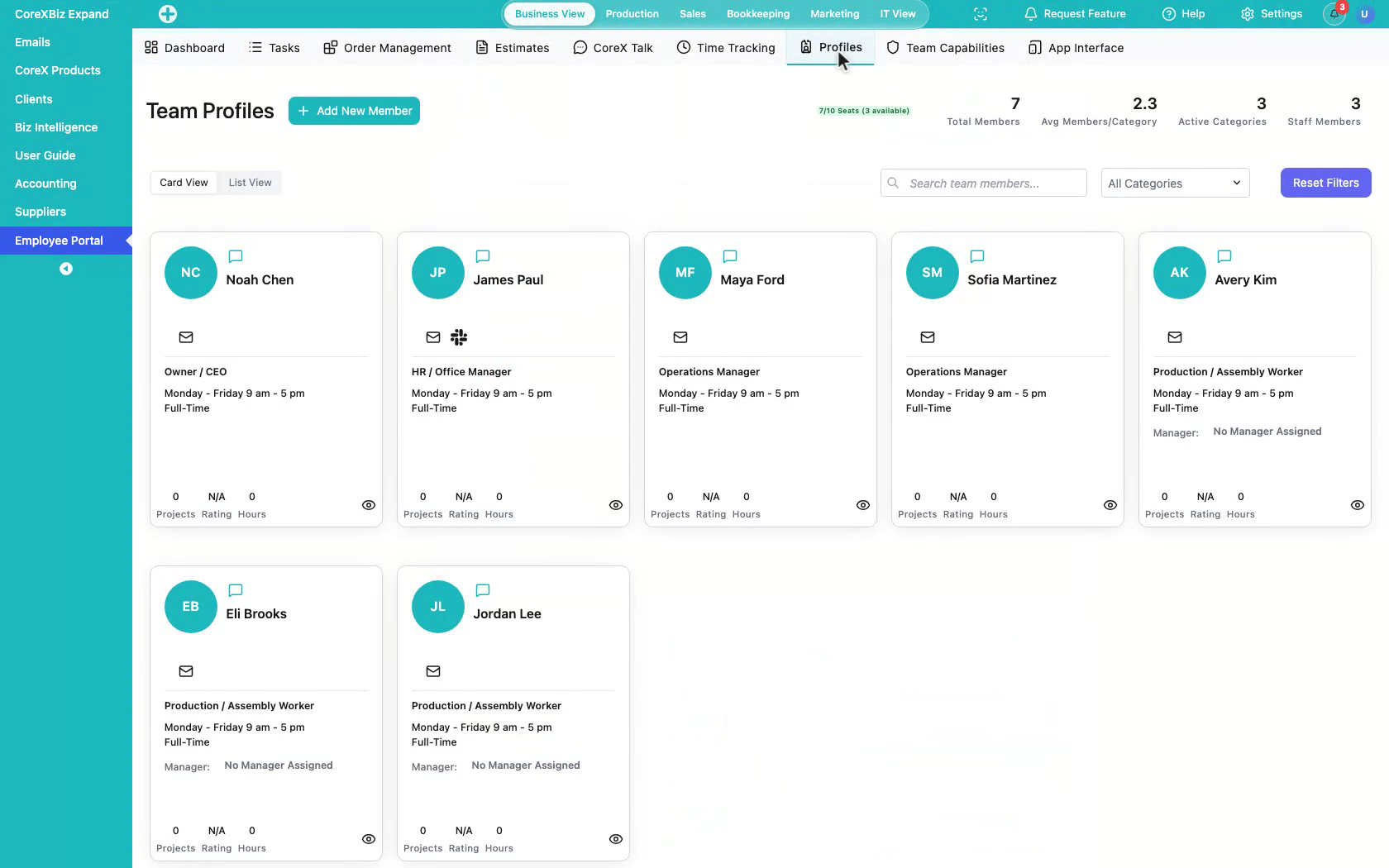 Click to enlarge
2. Review the directory
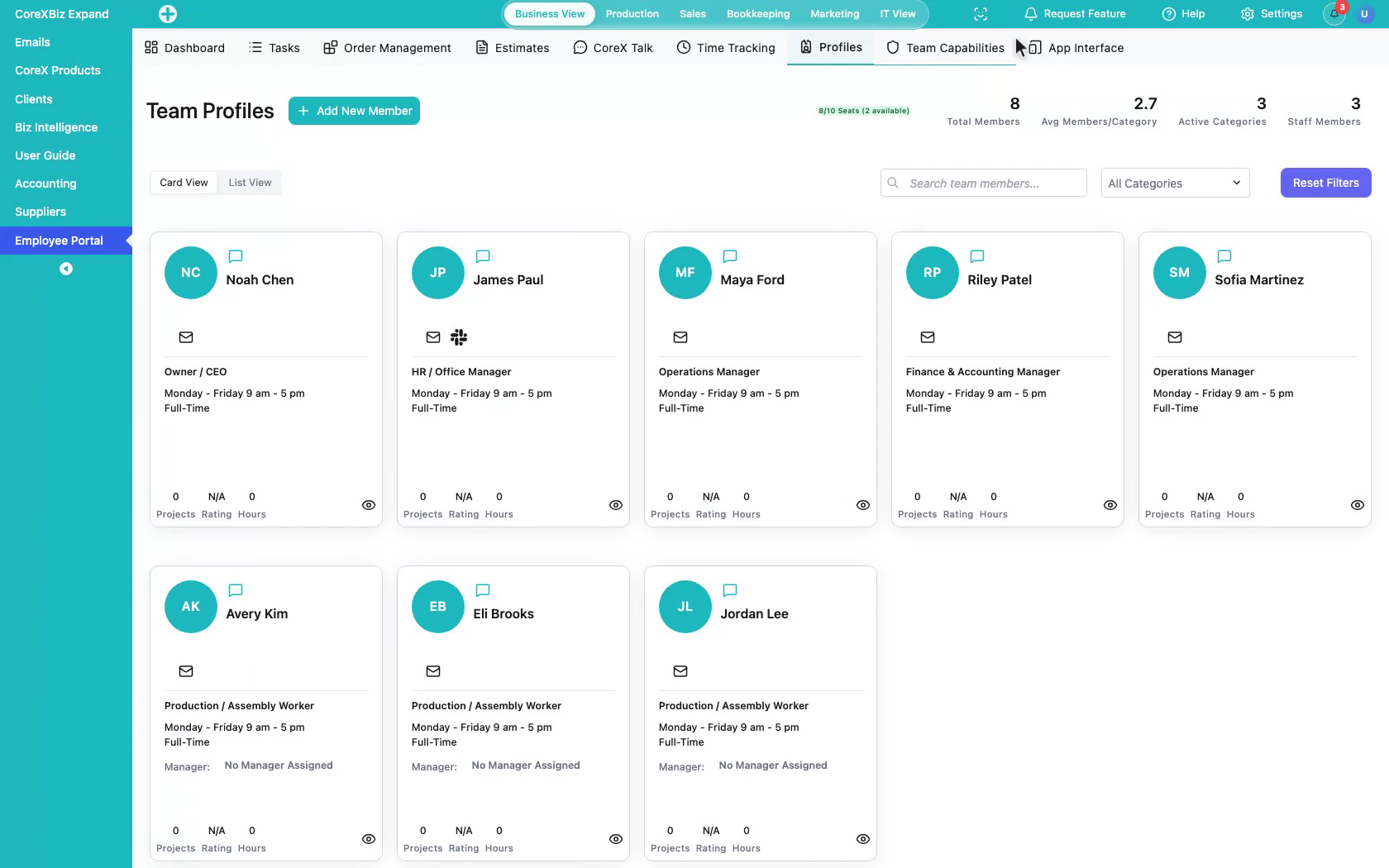
Profiles is your team directory — seat count, member cards, and the people you assign work to.
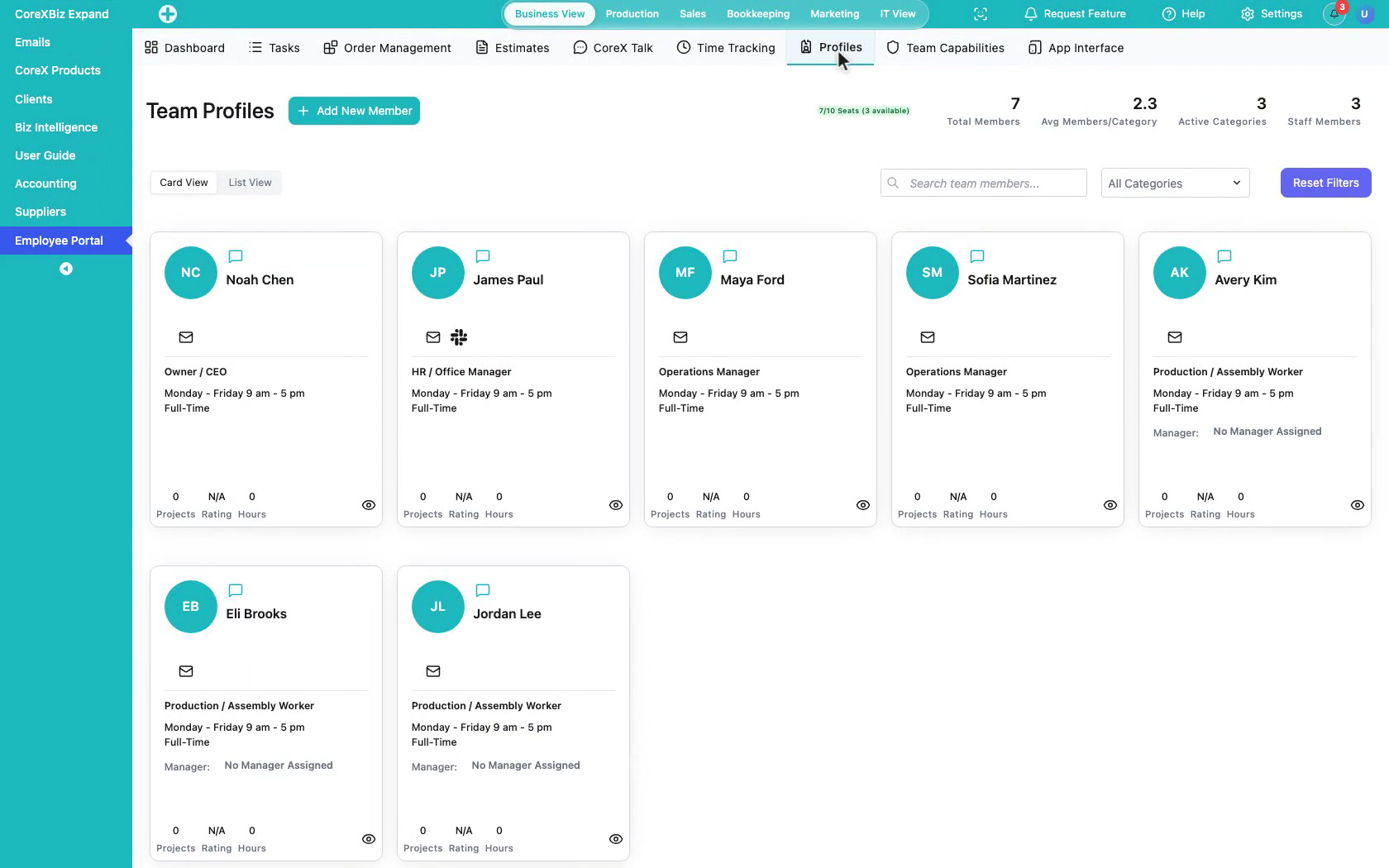 Click to enlarge
3. Add a new member
Click Add New Member to bring someone on.
 Click to enlarge
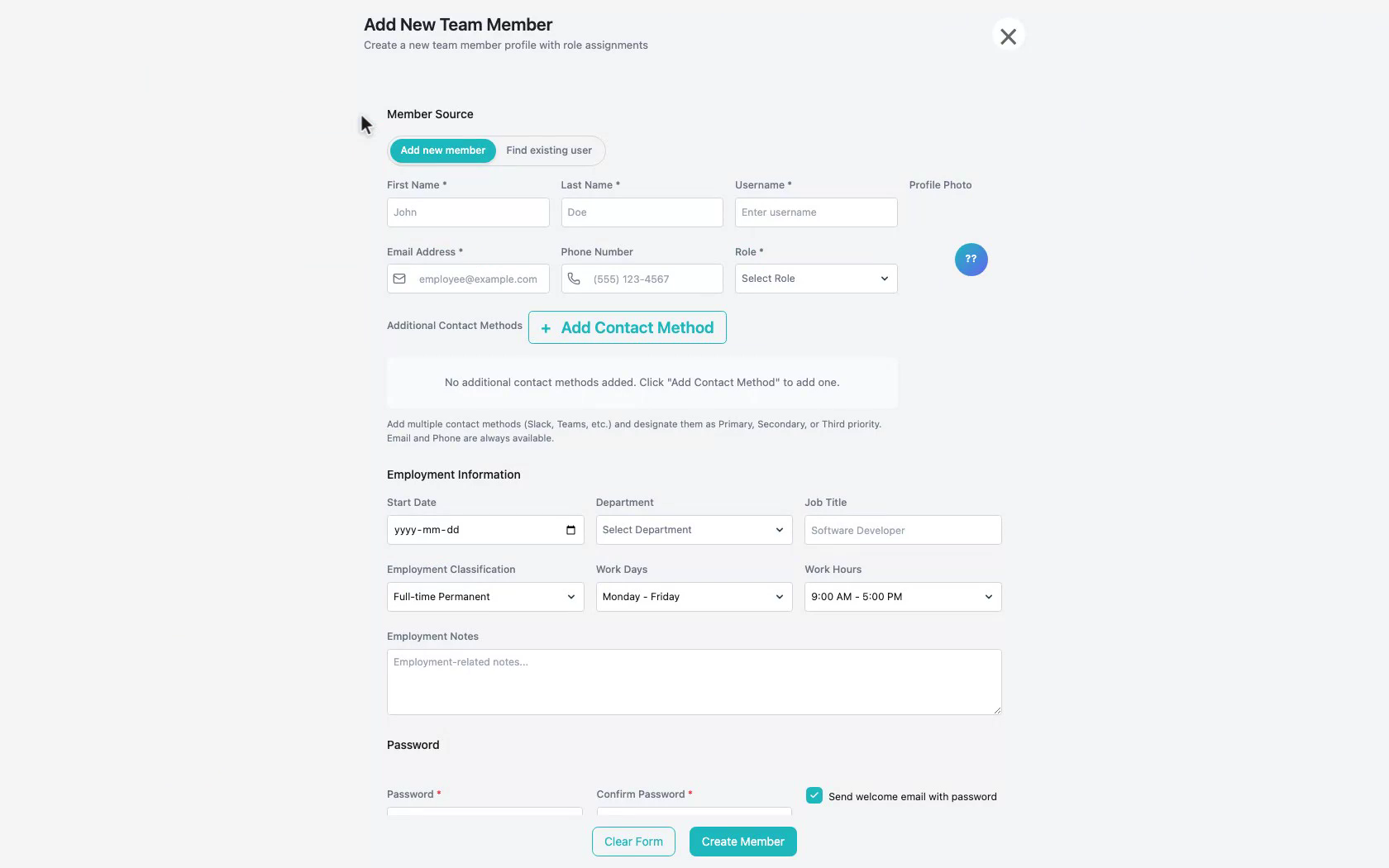
4. Fill the profile form
The add member form opens. Enter name, username, email, role, department, job title, and password.
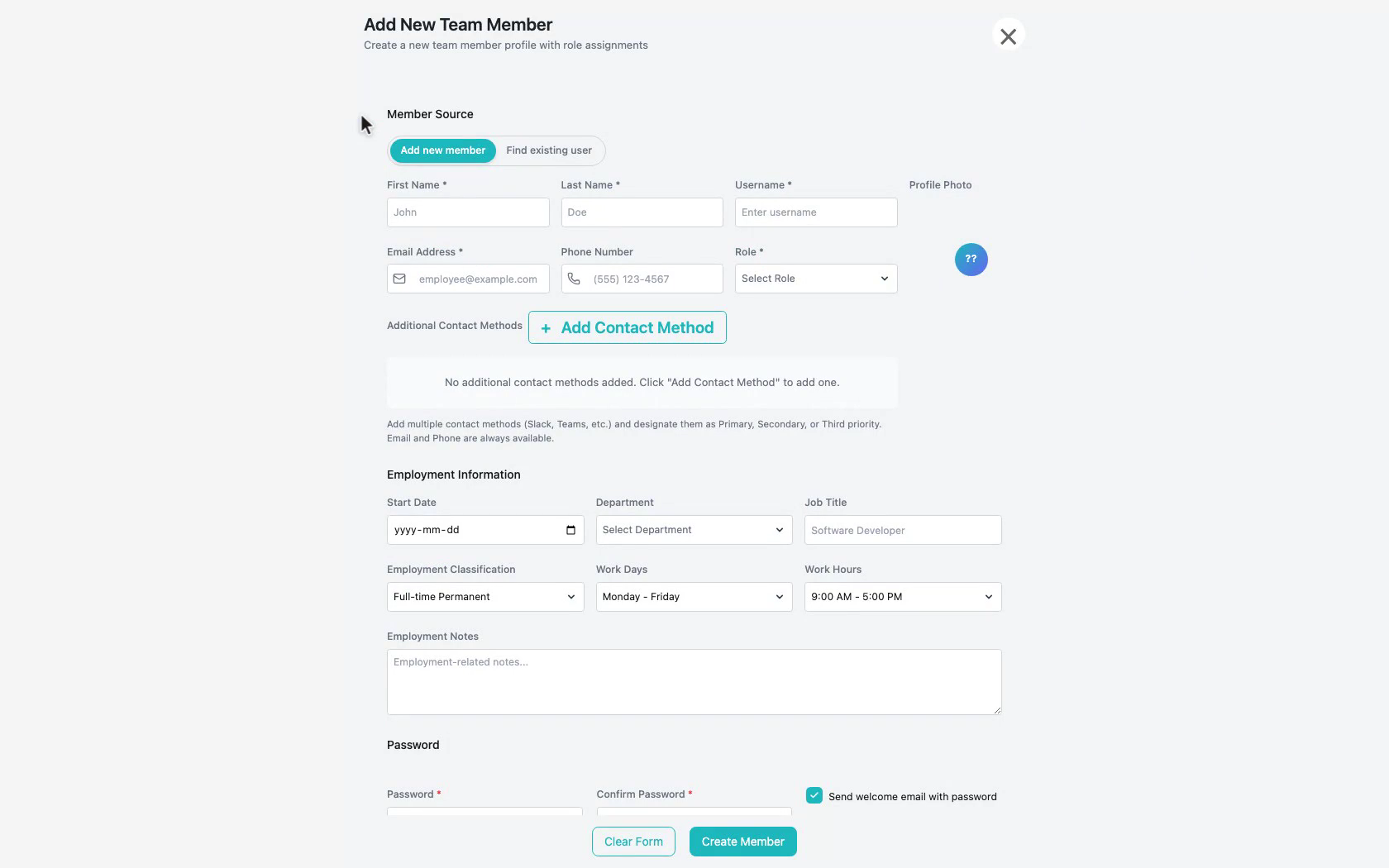 Click to enlarge
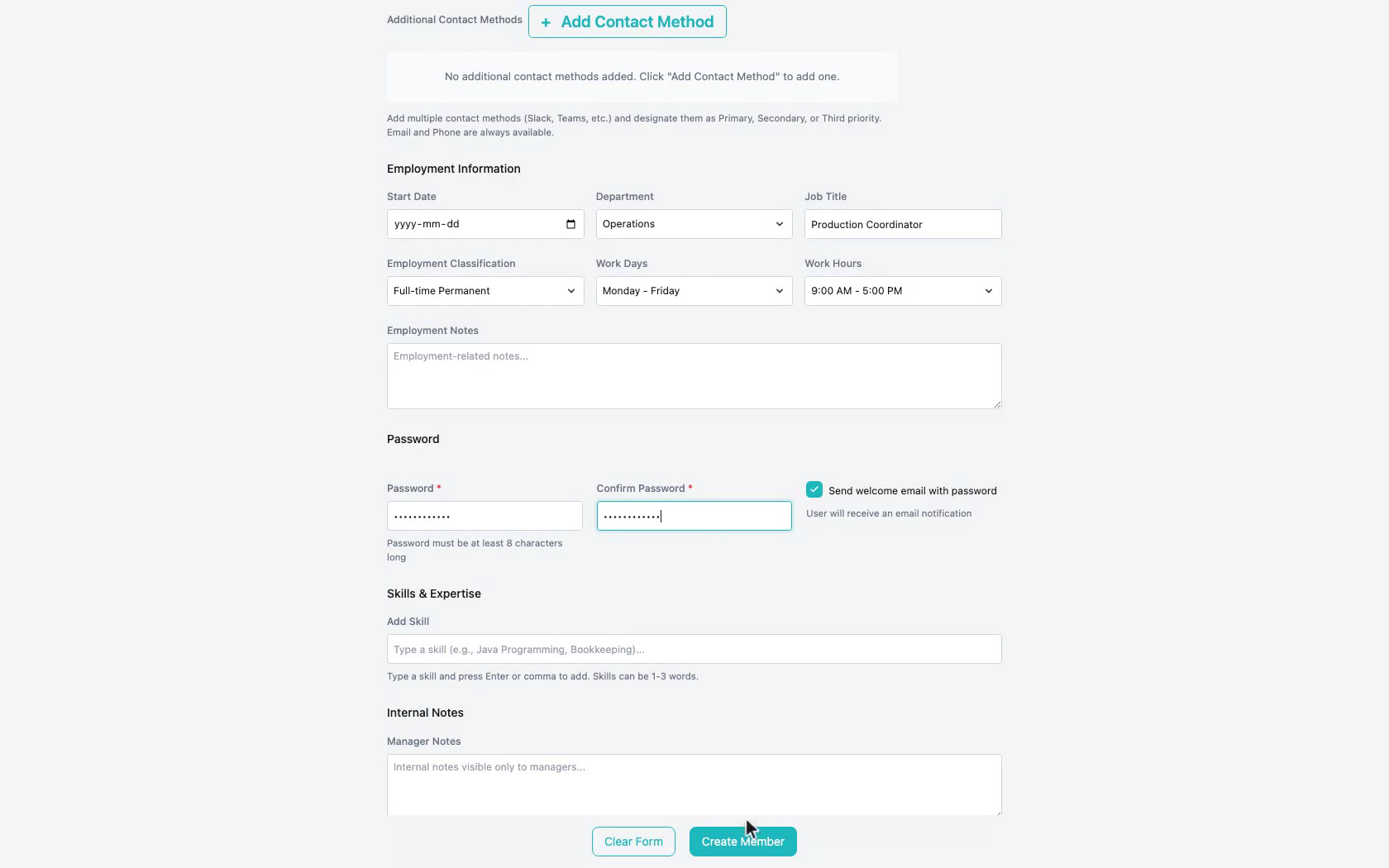
5. Review before saving
Pause and review the filled form before you create the member.
 Click to enlarge
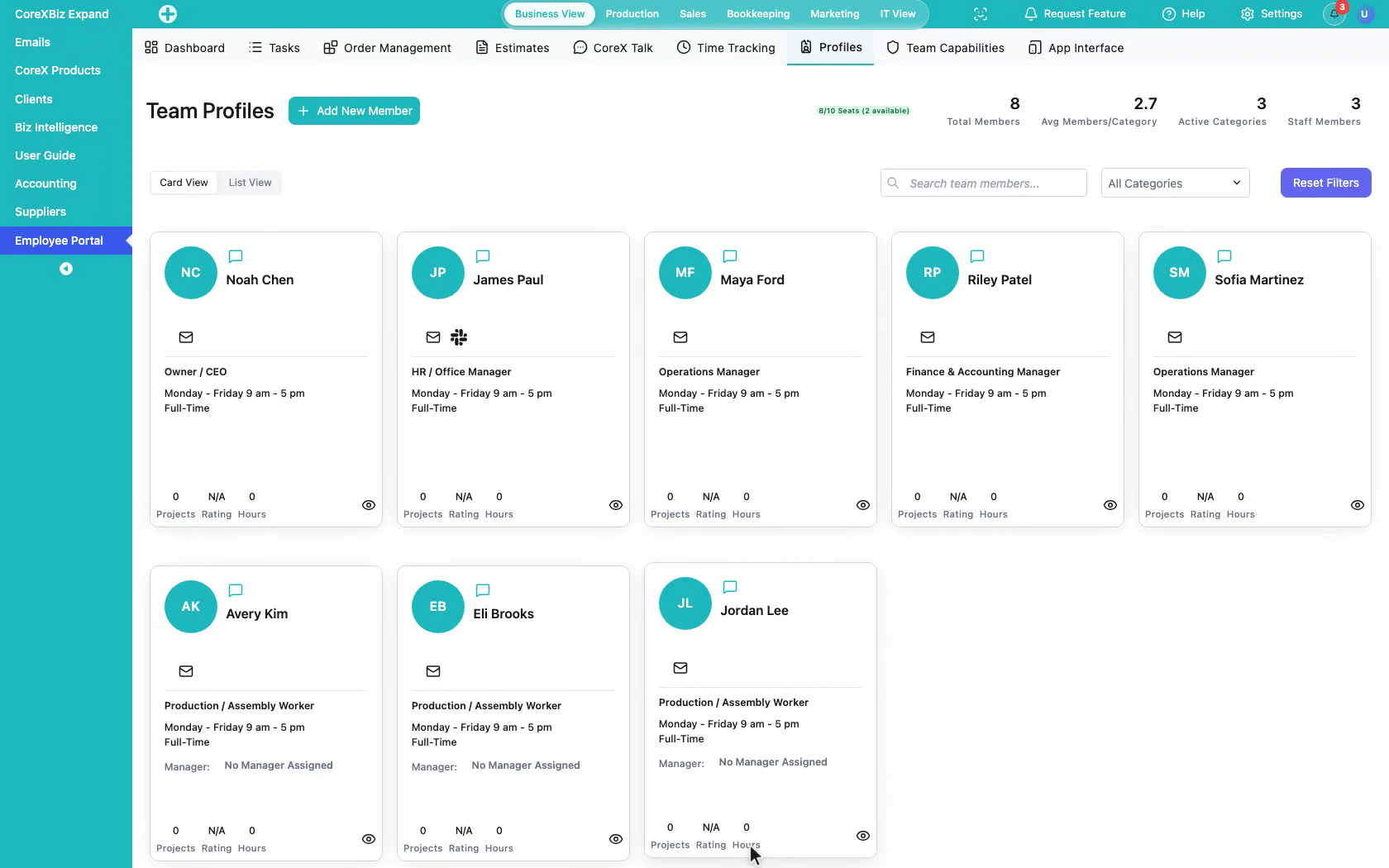
6. Create the member
Click Create Member to save the profile into the directory.
 Click to enlarge
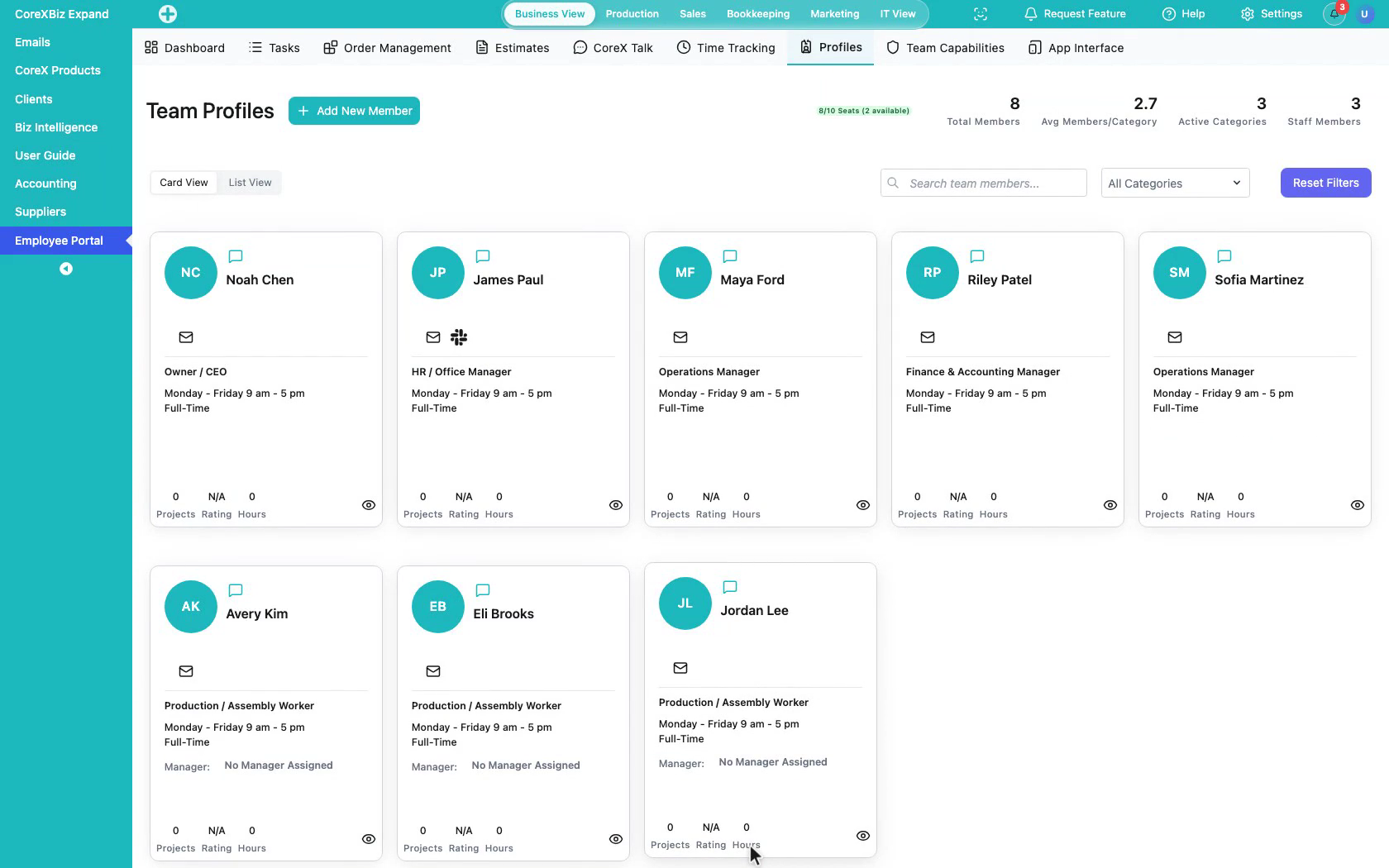
7. Confirm in the directory
Confirm the new member appears in Profiles with the rest of the team.
 Click to enlarge
8. Open a profile to edit
To edit someone, open their profile with View Details on the card.
 Click to enlarge
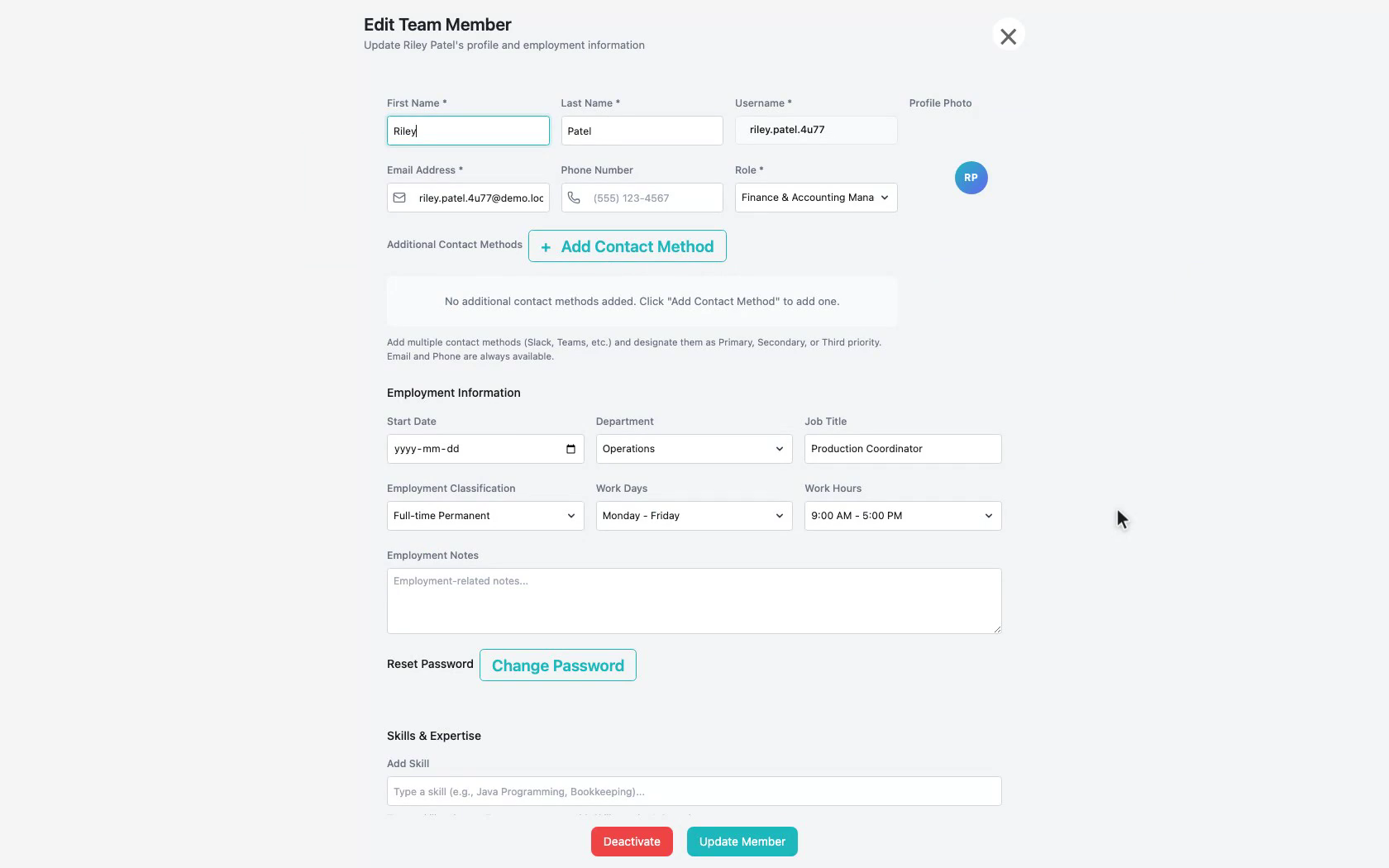
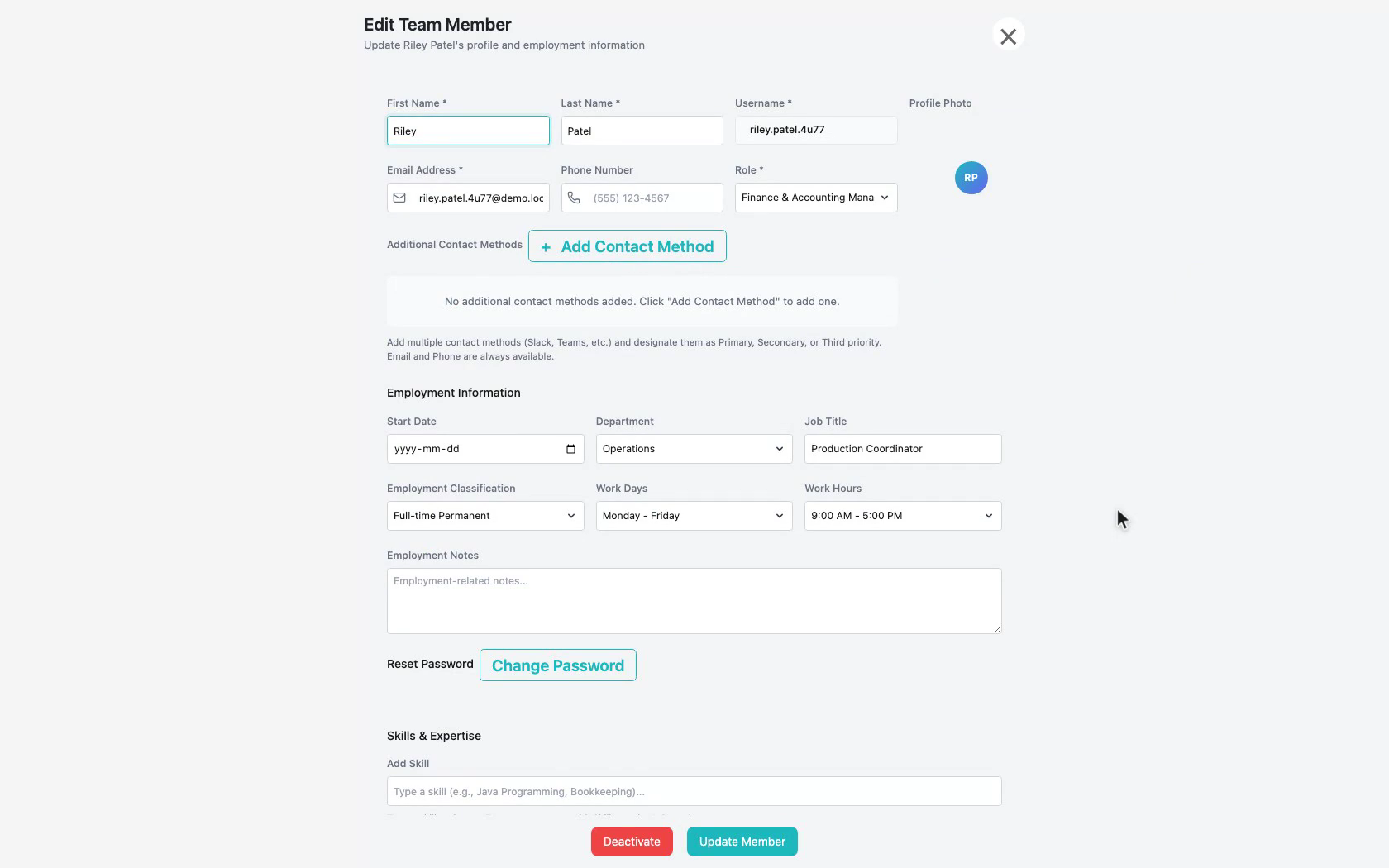
9. Update member details
The edit form shows contact details, role, department, and schedule. Change what you need, then use Update Member.
 Click to enlarge
10. Return to the directory
When you are done reviewing, close the profile and return to the directory.
 Click to enlarge
Notes
- Seat limits and capabilities may prevent adding members even when Profiles is visible.
- Use unique usernames so new members do not collide with existing accounts.
- For what roles can do after a member is created, see Team Capabilities and How to set role permissions.