How to add a supplier
This guide walks through adding a supplier in the Suppliers & Vendors Tab.
It assumes CoreXBiz is installed and you can open the Suppliers Application.
Related overview: Suppliers & Vendors
Video walkthrough
Before you begin
- Confirm you can open Suppliers → Suppliers & Vendors.
- Have the supplier name, category, business function, and contact details ready.
Typical workflow
Click any screenshot to view it full size.
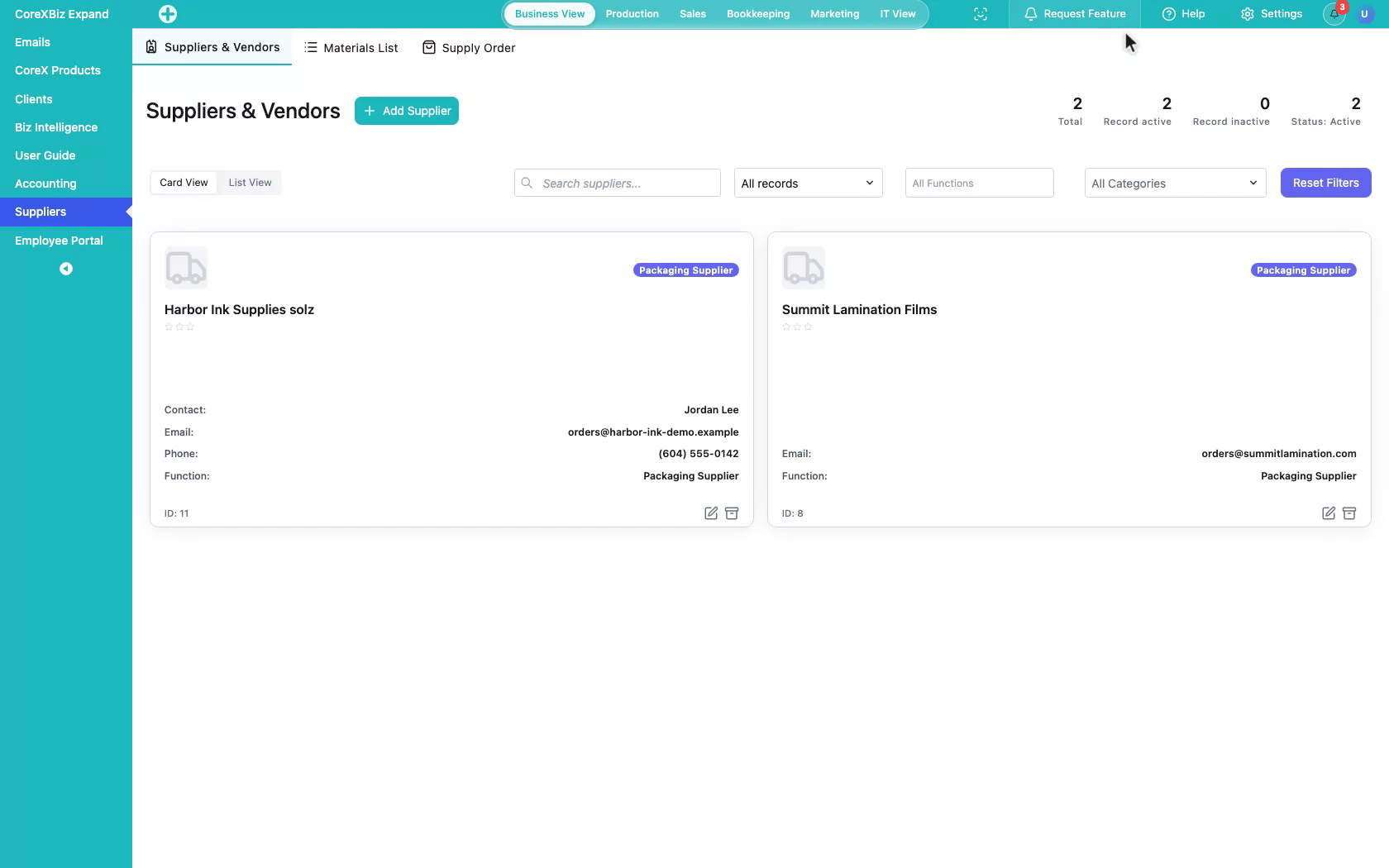
1. Open Suppliers & Vendors
Open the Suppliers module. Start on the Suppliers & Vendors tab — your directory of companies you buy from.
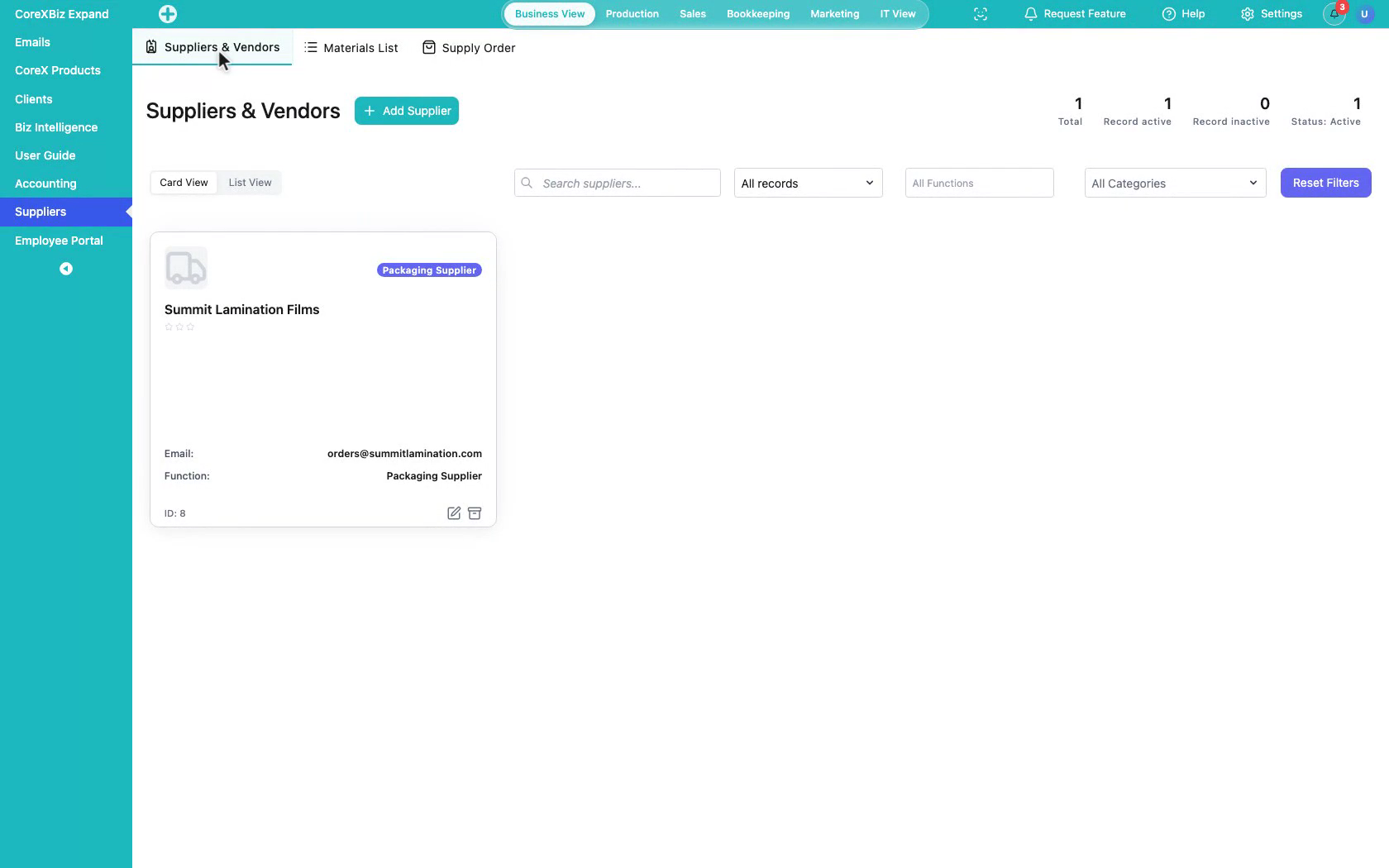 Click to enlarge
2. Review the directory
Switch card or list view, search suppliers, and filter by status, function, or category.
 Click to enlarge
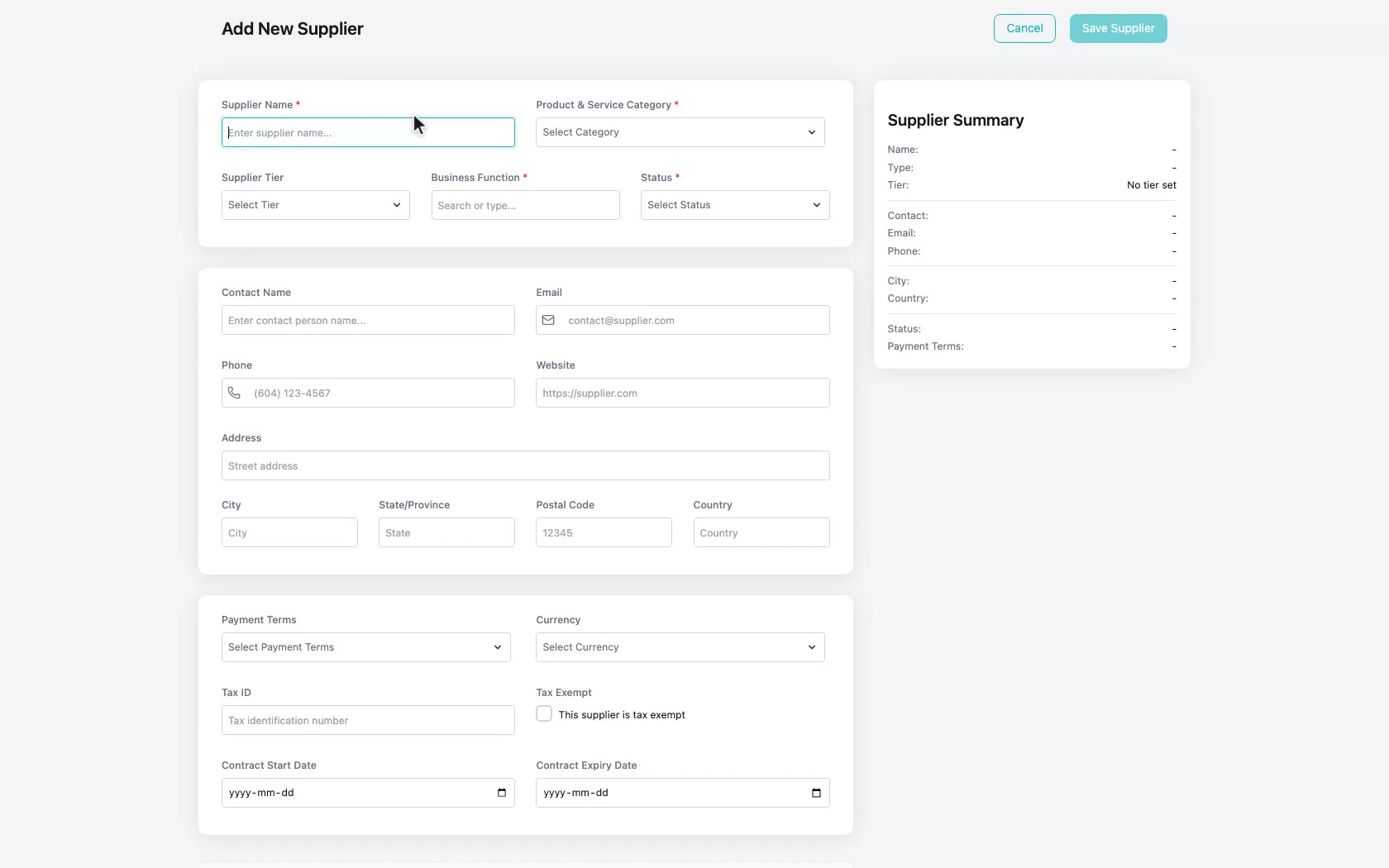
3. Add a supplier
Click Add Supplier.
 Click to enlarge
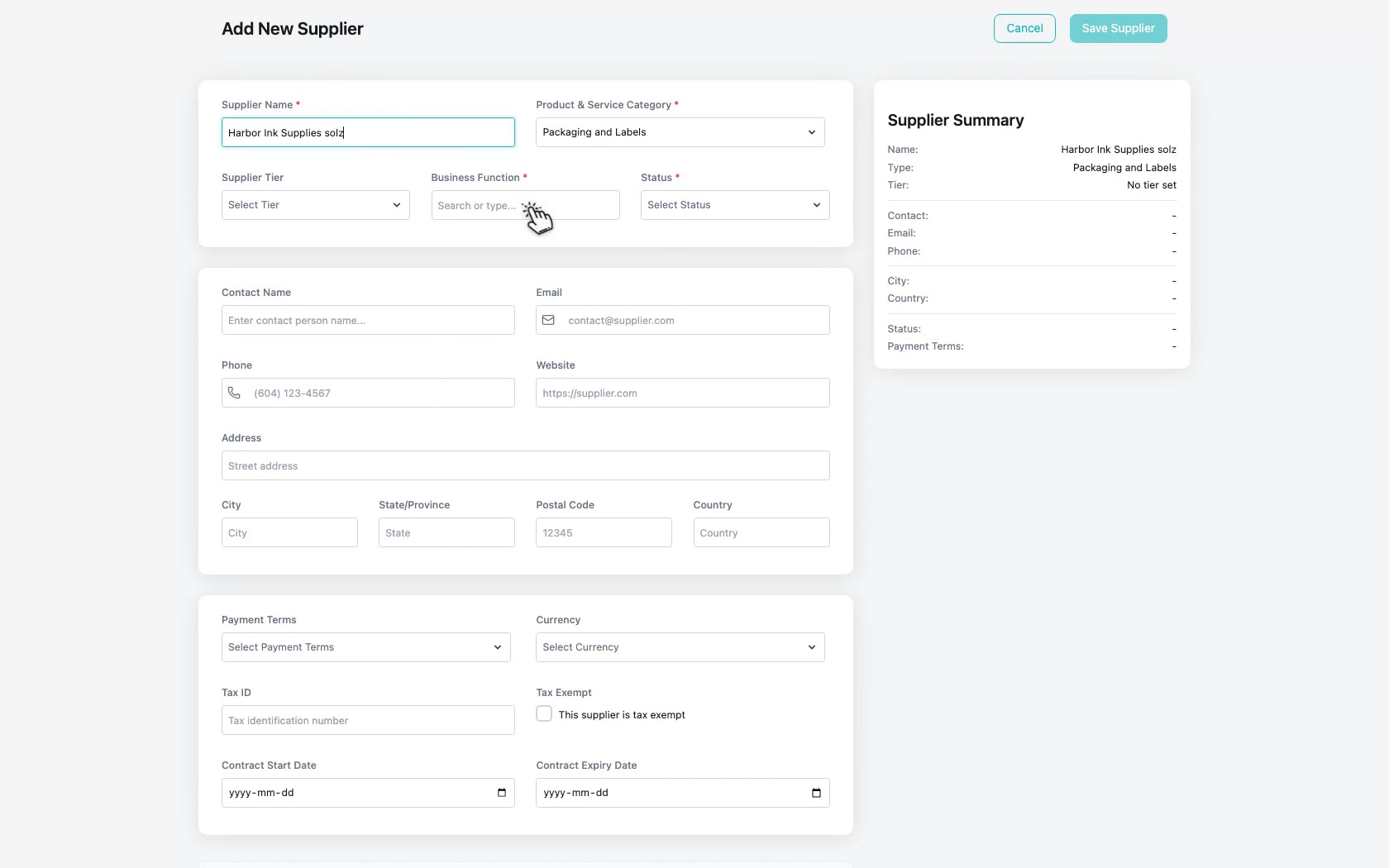
4. Enter required details
Enter the supplier name, choose a product category, set business function, and confirm status.
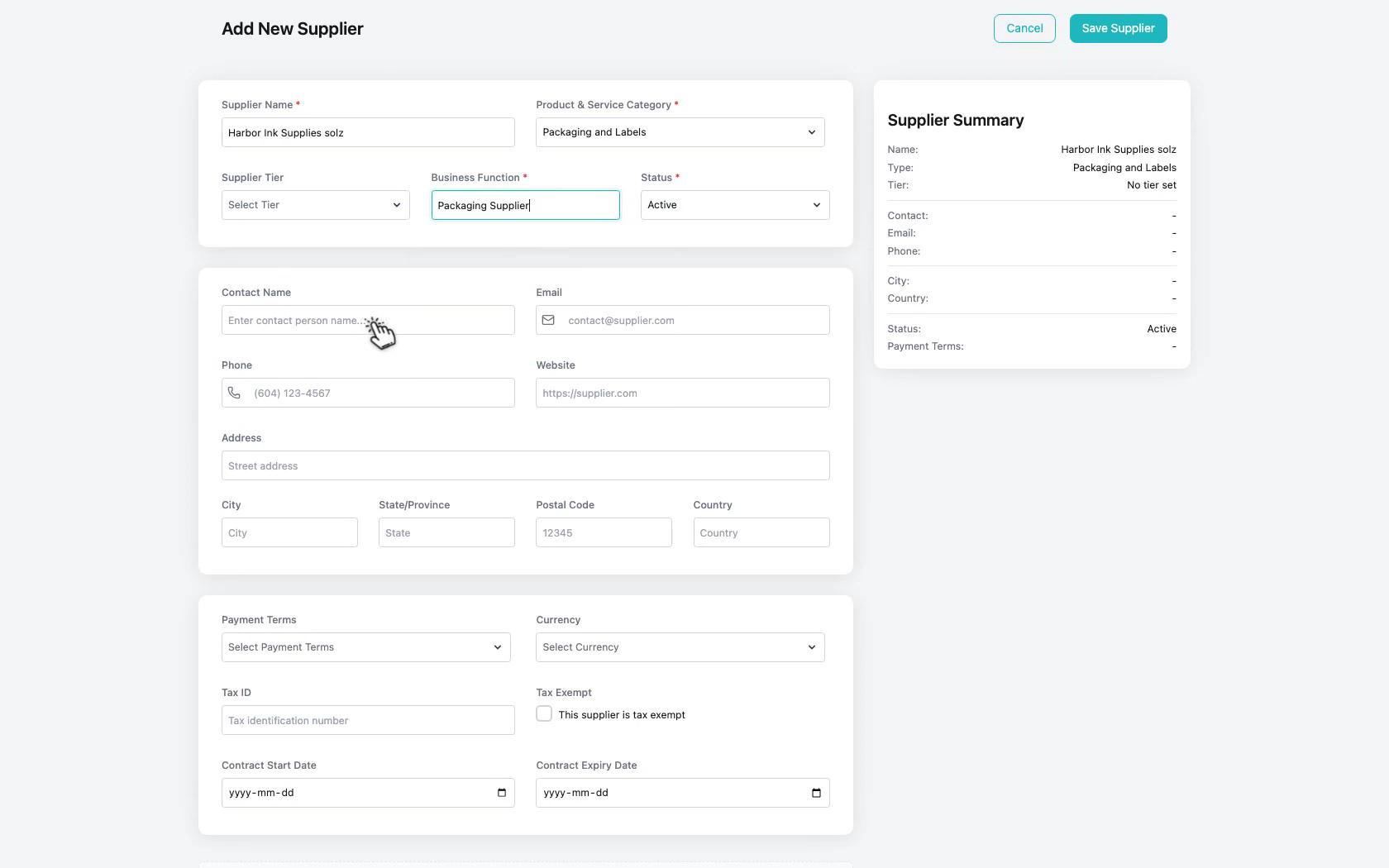 Click to enlarge
5. Add contact details
Add contact name, email, and phone so purchasing and receiving know who to reach.
 Click to enlarge
6. Save the supplier
Review the summary, then save the supplier into your directory.
 Click to enlarge
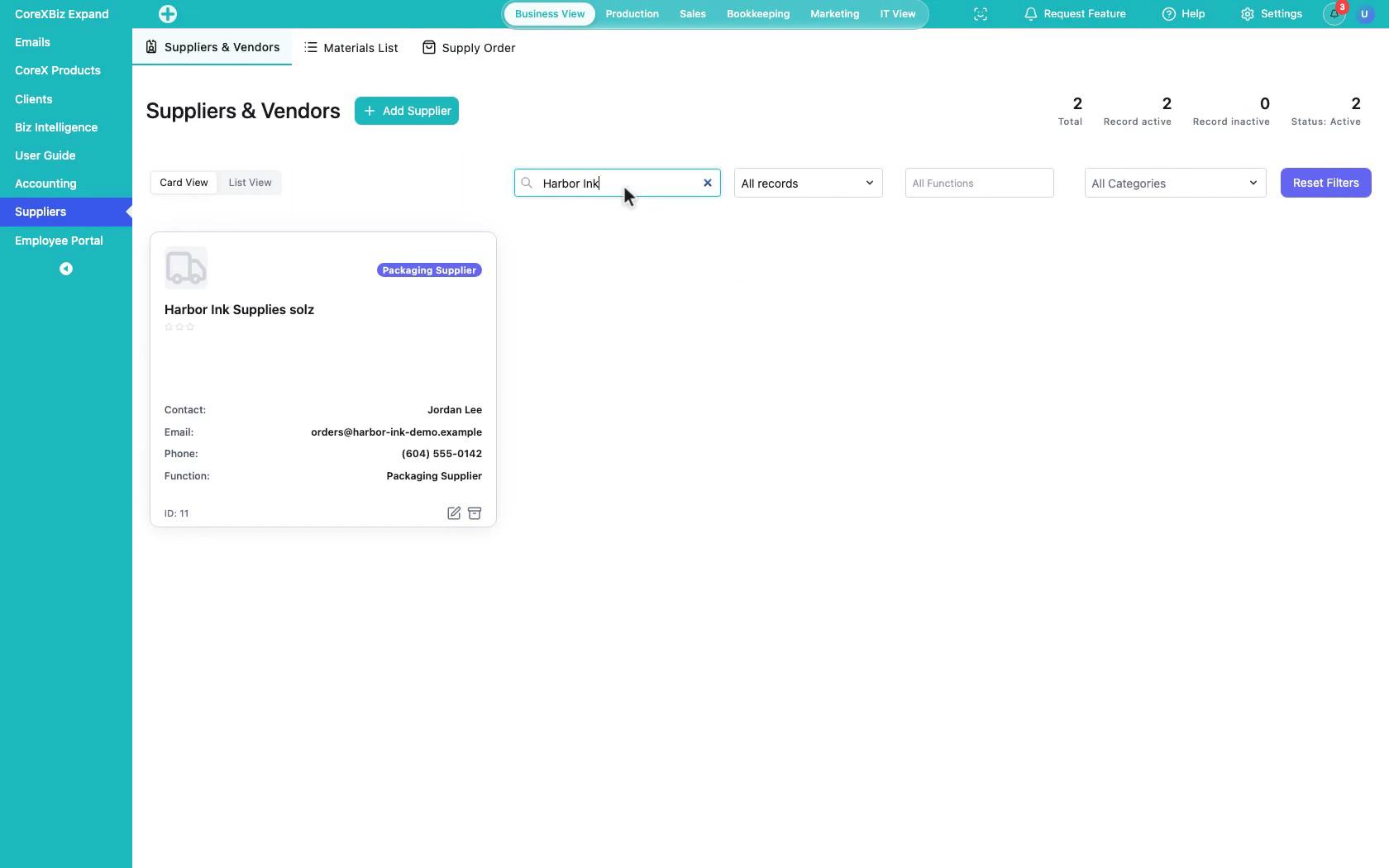
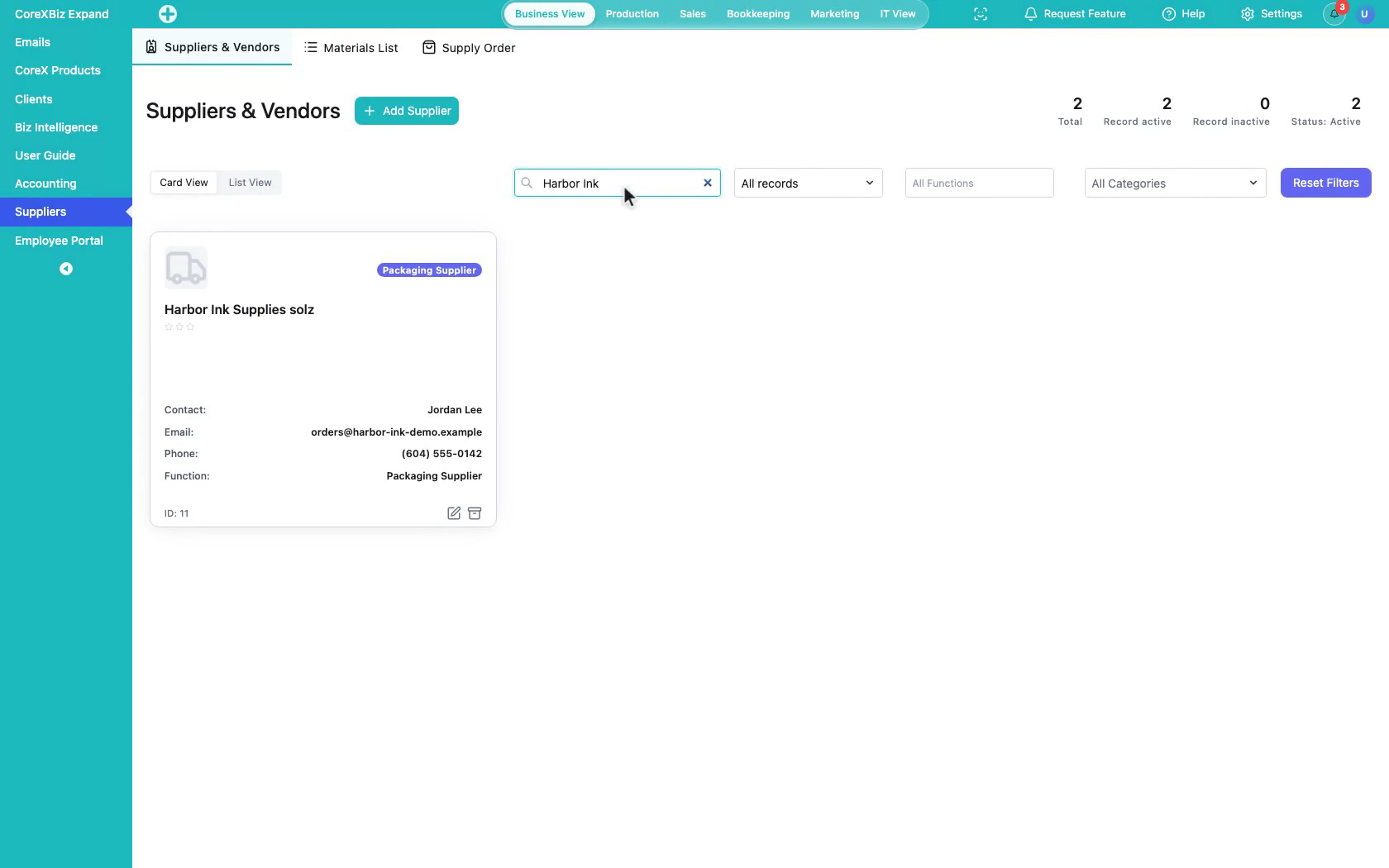
7. Confirm in the list
Search to confirm the new supplier appears with the rest of your vendor list.
 Click to enlarge
Notes
- Required fields must be completed before Save Supplier is enabled.
- Keep the directory current so Materials List and Supply Order can reference the right companies.