How to add a customer
This guide walks through creating a customer in Clients → Customer Segments → Add Client.
It assumes CoreXBiz is installed and you can open the Clients application.
Related overview: Customer Segments · Clients
Video walkthrough
Before you begin
- Confirm you can open Clients (
corexbiz-clients) — it lands on Customer Segments. - Confirm you have capability to use Add Client.
- For a lean demo: create one Corporate client; note Retail/VIP in Client Type without deep segment setup.
Typical workflow
Click any screenshot to view it full size.
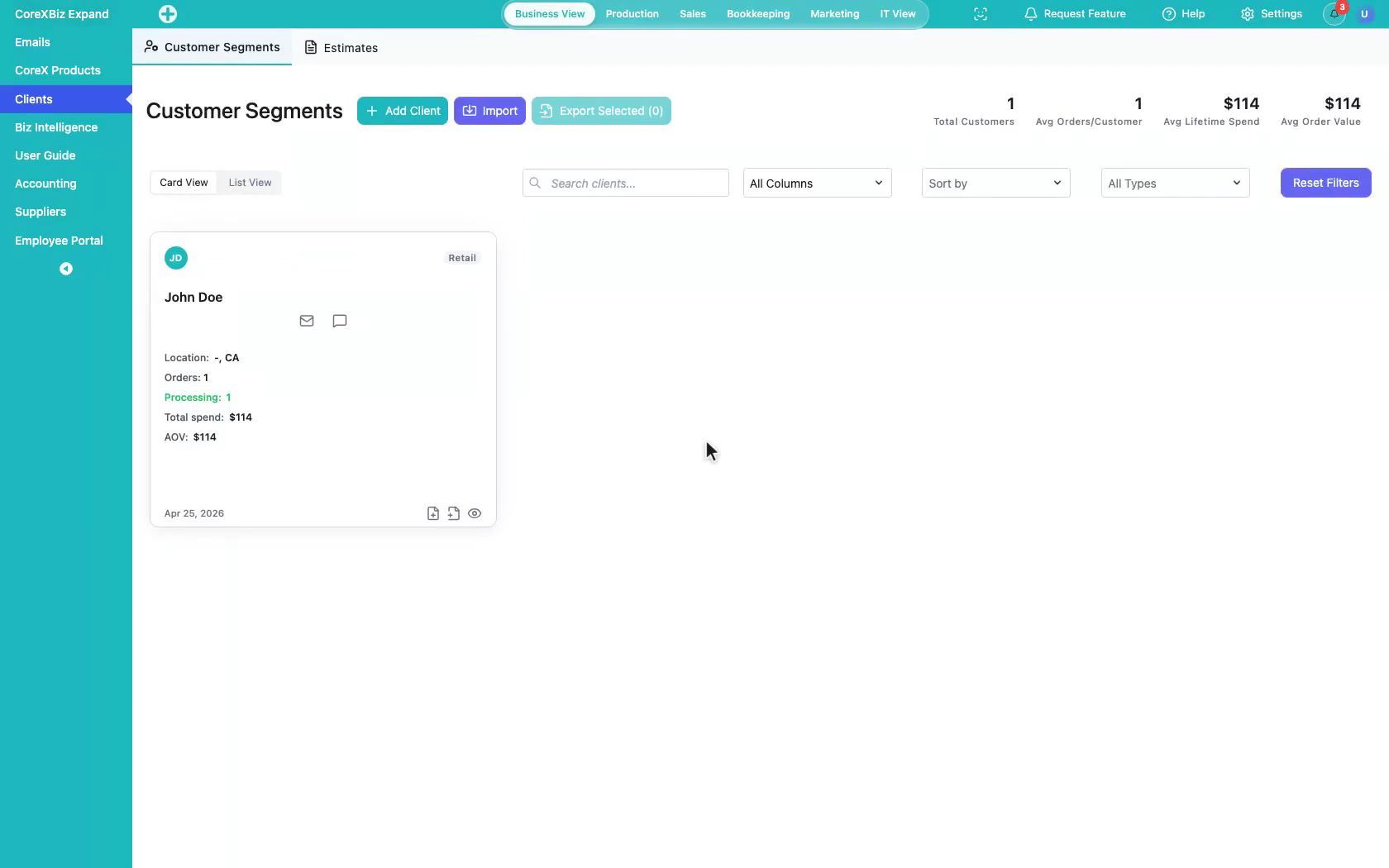
1. Open Clients
Open Clients from WordPress admin (lands on Customer Segments).
 Click to enlarge
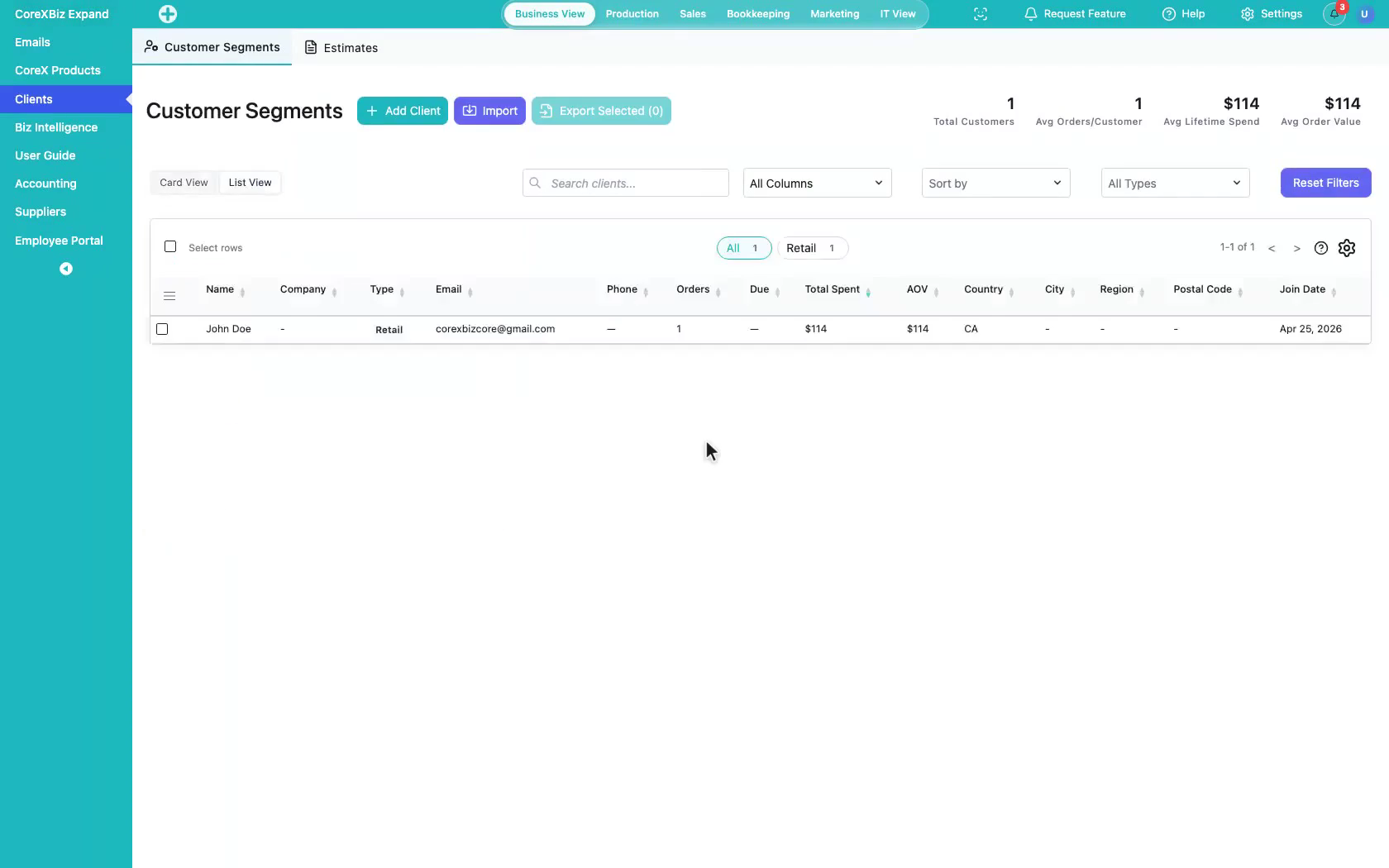
2. Toggle card and list views
Switch between card and list layouts in the client directory.
 Click to enlarge
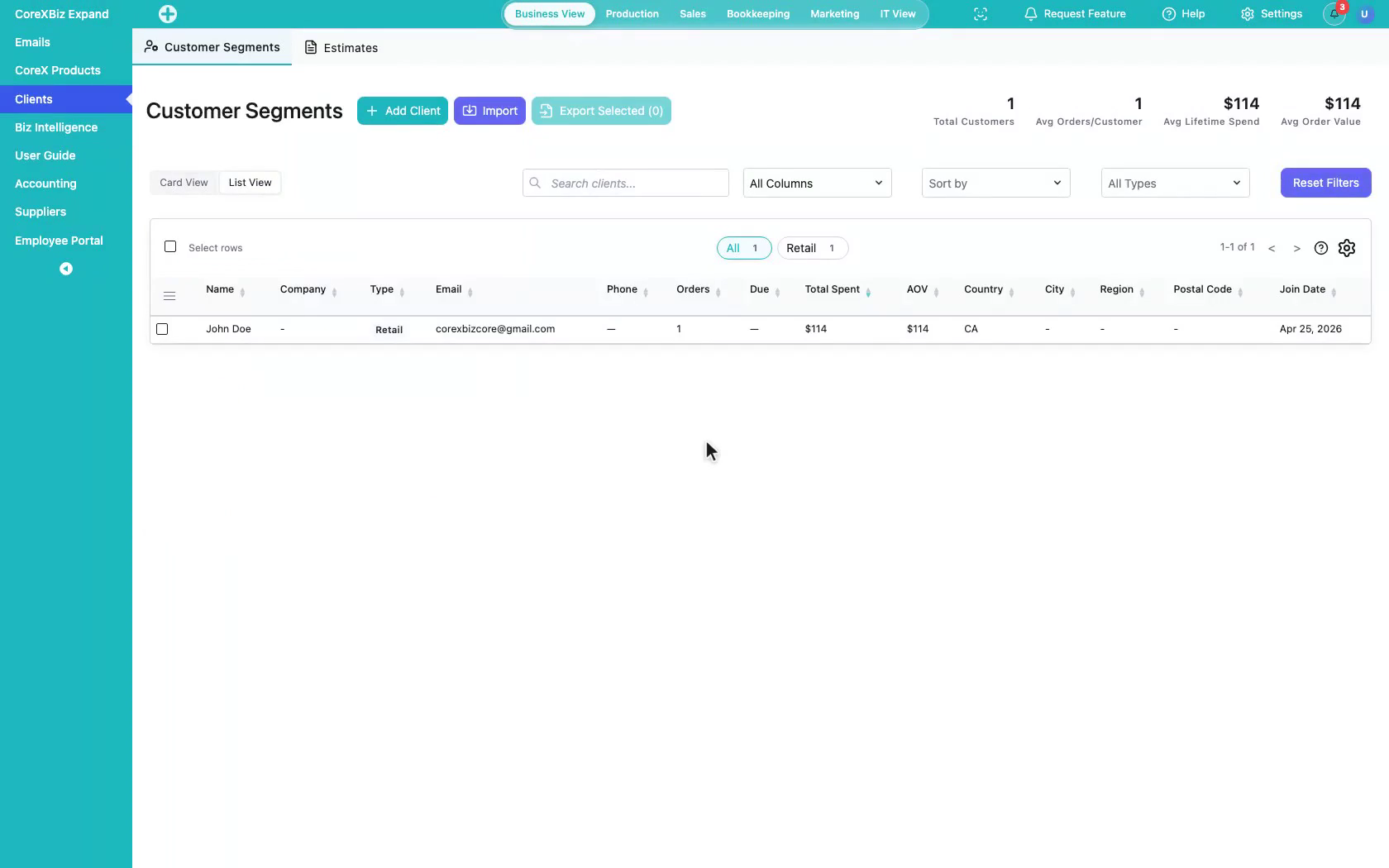
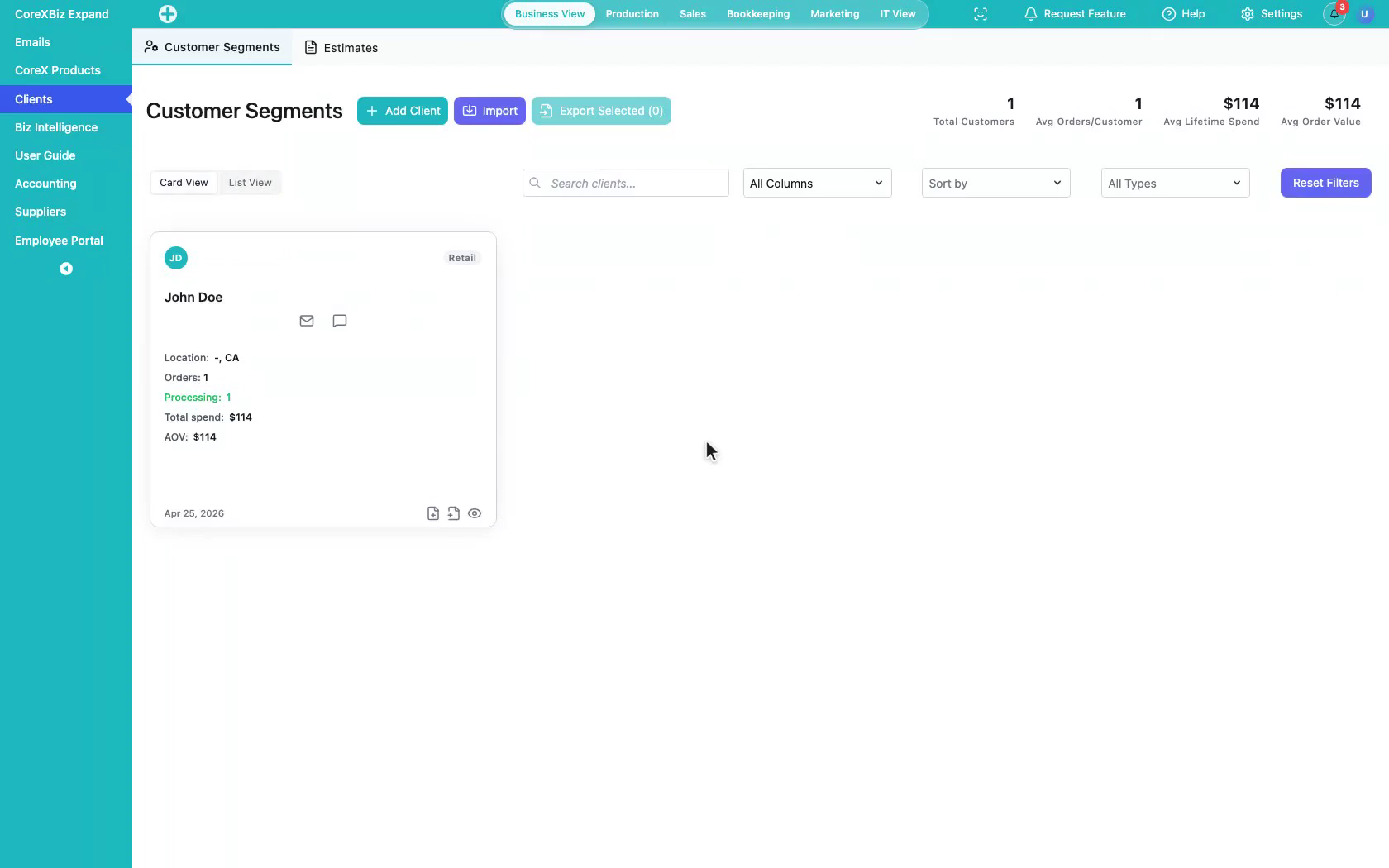
3. Click Add Client
Start Add Client from Customer Segments.
 Click to enlarge
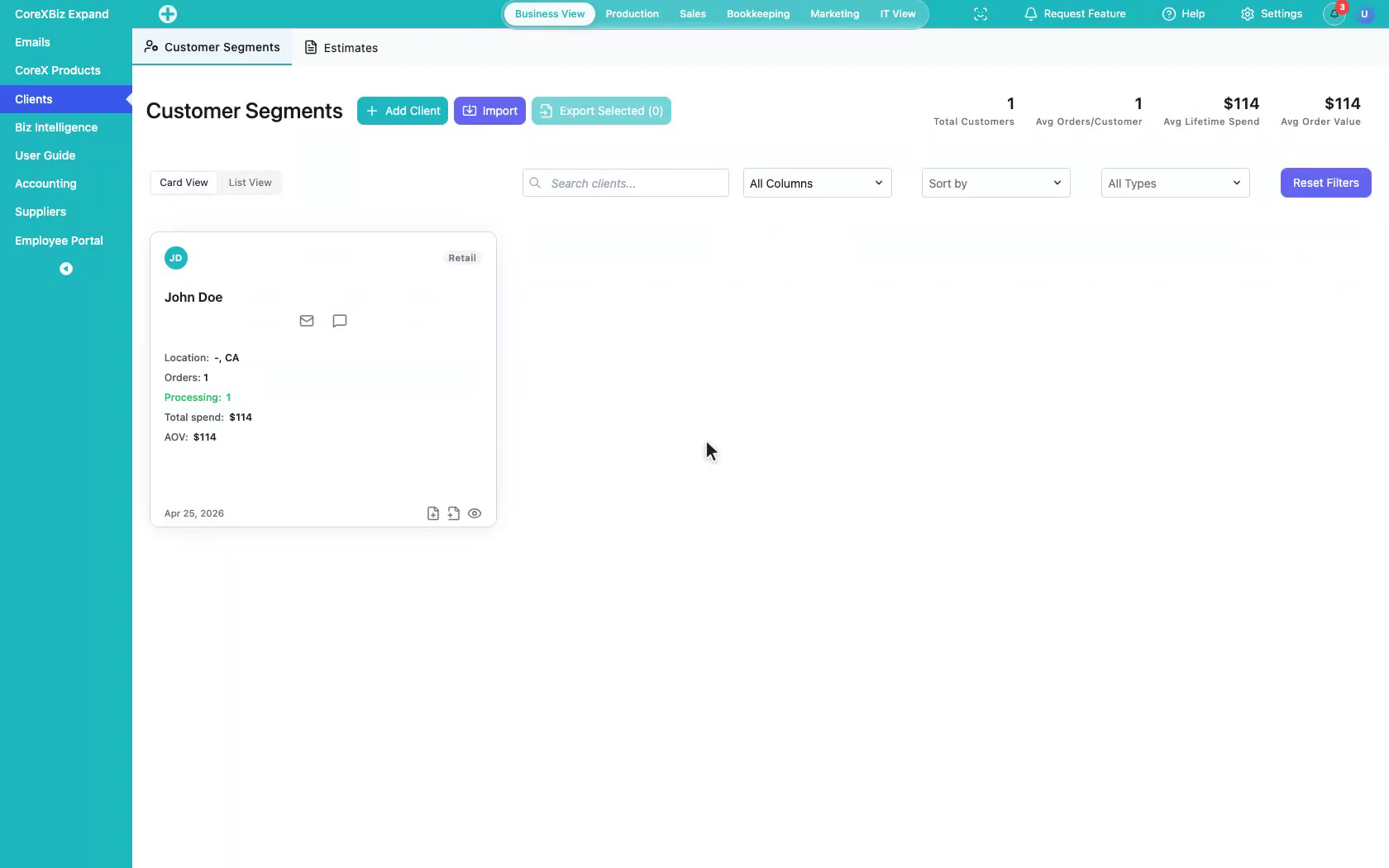
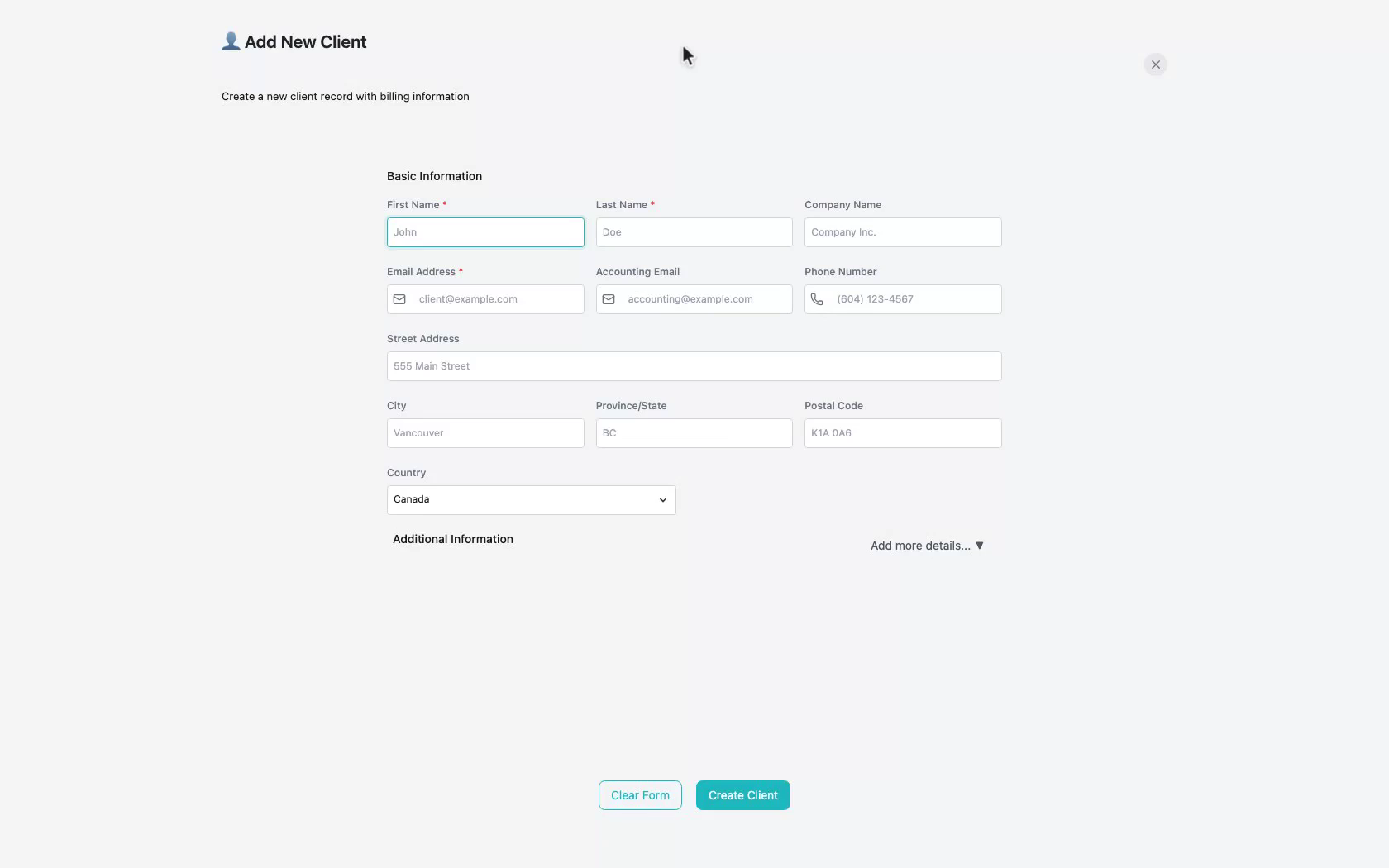
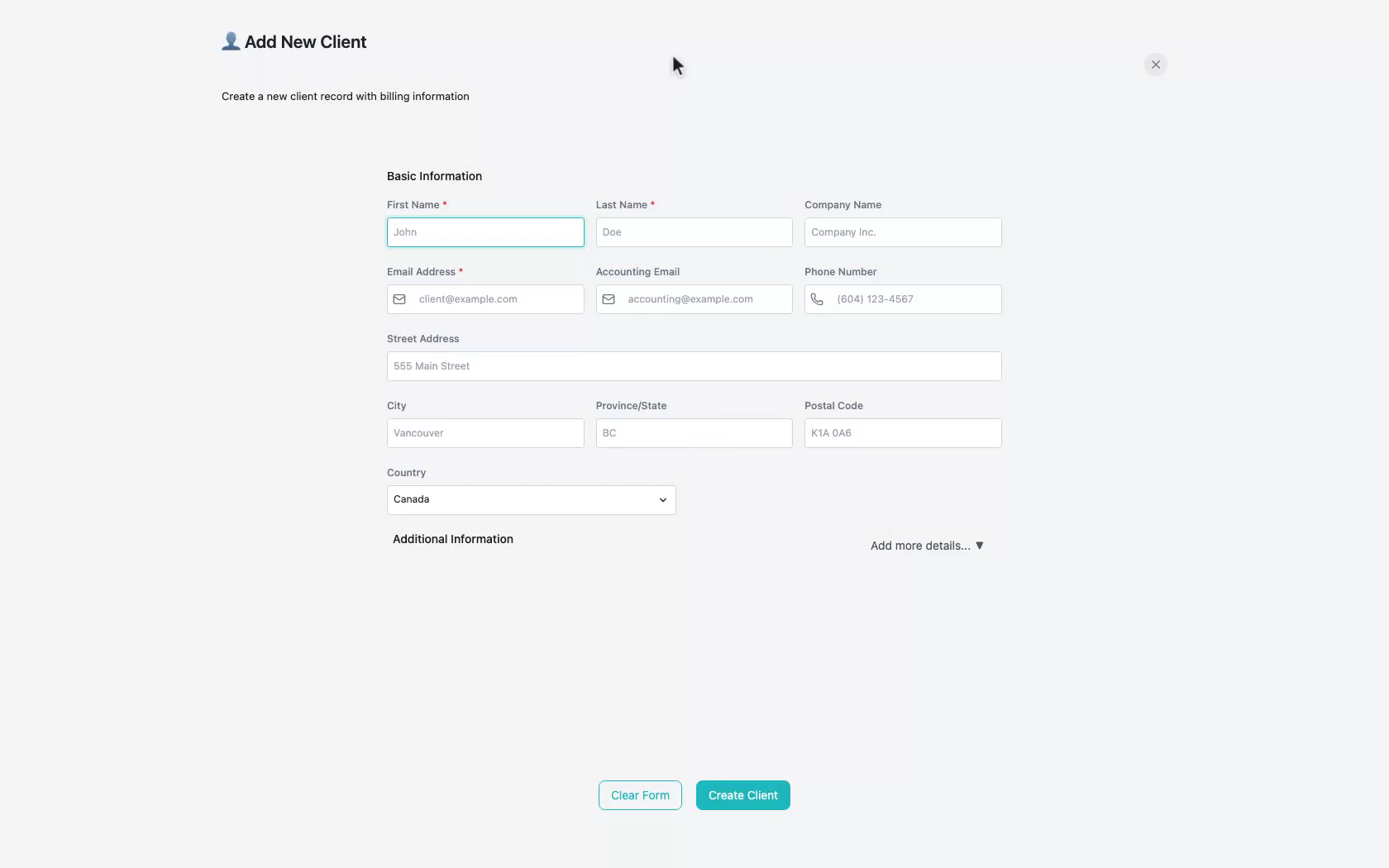
4. Review the create form
Show the Add Client form layout and reactive feel.
 Click to enlarge
5. Note the app-like layer
Call out the in-app create layer over the Clients workspace.
 Click to enlarge
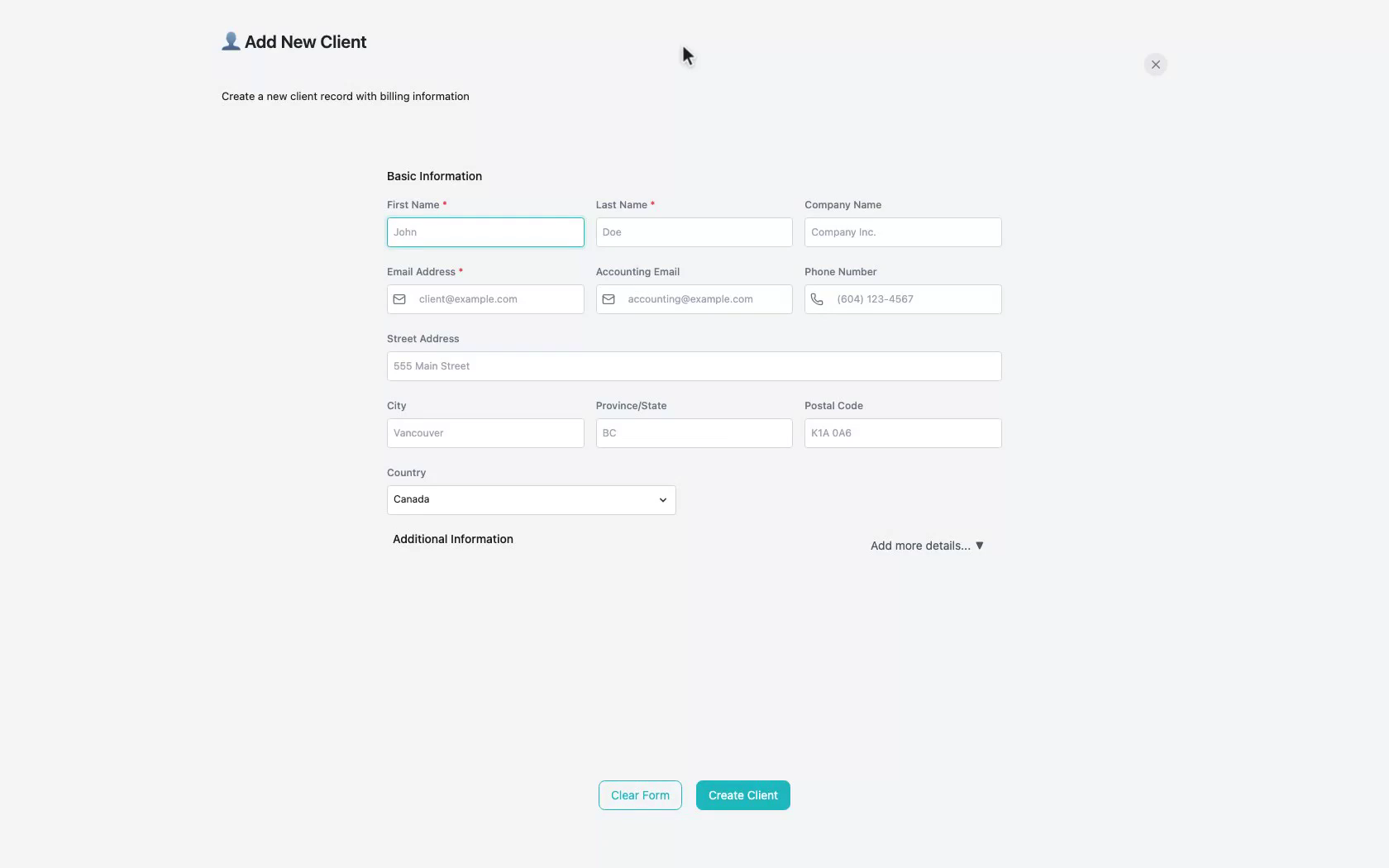
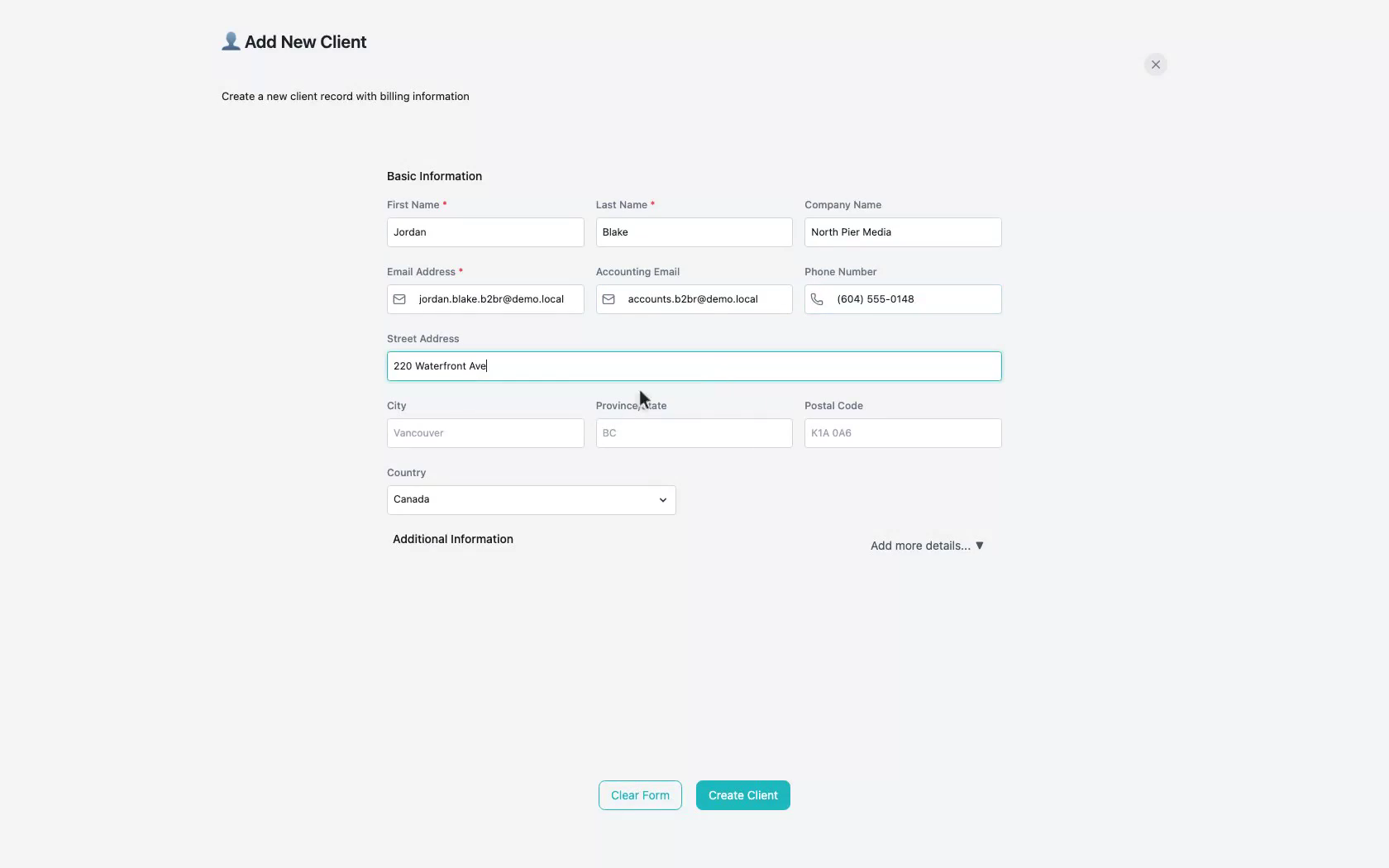
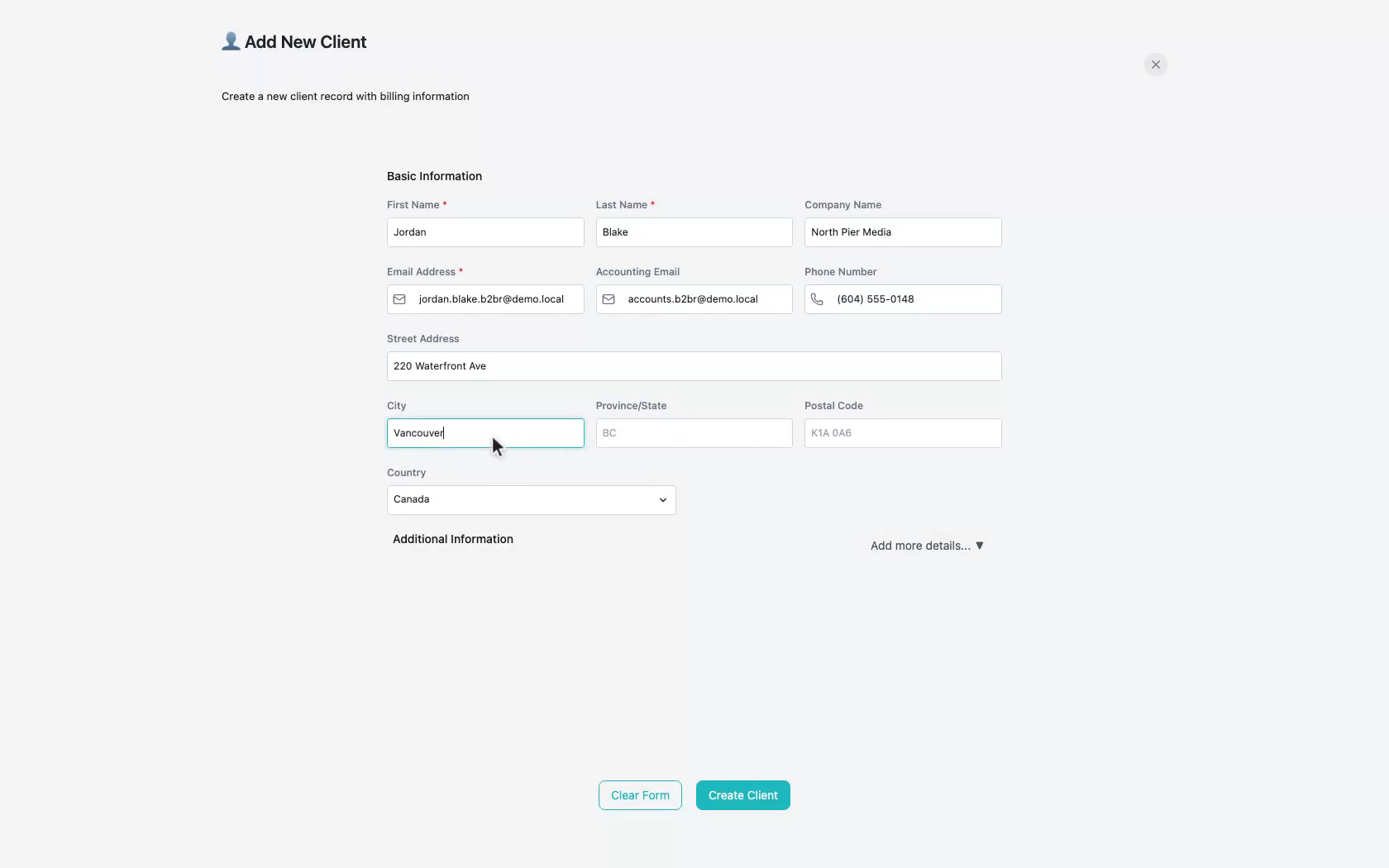
6. Fill basic details
Enter name, company, and contact fields for the new client.
 Click to enlarge
7. Choose client type
Select a client type such as Corporate (and note Retail/VIP options).
 Click to enlarge
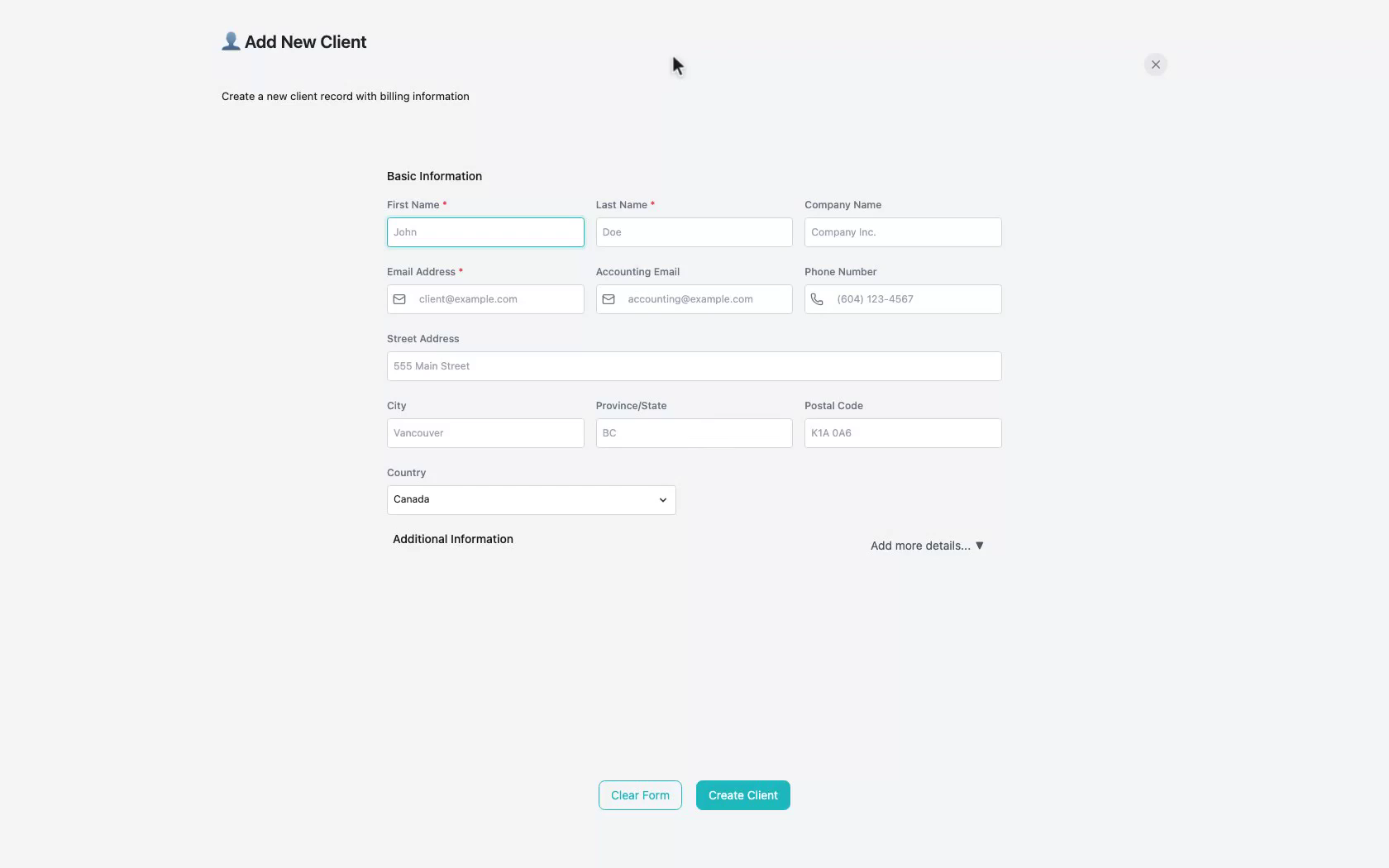
8. Create the client
Submit Create to save the new customer record.
 Click to enlarge
9. Confirm the new card
Show the new client card after create succeeds.
 Click to enlarge
10. Edit then close
Open edit briefly after create, then close back to the directory.
 Click to enlarge
11. Return to the directory
Wrap up on Customer Segments with the new client available.
 Click to enlarge
Notes
- Primary entry: Clients → Customer Segments → Add Client.
- Lean demos can skip deep estimate flows and nested guest-linking edge cases.
- After the client exists, use Sales POS when you need to invoice that customer.