How to create a purchase order
This guide walks through creating a purchase order in the Supply Order Tab.
It assumes CoreXBiz is installed and you can open the Suppliers Application.
Related overview: Supply Order
Video walkthrough
Before you begin
- Confirm you can open Suppliers → Supply Order.
- Prefer having at least one supplier in Suppliers & Vendors and one material in Materials List.
Typical workflow
Click any screenshot to view it full size.
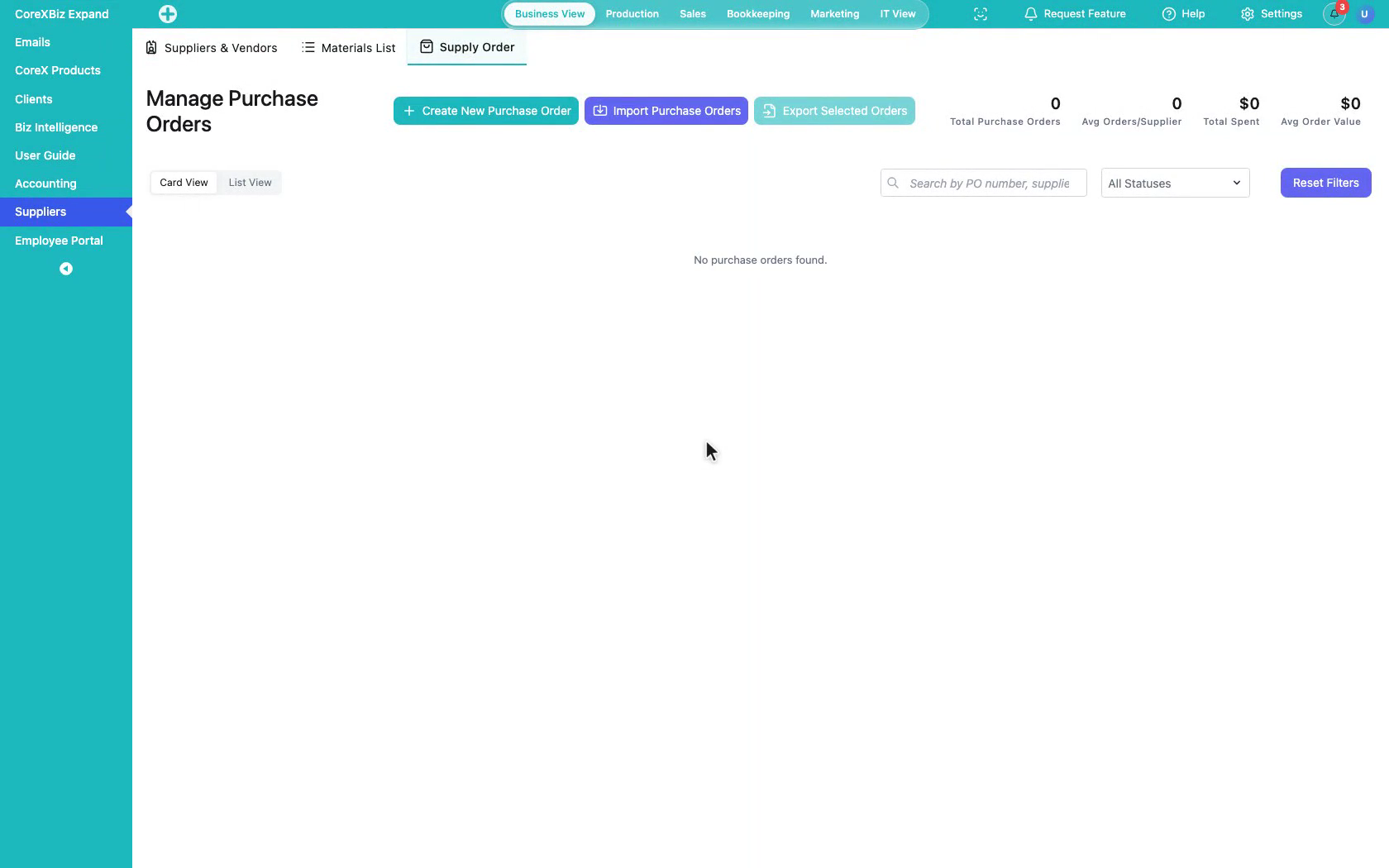
1. Open Supply Order
In the Suppliers module, open the Supply Order tab — also called Manage Purchase Orders.
 Click to enlarge
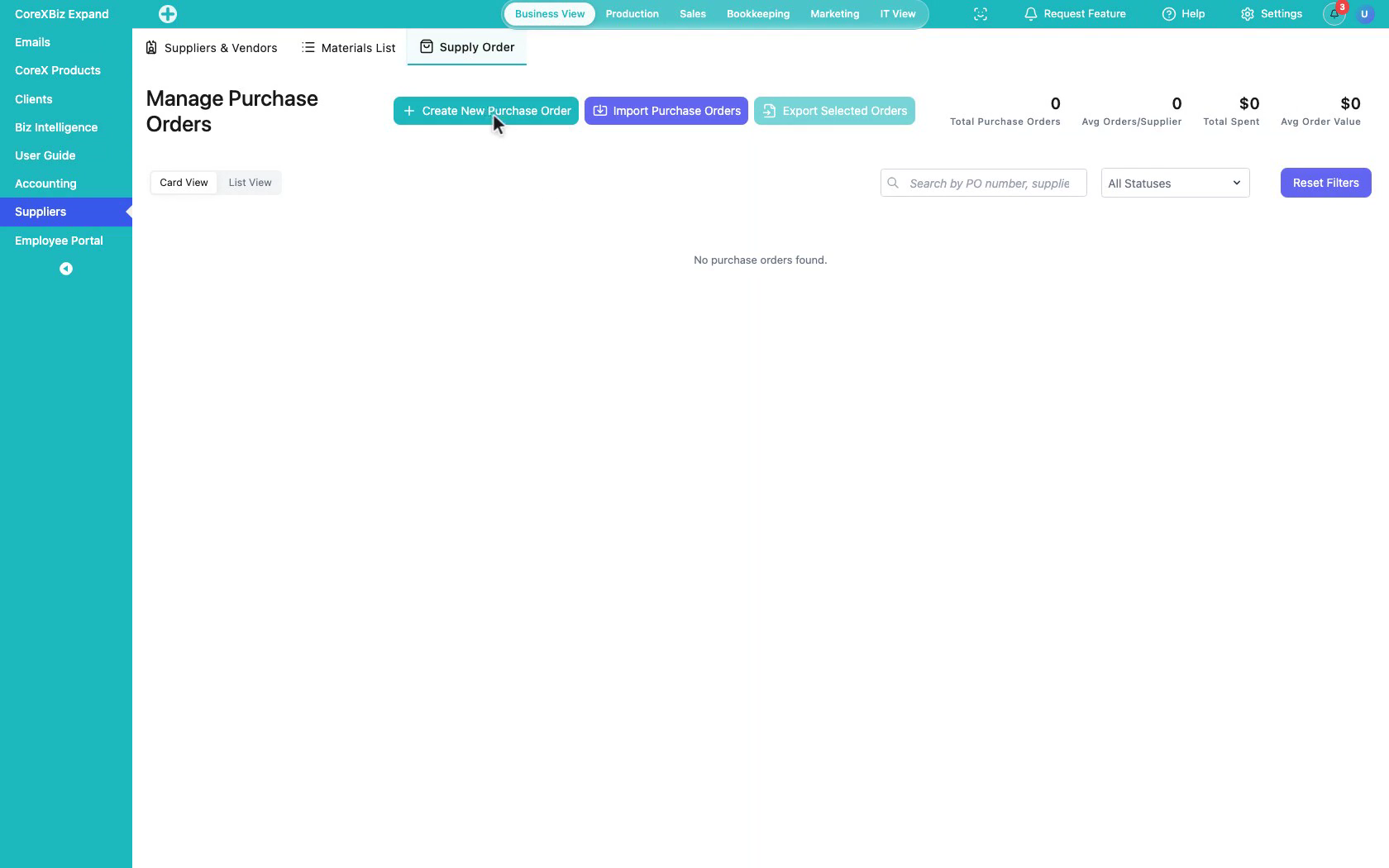
2. Review purchase order tools
From here you can create purchase orders, import them, export selected orders, and filter by status.
 Click to enlarge
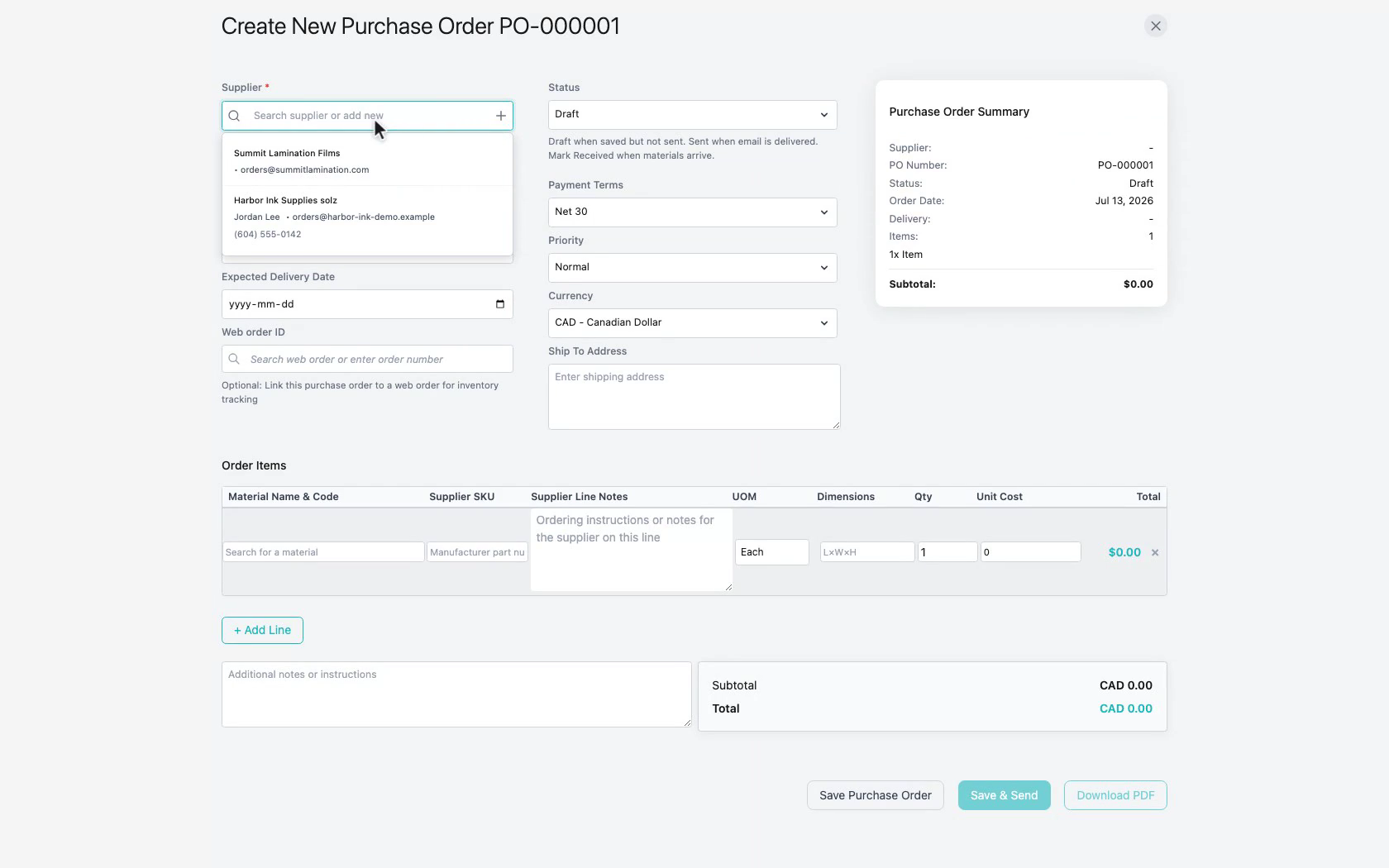
3. Create a purchase order
Click Create New Purchase Order.
 Click to enlarge
4. Choose a supplier
Search the vendors you already keep in Suppliers & Vendors and select the supplier for this order.
 Click to enlarge
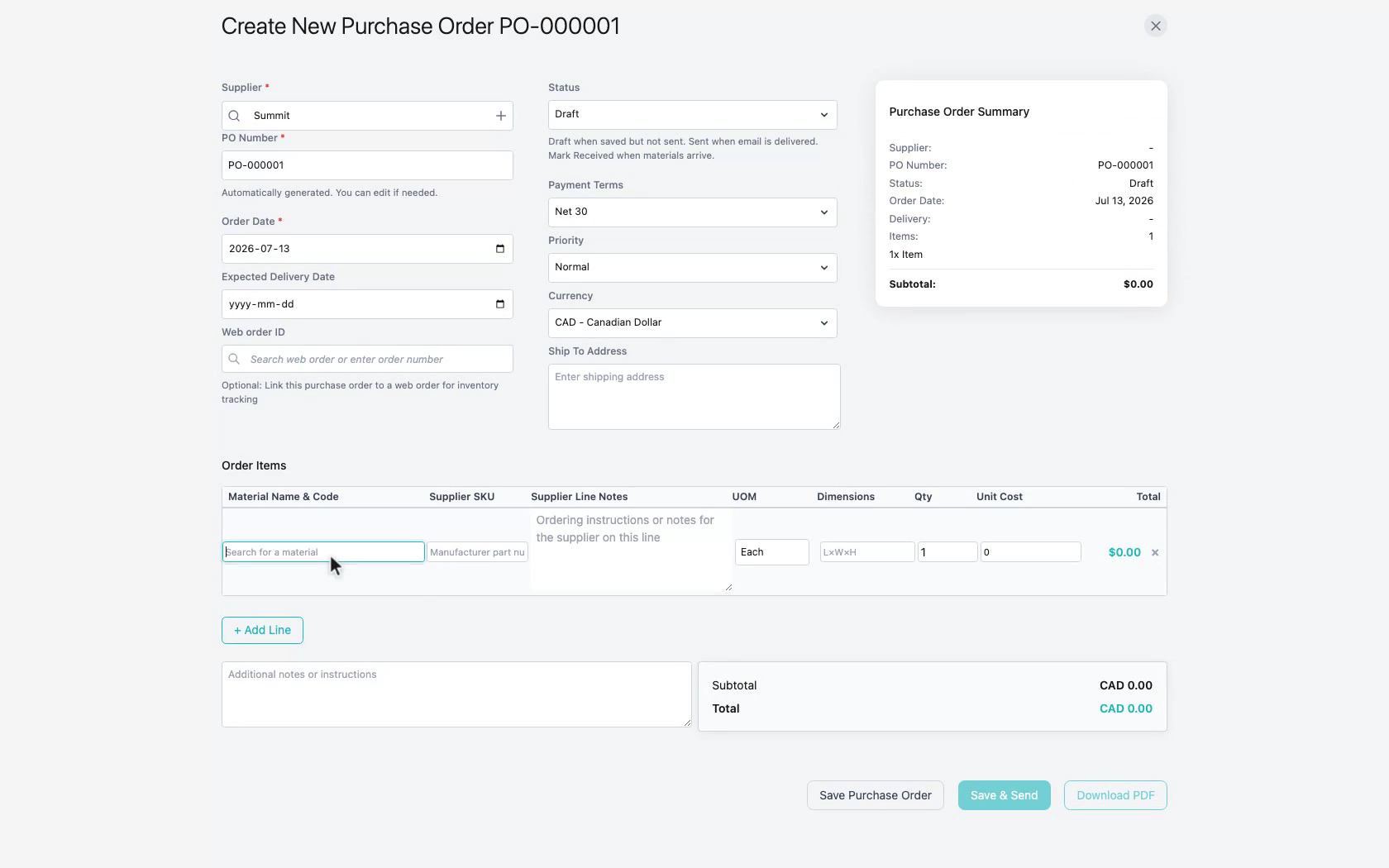
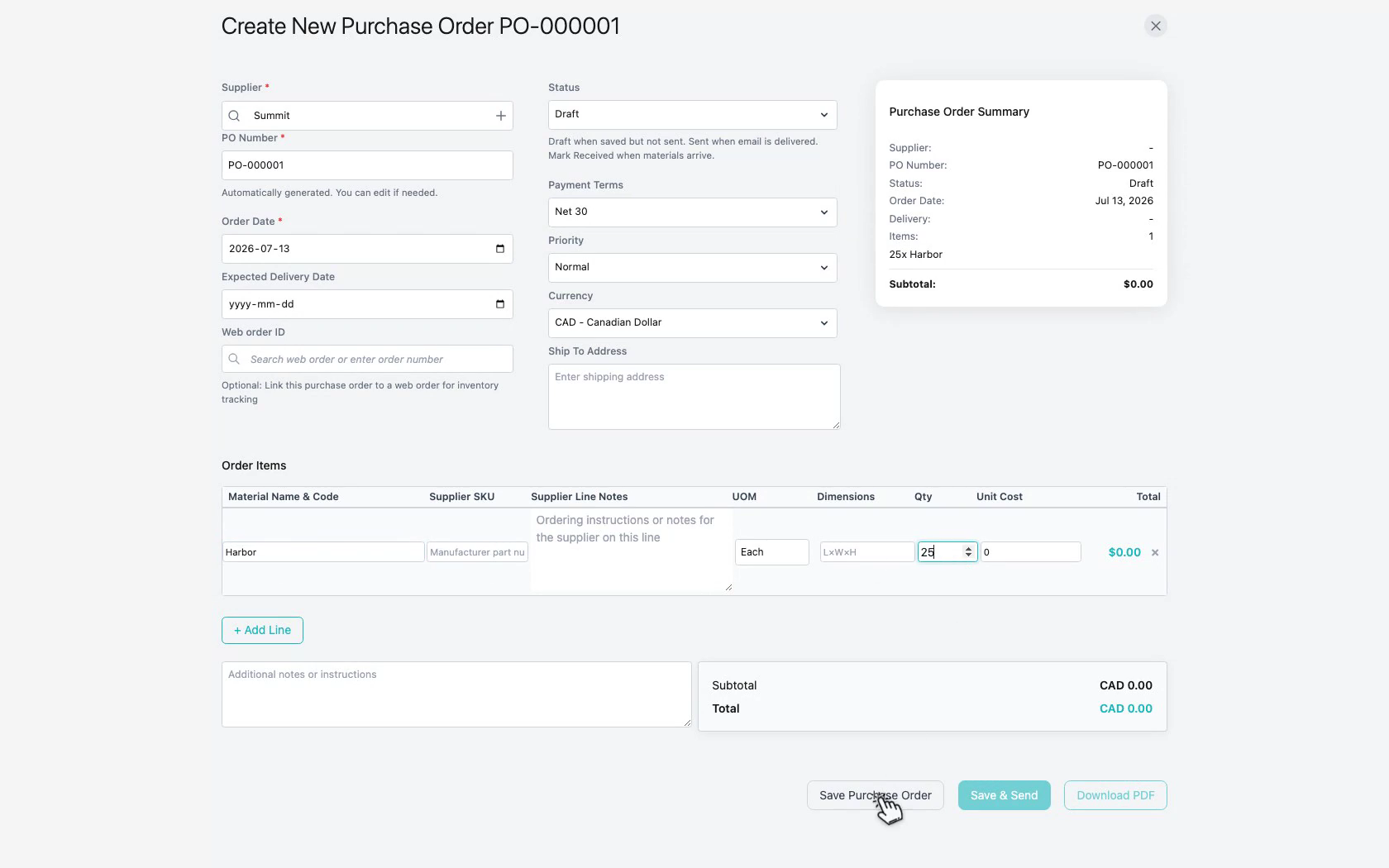
5. Add a material line
Search for a material from your Materials List, then set the quantity you need.
 Click to enlarge
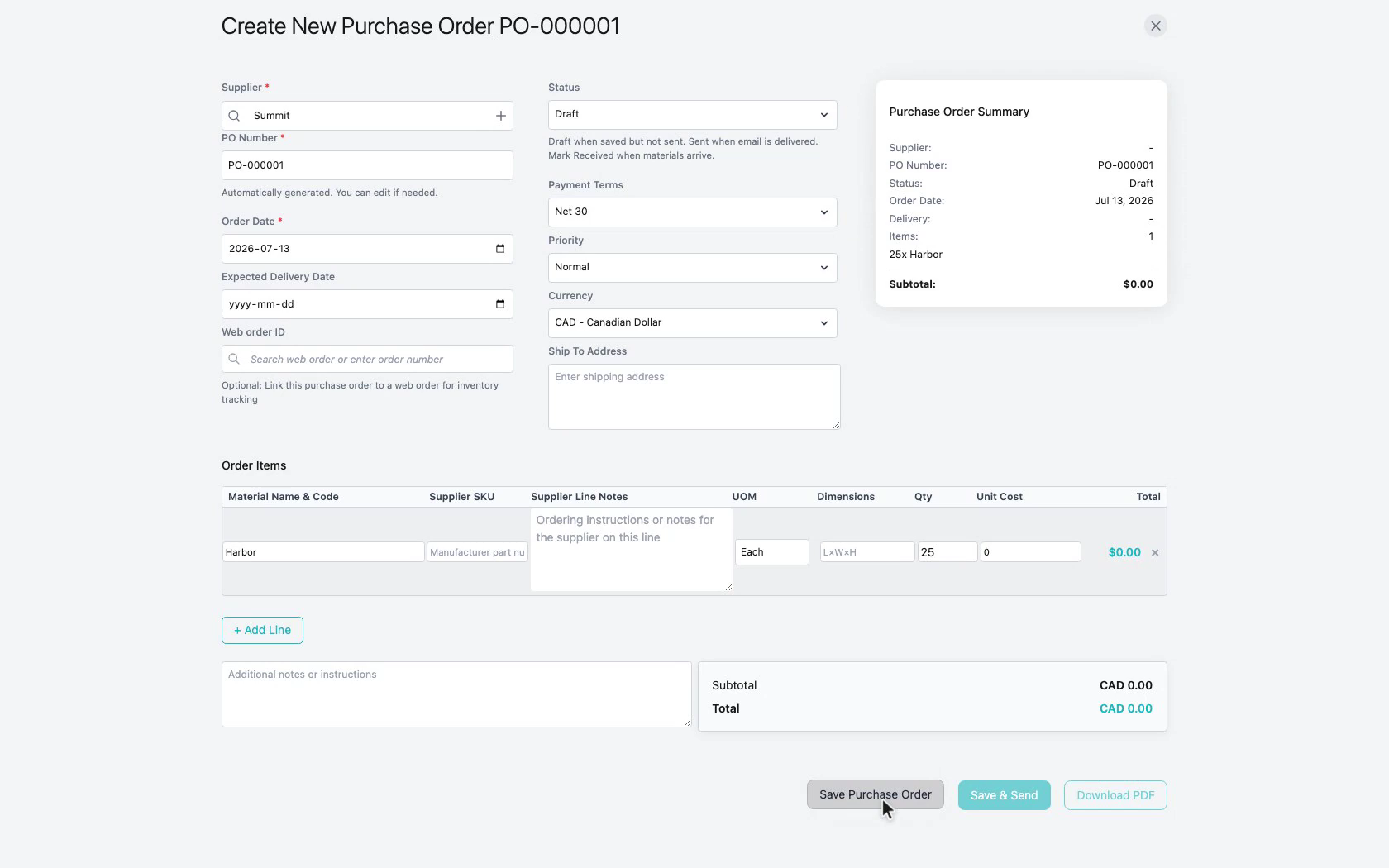
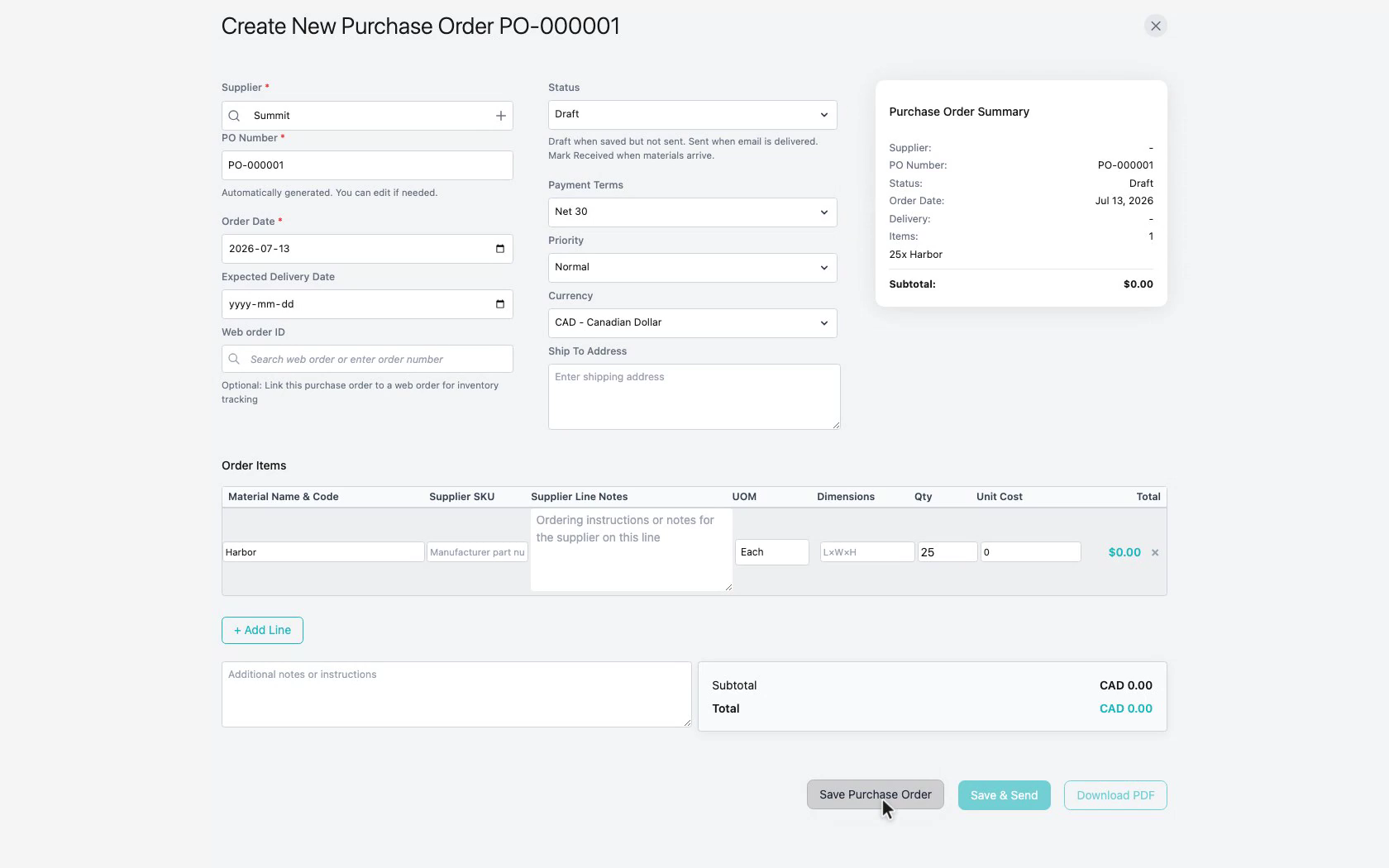
6. Save the purchase order
Review the purchase order summary, then save the purchase order.
 Click to enlarge
7. Confirm in the list
Return to Manage Purchase Orders and confirm the new PO is listed.
 Click to enlarge
Notes
- Supplier and material records make purchase order creation faster and more accurate.
- Related setup guides: How to add a supplier and How to add a material.