How to add a material
This guide walks through adding a material in the Materials List Tab.
It assumes CoreXBiz is installed and you can open the Suppliers Application.
Related overview: Materials List
Video walkthrough
Before you begin
- Confirm you can open Suppliers → Materials List.
- Have the material name, category, unit, and unit cost ready.
Typical workflow
Click any screenshot to view it full size.
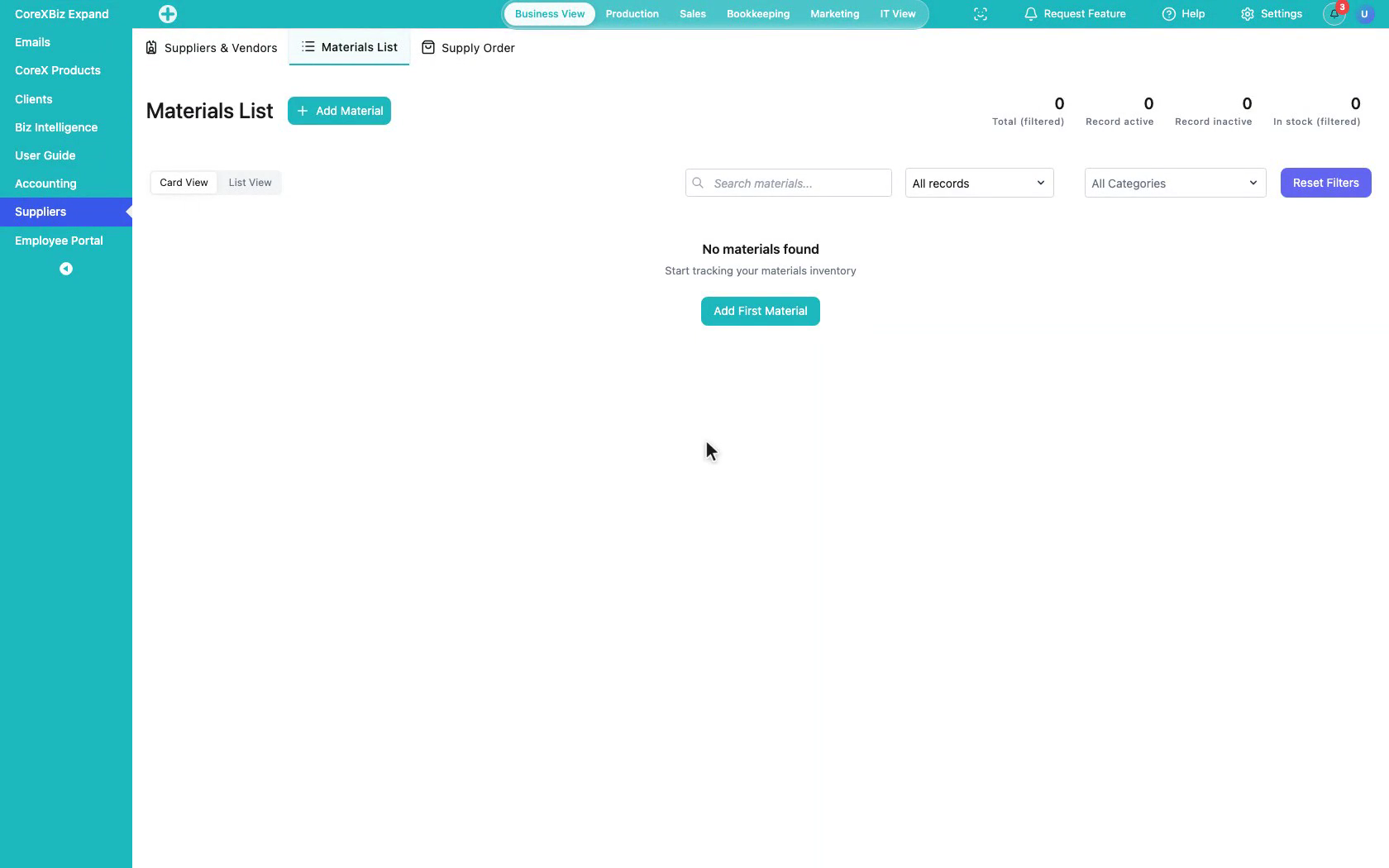
1. Open Materials List
In the Suppliers module, open the Materials List tab.
 Click to enlarge
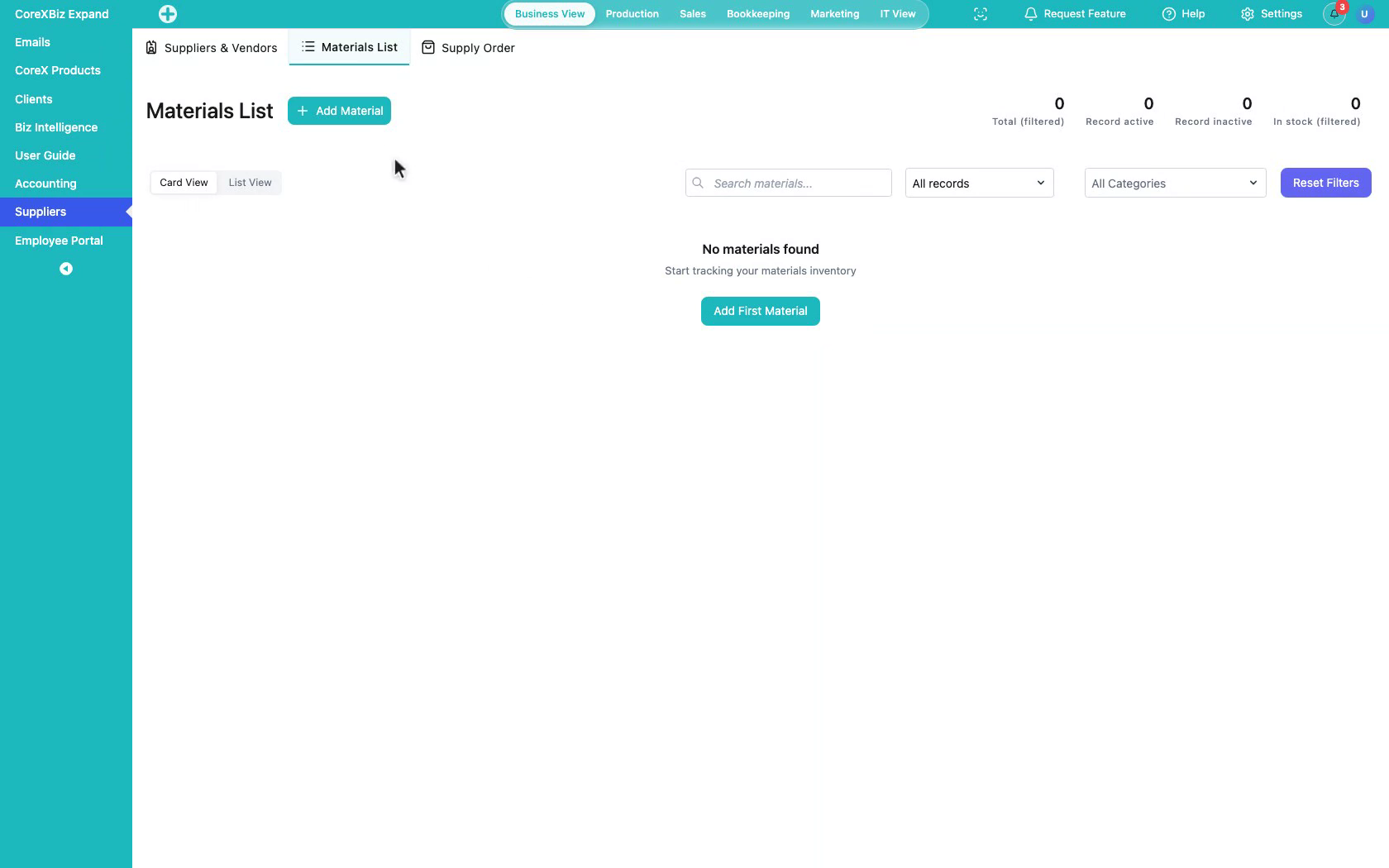
2. Start from an empty list
When the list is empty, CoreXBiz shows a clear starting point to add your first material.
 Click to enlarge
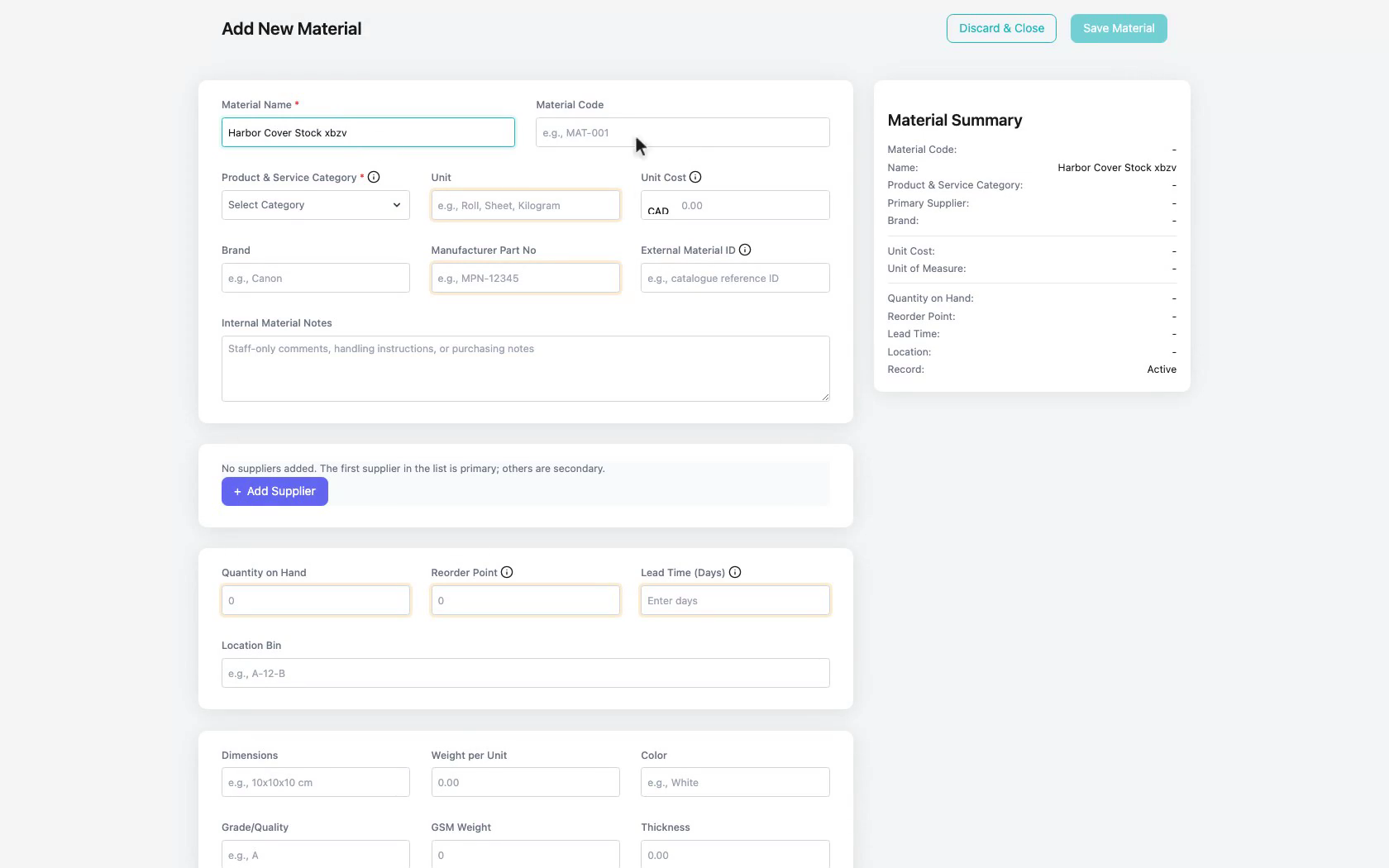
3. Open the material form
Click Add Material.
 Click to enlarge
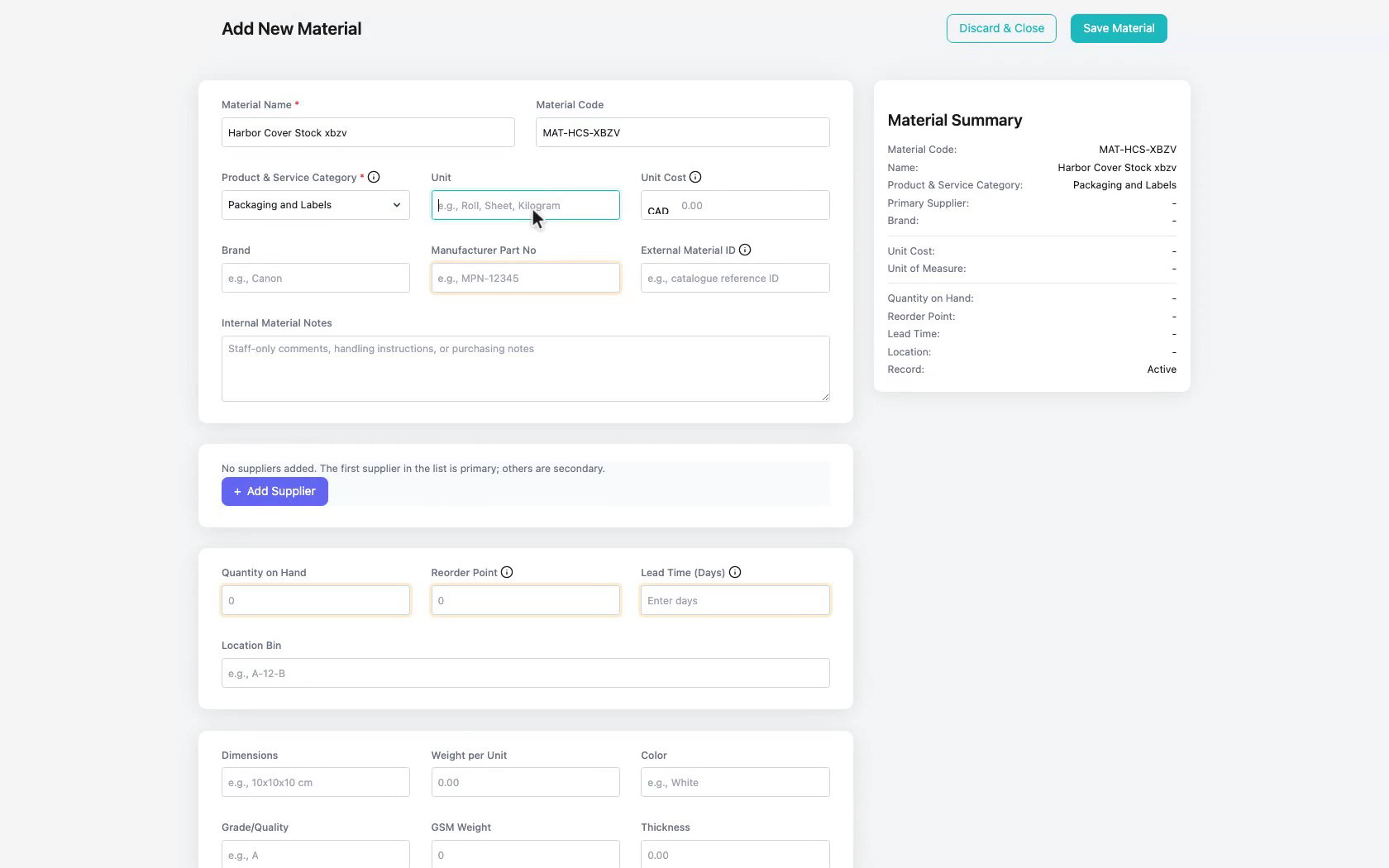
4. Enter basics
Enter the material name and code, then choose a product and service category.
 Click to enlarge
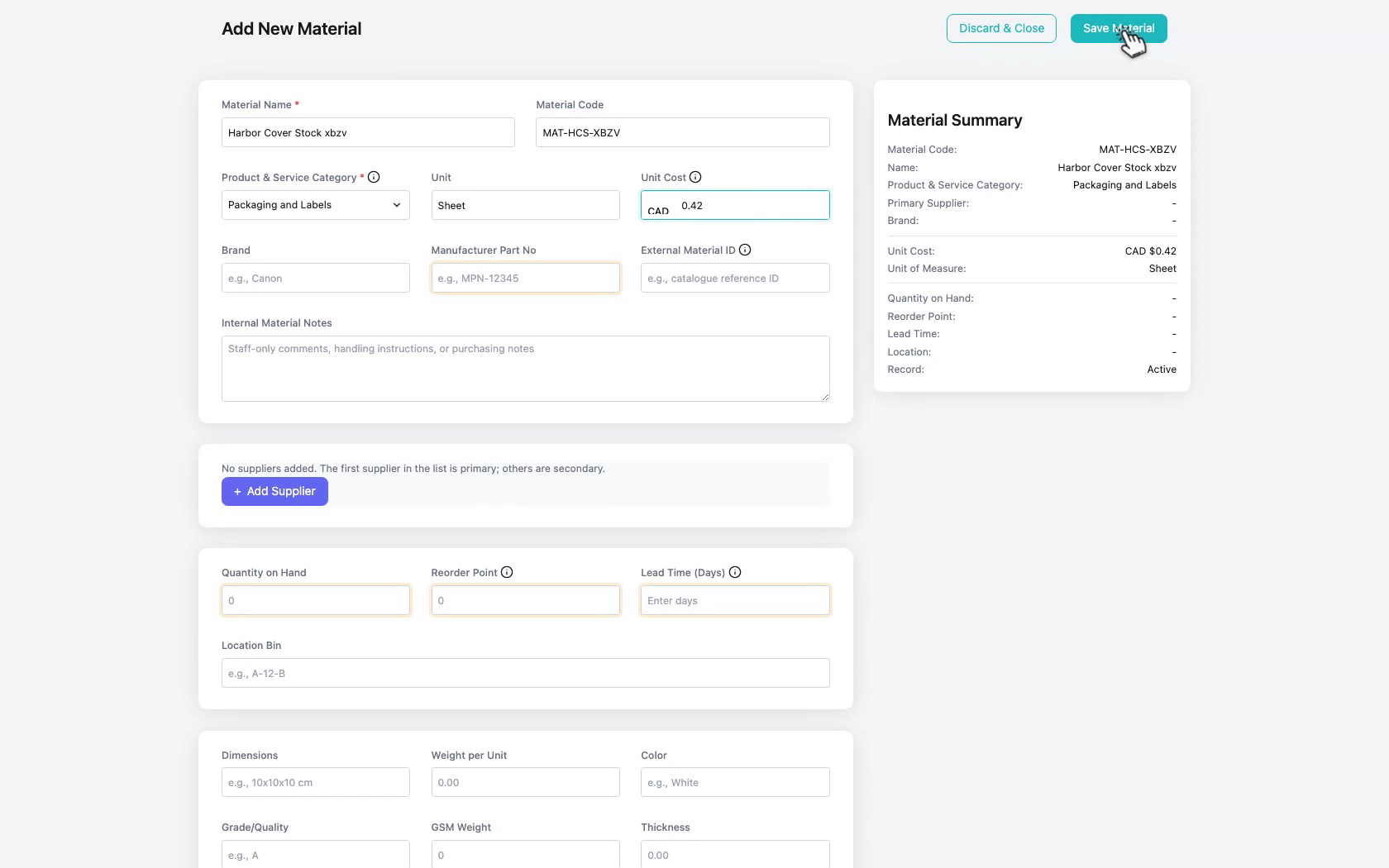
5. Set unit and cost
Set the unit of measure and unit cost — these values feed purchase orders and inventory tracking.
 Click to enlarge
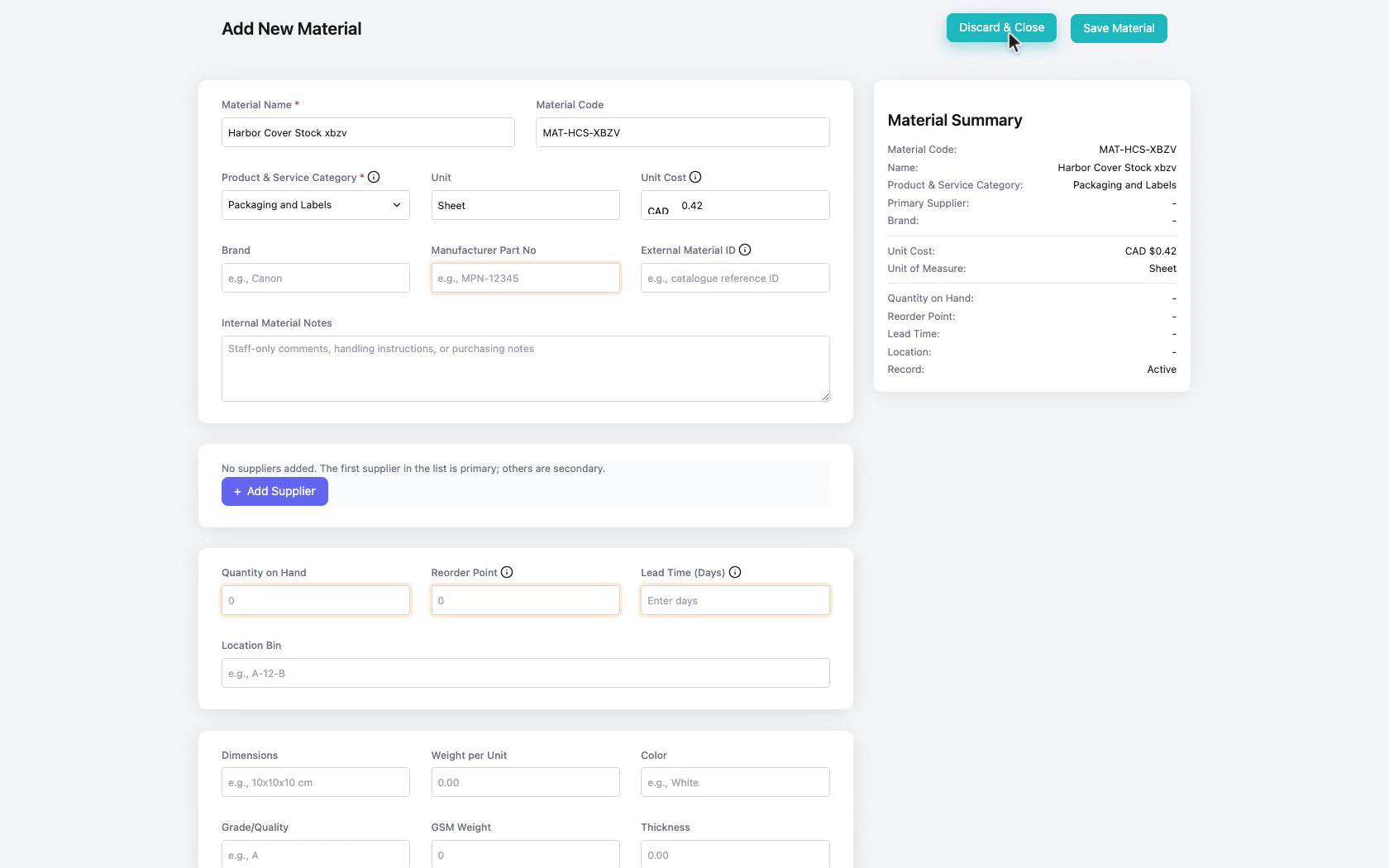
6. Save the material
Save the material so it appears in your Materials List.
 Click to enlarge
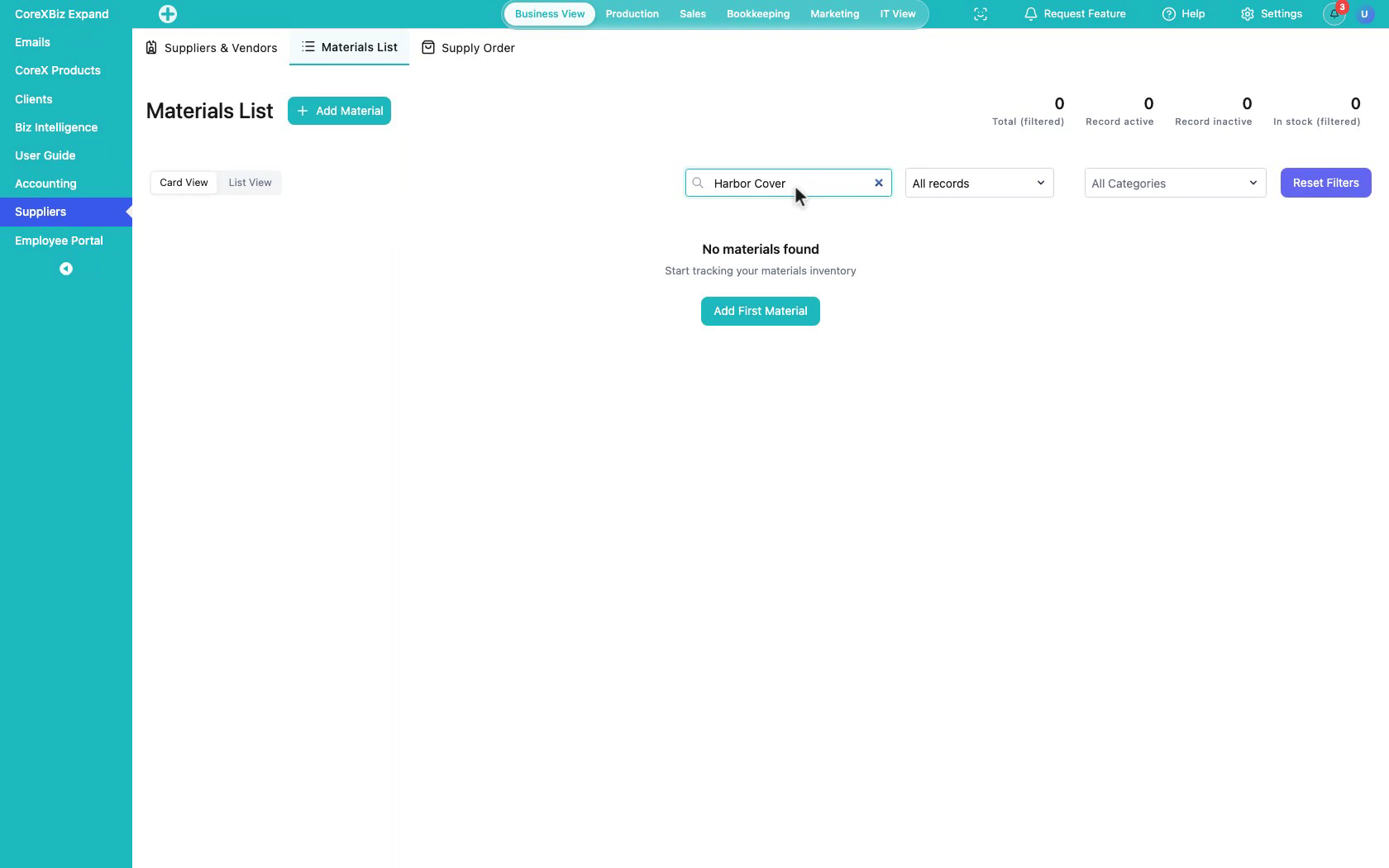
7. Confirm in the list
Confirm the new material is in the directory, ready to use on supply orders.
 Click to enlarge
Notes
- Material name and category are required before save.
- After materials exist, use them in How to create a purchase order.