How to add an invoice
This guide walks through creating an invoice in Sales POS (Sales dashboard → New Order).
It assumes CoreXBiz is installed and you can open the Sales POS / sales dashboard.
Related overview: Sales POS · Sales List
Video walkthrough
Before you begin
- Confirm you can open Sales POS (
corexbiz-sales-dashboard/ Sales dashboard). - Have an existing client and at least one WooCommerce product ready for line items.
- For a lean demo: skip Estimates, nested Add New Client, and a full live card charge.
Typical workflow
Click any screenshot to view it full size.
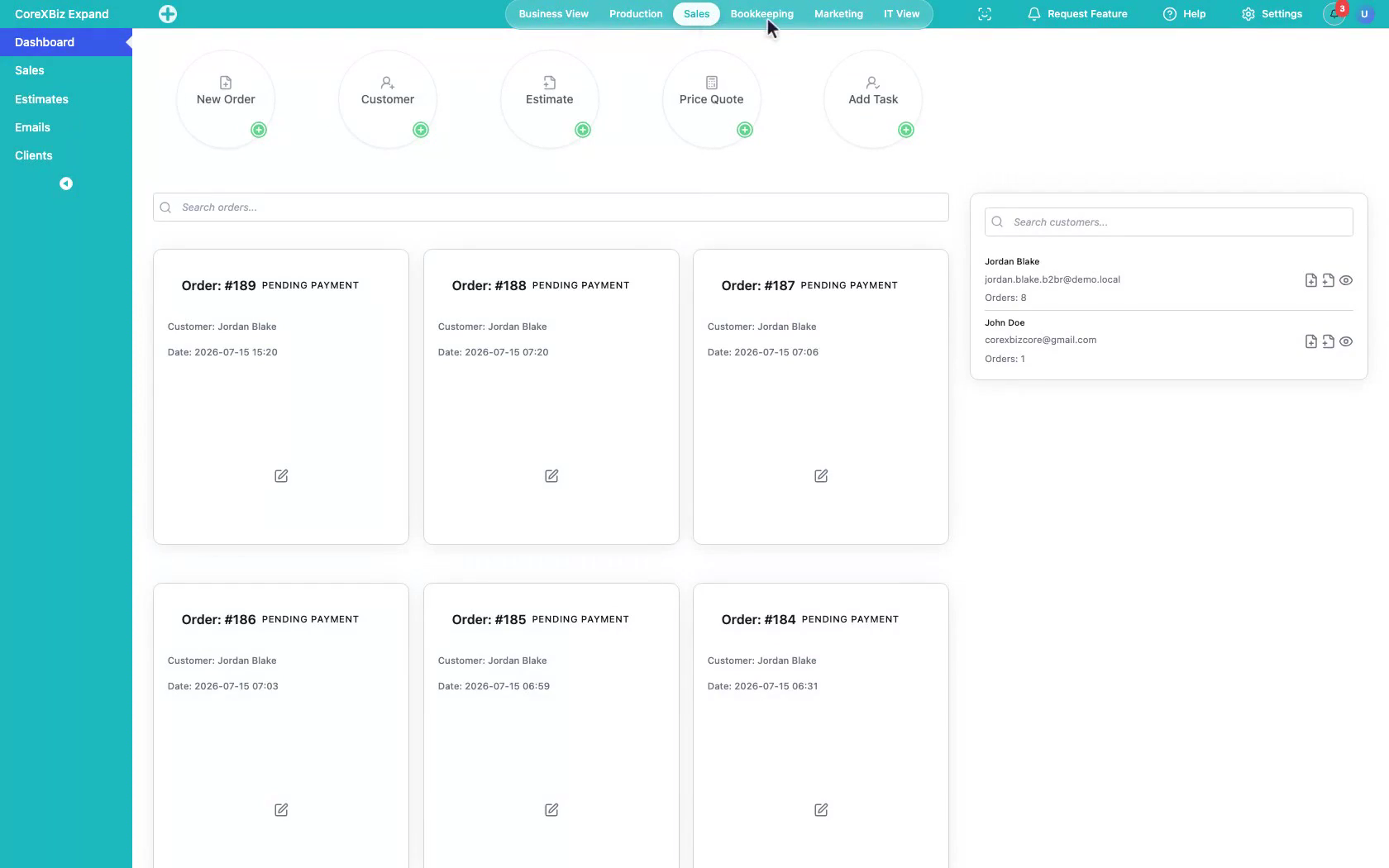
1. Open Sales POS
Open the Sales dashboard / Sales POS from WordPress admin.
 Click to enlarge
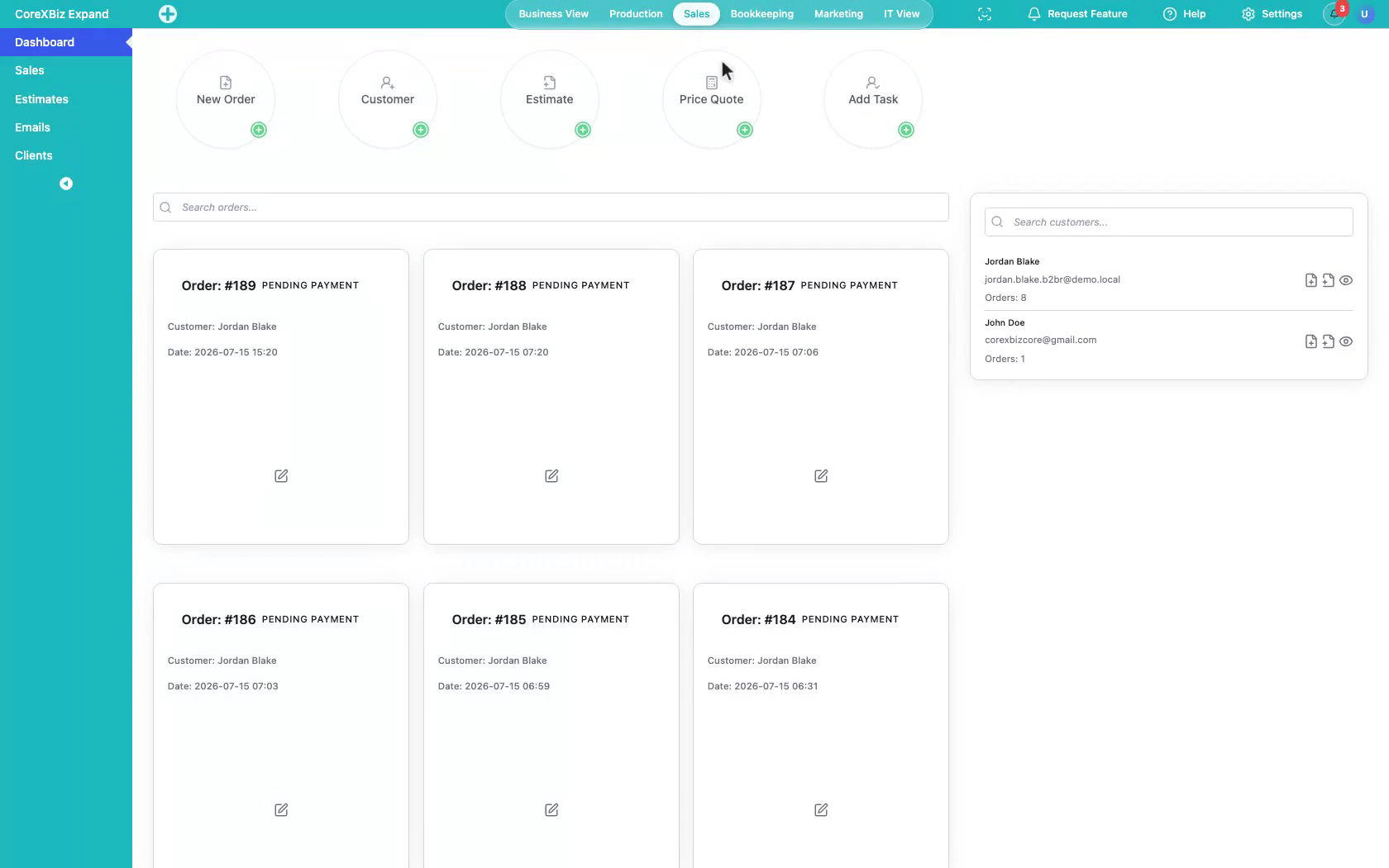
2. Review the POS workspace
Show order and customer search context on the Sales POS screen.
 Click to enlarge
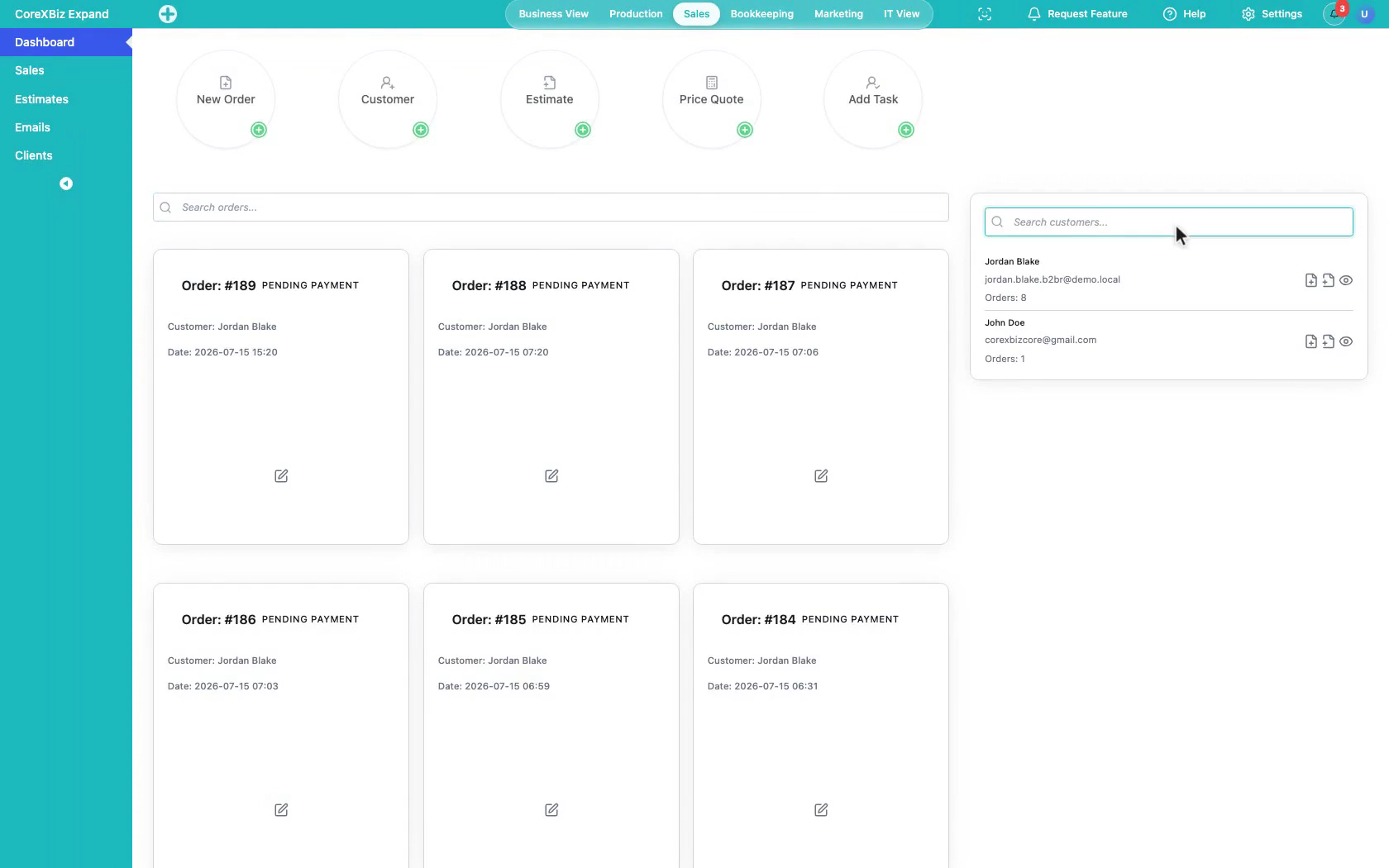
3. Start New Order
Click New Order to begin Add Invoice.
 Click to enlarge
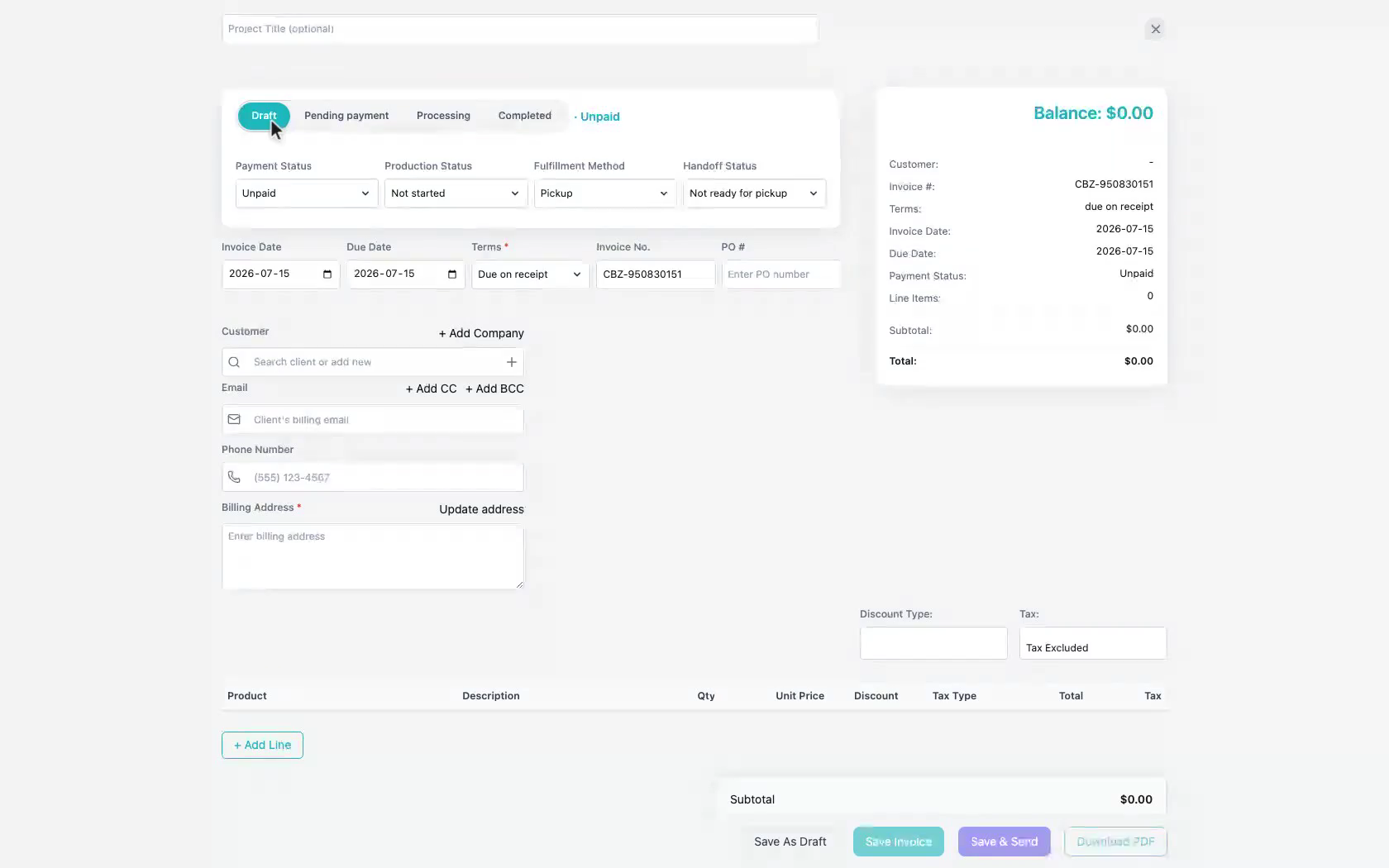
4. Review status fields
Describe invoice status, payment status, production status, fulfillment method, and handoff status, plus dates and PO when needed.
 Click to enlarge
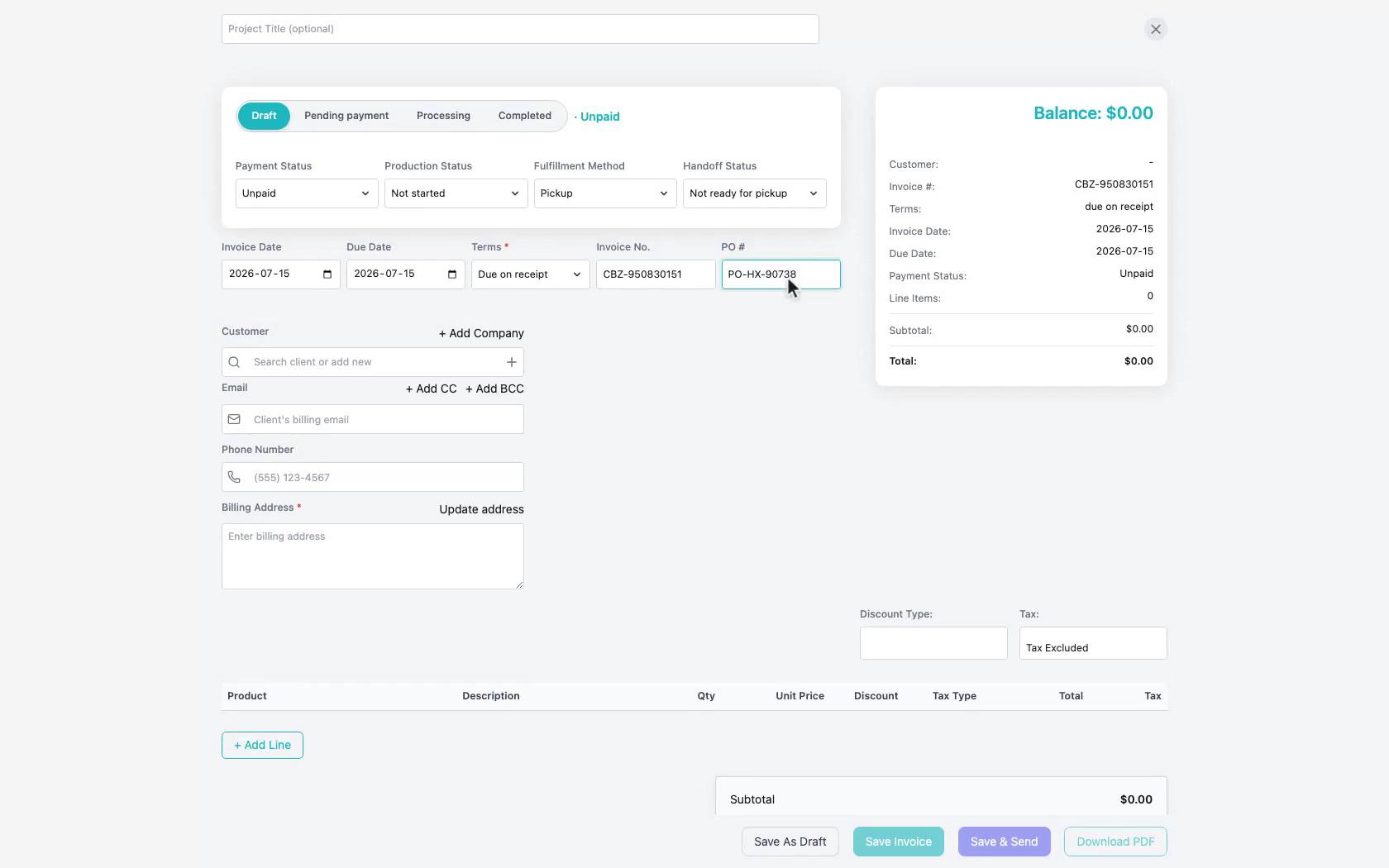
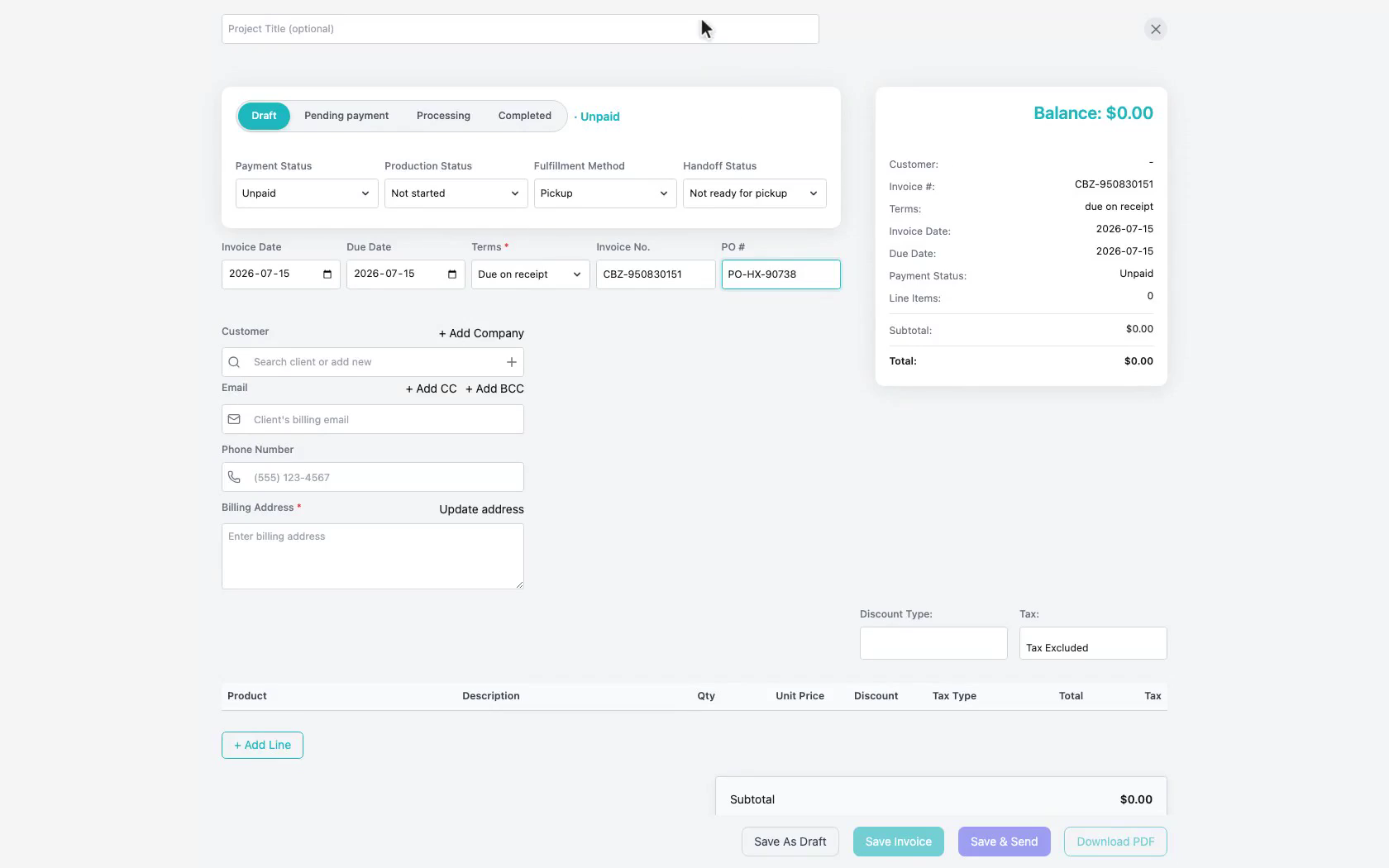
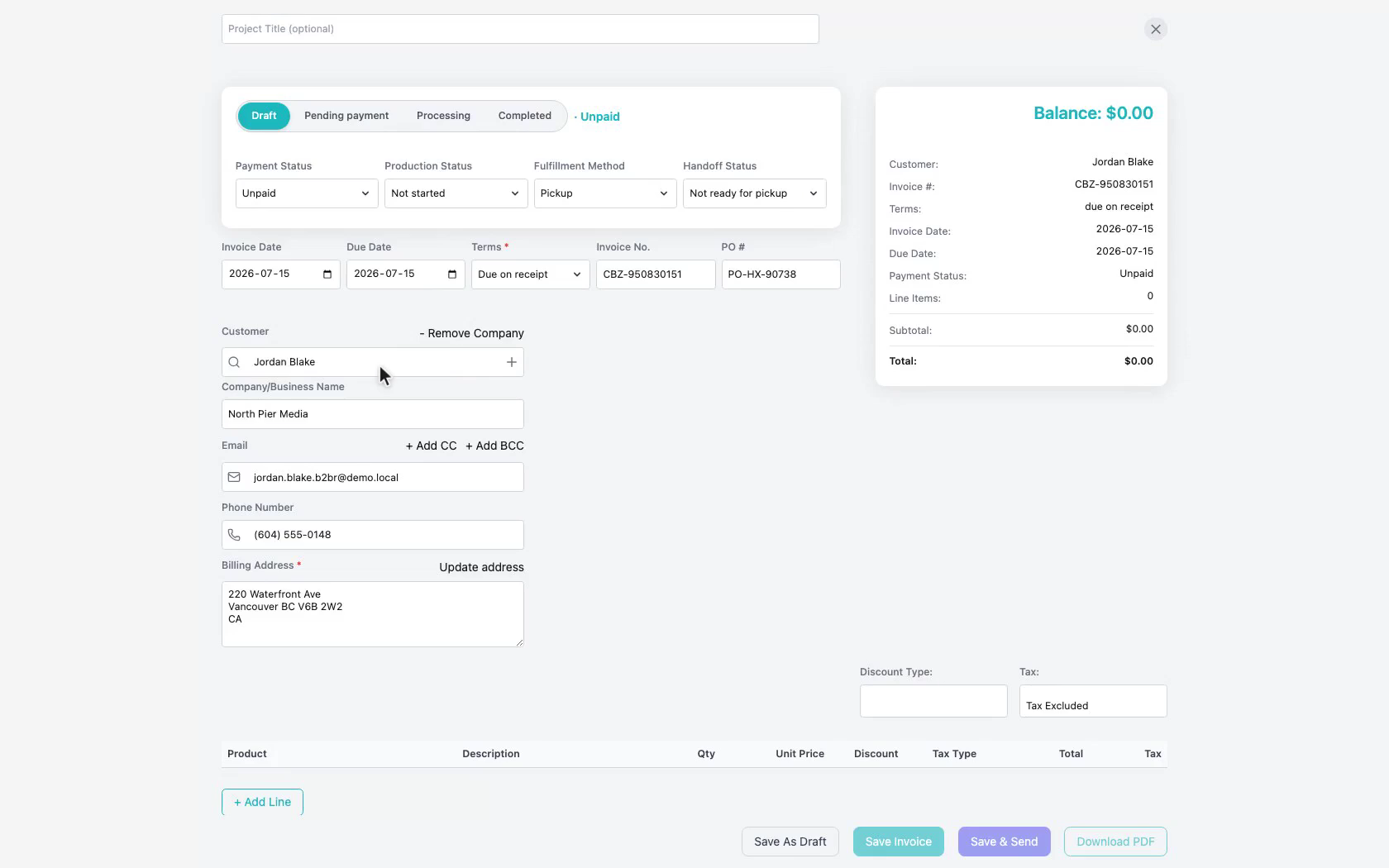
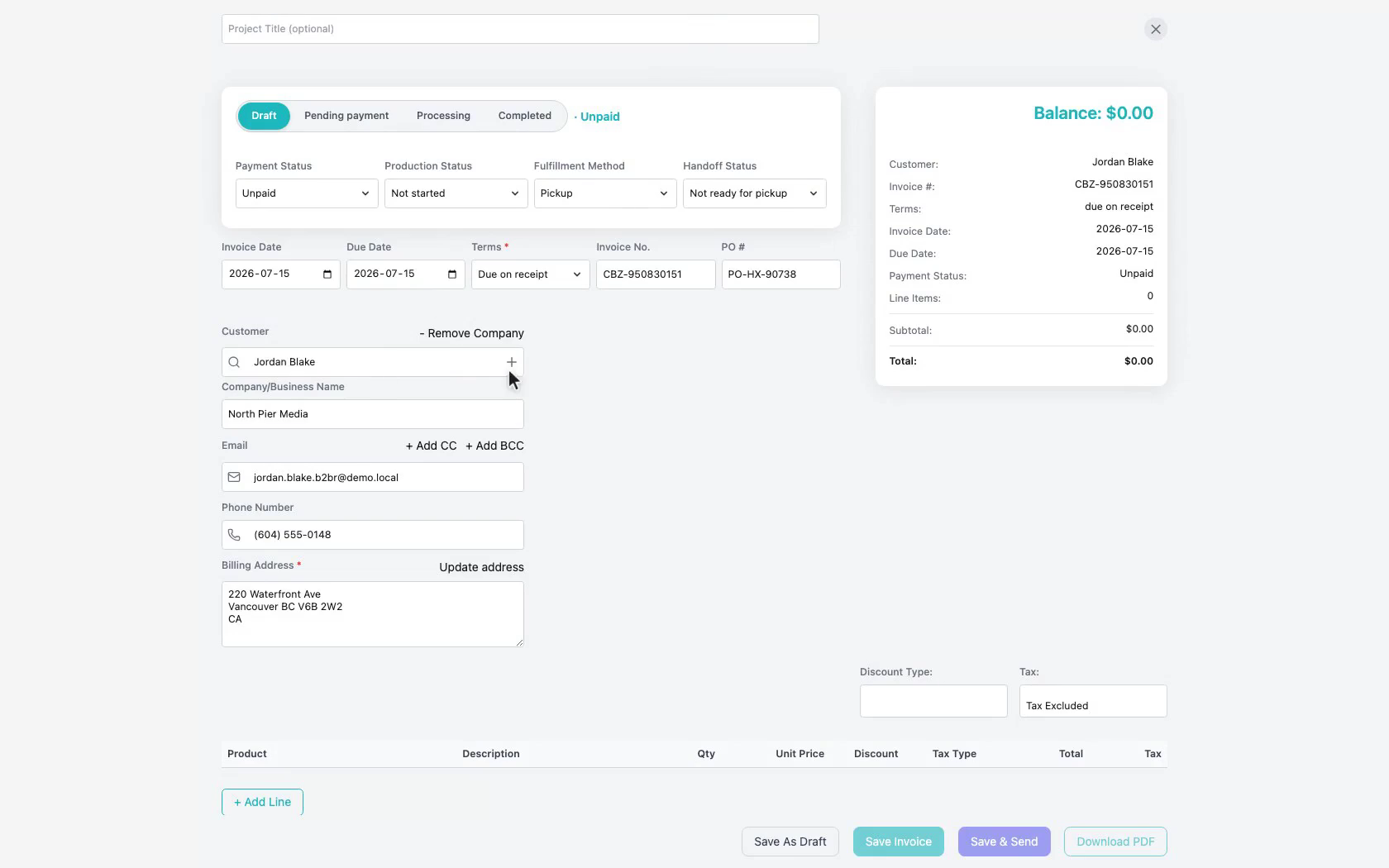
5. Select a client
Search and select an existing client on the invoice form.
 Click to enlarge
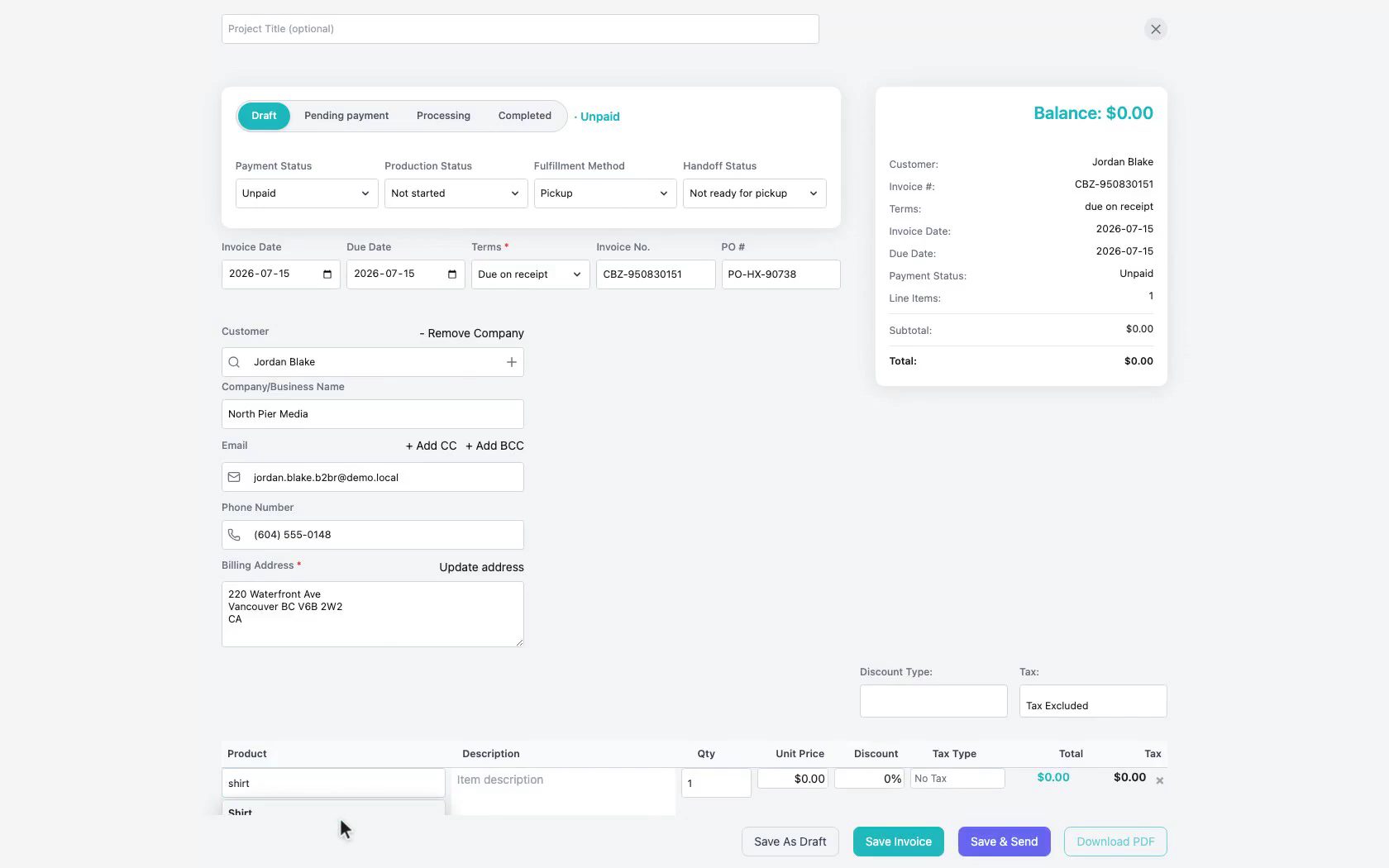
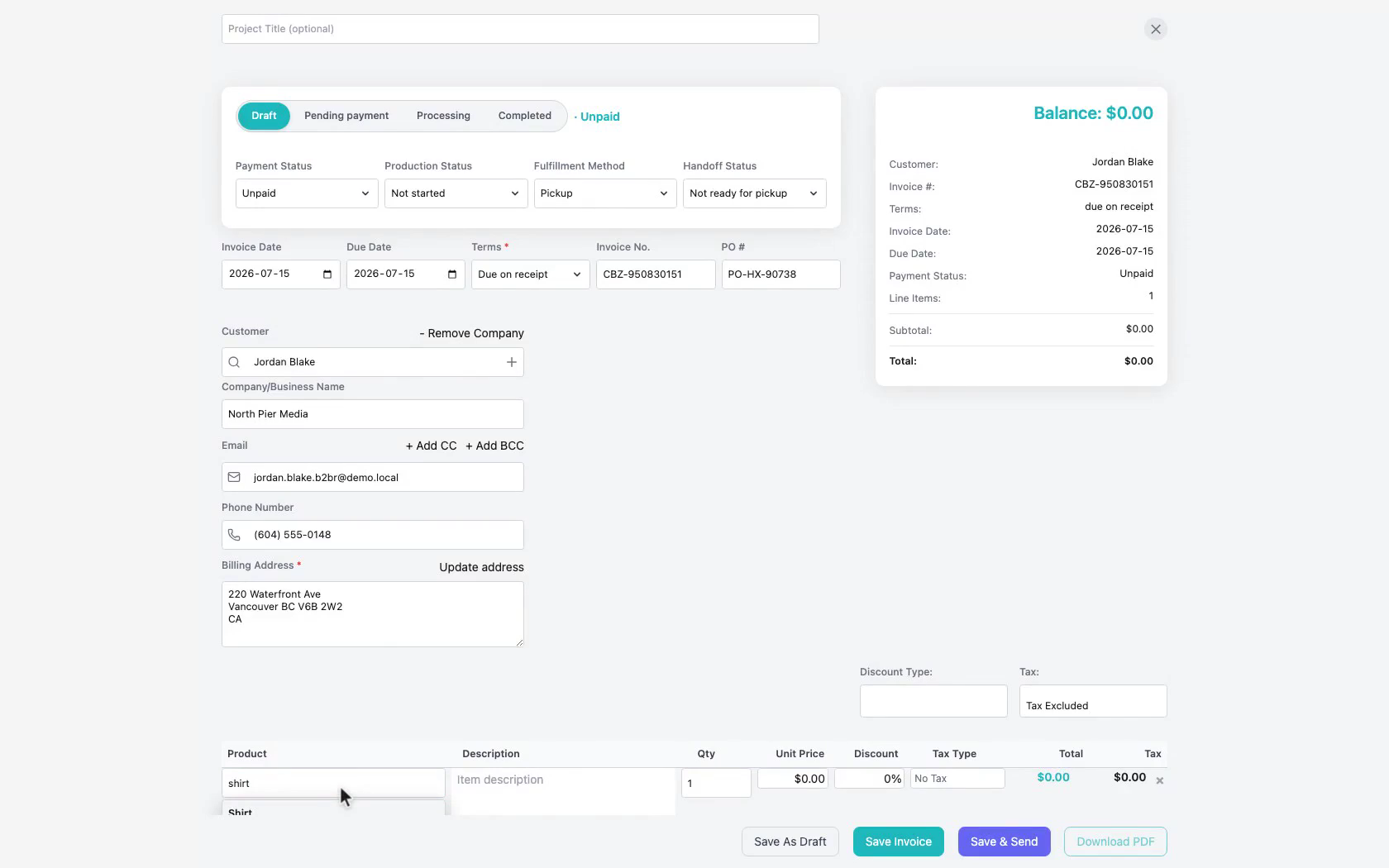
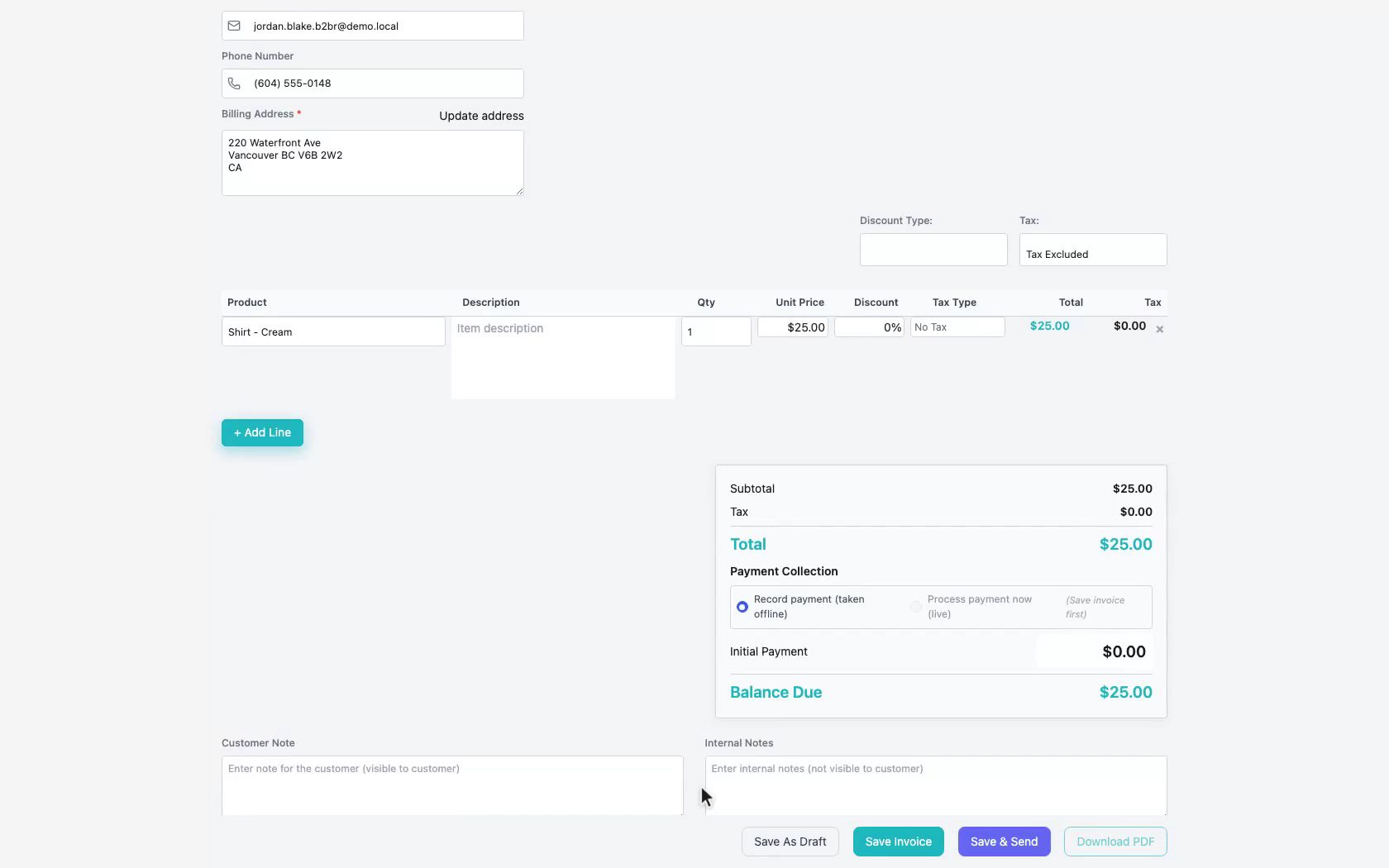
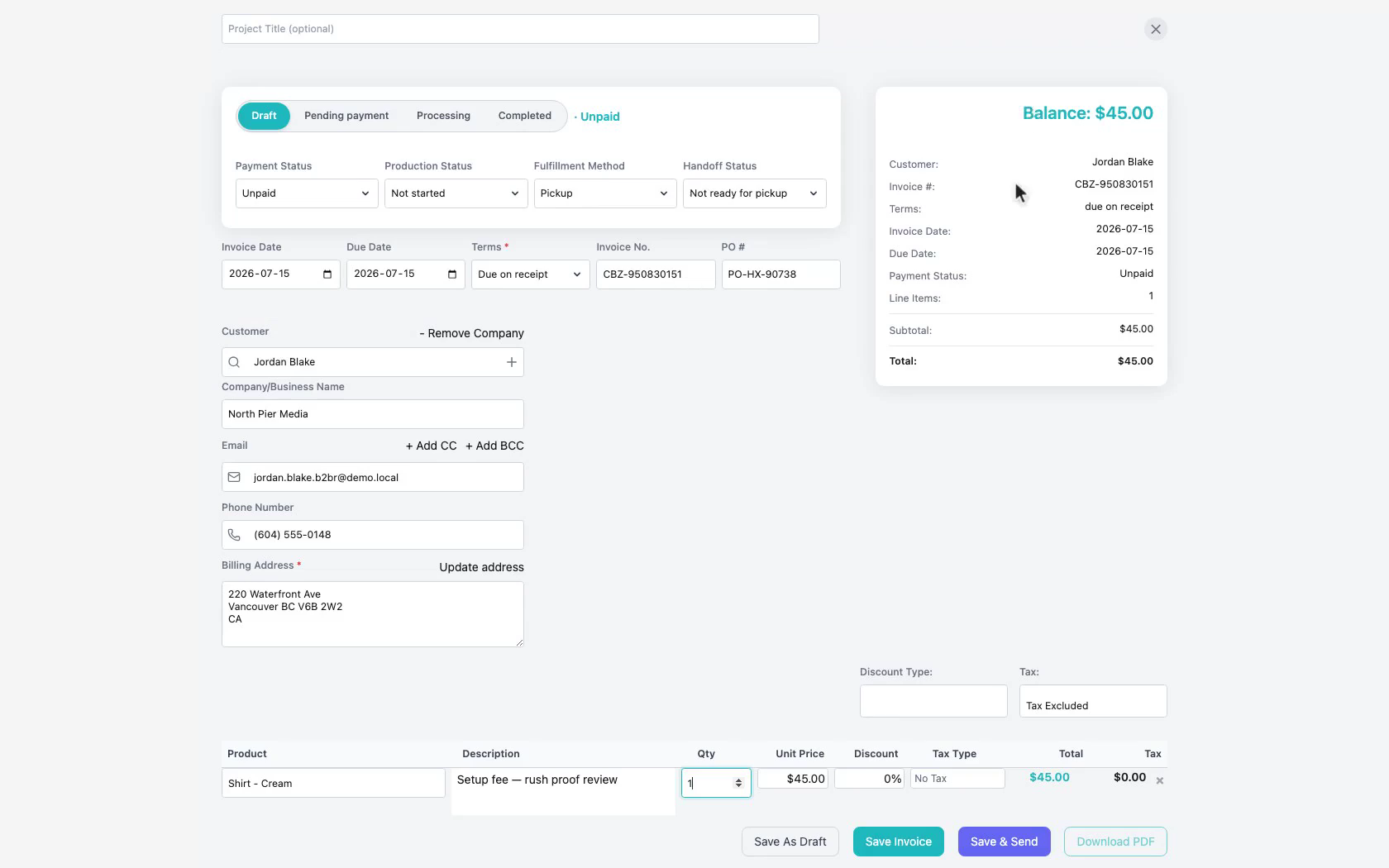
6. Add product line items
Add products from the product dropdown (not description-only), and add a second line when needed.
 Click to enlarge
7. Review the summary
Check the receipt-style summary card before saving.
 Click to enlarge
8. Save Invoice
Click Save Invoice to store the order.
 Click to enlarge
9. Explain payment options
Cover in-store cash/card versus sending the invoice for online payment (without requiring a live charge).
 Click to enlarge
10. Export PDF
Explain PDF export — processing stays on your own server.
 Click to enlarge
11. Save and send
Use Save & Send for the email flow.
 Click to enlarge
12. Close the invoice
Close after sending and return to the list.
 Click to enlarge
Notes
- Prefer product dropdown selection for line items so pricing and catalog data stay connected.
- Lean demos can skip Estimates, nested Add New Client, and completing a live card charge.
- After the invoice exists, review it in Sales List when you need accounting context.